Meta Business Suite: How to Schedule Posts Step by Step
How to schedule posts in Meta Business Suite for Facebook and Instagram, on desktop and mobile: time limits, the Planner, edits, and why a post fails.
 By Kreatoai
Yes, Meta Business Suite schedules your Facebook and Instagram posts for free, on a computer and in its mobile app. You create the post, choose the Page, the Instagram account or both, set a date and time, and it publishes on its own. For a Facebook Page, Meta allows scheduling from 20 minutes to 29 days ahead. This guide walks through each step with Meta's help pages, read on October 30, 2026, then covers what the tool does not do.
In this guide:
- what Meta Business Suite can schedule, and the access you need;
- how to schedule a post on desktop, then in the mobile app;
- how far ahead you can schedule, and where to find scheduled posts;
- how to edit, reschedule or delete a scheduled post;
- stories, in short;
- what the tool does and does not do, in one table;
- what to do when a scheduled post does not publish.
What can you schedule in Meta Business Suite?
Meta Business Suite is Meta's dashboard for managing a Facebook Page and an Instagram account in one place. According to Meta's overview, it is free to use on desktop and in the Meta Business Suite mobile app. You can schedule, publish and manage posts, stories and reels, then see scheduled content in a calendar view.
The help page on creating posts names destinations such as your Facebook Page, Instagram profile, or Facebook Group. A personal Facebook profile is not one of them. If you post for a business from your profile, our guide on how to schedule Facebook posts explains why a Page is the way in. Meta Business Suite can also cross-post to Threads, from desktop only, once your Threads profile is added to your business portfolio.
Three conditions apply before you schedule:
- A business portfolio. Meta describes it as a container that holds your organization's business assets, such as a Facebook Page, Instagram account and ad account, along with the people who have access to them.
- The right access. You need full control of the Page or Instagram account, or Content permission. Without one of them, you cannot create the post.
- For Instagram, a professional account connected to the Page, in the same business portfolio. Our guide on scheduling Instagram posts from a PC covers that setup.
How to schedule a post in Meta Business Suite on desktop
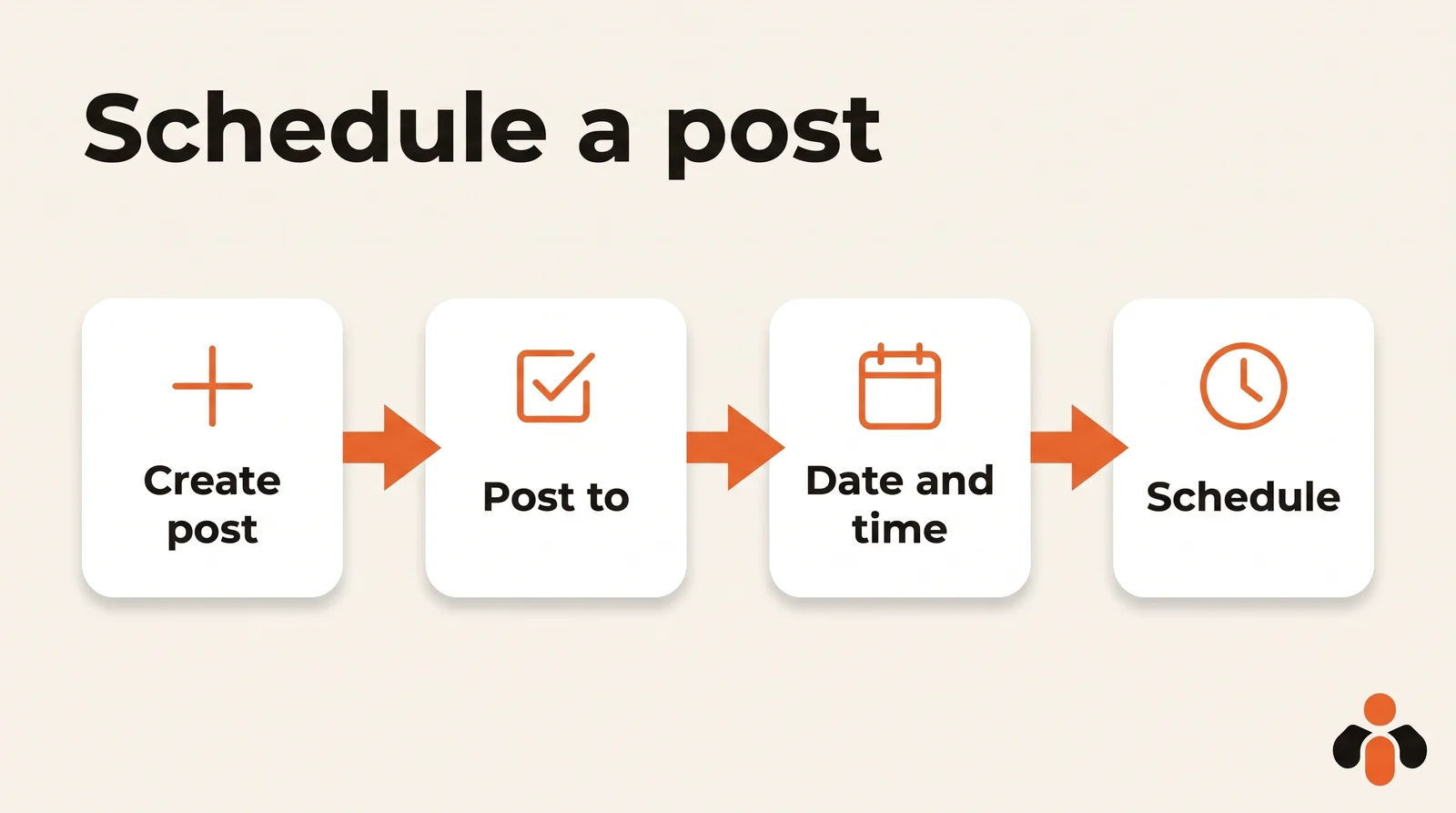
Scheduling a post takes eight steps. Here they are as Meta describes them, read on October 30, 2026. They are the same on Windows and Mac, since everything happens in the browser.
- Go to Meta Business Suite, at business.facebook.com.
- Click Create post, from the home page or the Content tab.
- Under Post to, select the destination: the Facebook Page, the Instagram account, both, or a Facebook group.
- Under Media, add your photos or video. For Instagram, the limit is 10 photos.
- Under Post details, write your text. You can customize it for Facebook and for Instagram, and add hashtags, a location or a feeling.
- Under Privacy settings, choose Public or Restricted for Facebook.
- Under Scheduling options, turn on Set date and time, then pick the date and time.
- Click Schedule. Finish later keeps the post as a draft.
The Active times button suggests slots based on when followers were most active on Facebook and Instagram over the past 7 days. Seven days is short: compare with several weeks of insights, as our article on the best time to post on Instagram explains.
Example: to announce a new cohort of an online course, one post can carry a link in the Facebook text and hashtags in the Instagram caption, and go out at 8 am on one and noon on the other.
How to schedule posts in the Meta Business Suite mobile app
On a phone, the Facebook app is not enough: you need the Meta Business Suite app, on iPhone or Android. Meta's steps:
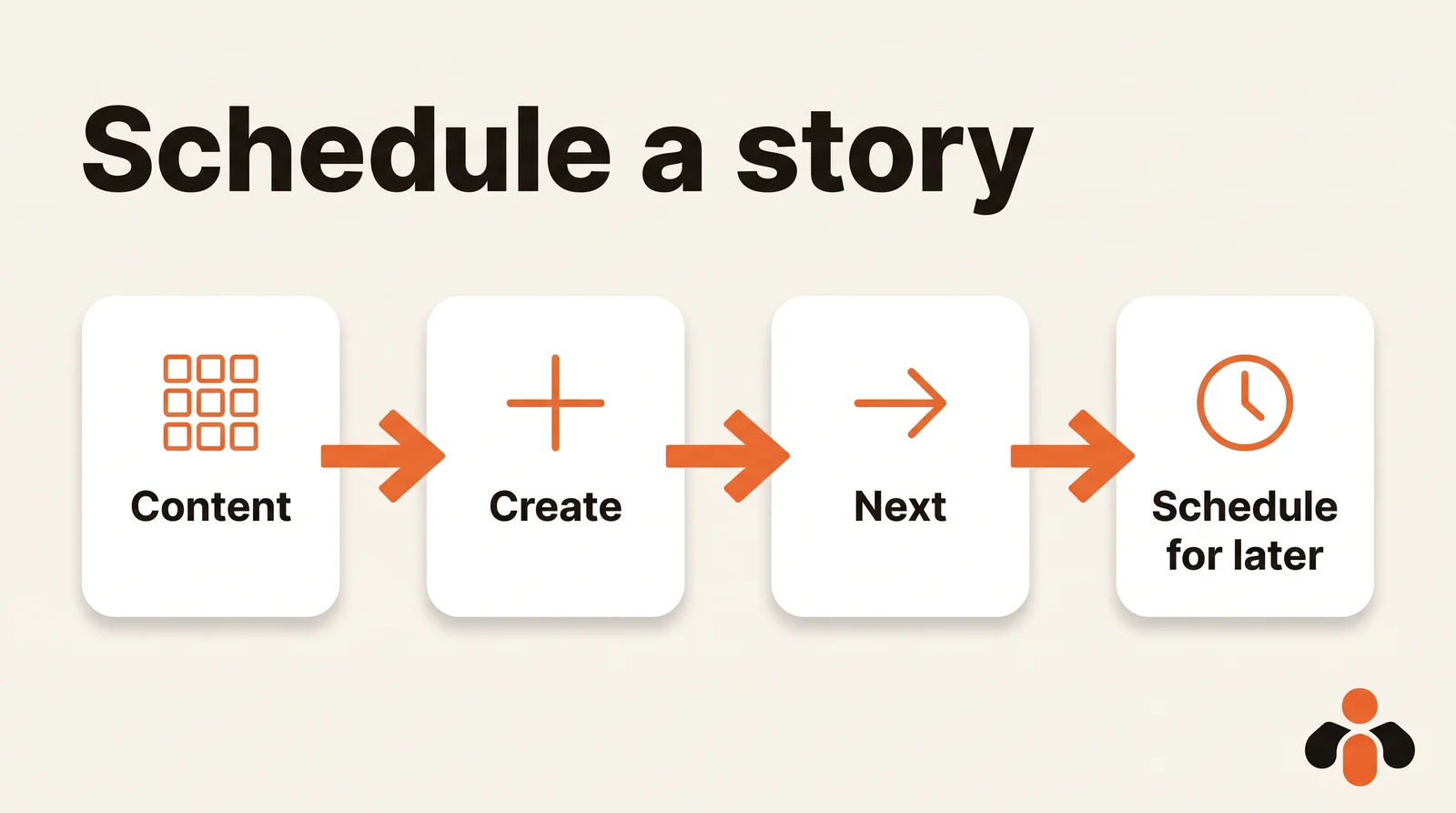
- Tap Content in the bottom menu bar.
- At the top, select the type: Posts, Reels or Stories.
- Tap Create. The first time, the app asks to access your photos and videos; tap Continue.
- Add your text and media, then tap Next.
- Tap Schedule for later, choose the date and time, then tap Schedule.
For Facebook posts, the app also offers Save as draft. Mind the labels: Meta warns that the mobile experience it describes may not be available to you yet, so menu names can differ. You need at least partial access and to be assigned the Facebook and Instagram accounts.
How far in advance can you schedule?
The figures come from different pages, and Meta does not give one for everything:
- Facebook Page: between 20 minutes and 29 days away, and all times follow your current time zone. For an audience elsewhere, do the math.
- Instagram in Meta Business Suite: the desktop help page gives no window. The date picker will show you how far you can go.
- Instagram in its own app, the other free way to schedule Instagram posts with Meta: up to 25 posts a day, up to 30 days in advance, with a public account.
Some sites mention several months; no Meta page read on October 30, 2026 says so. To plan a whole month, keep your topics in a social media content calendar, then schedule in four-week batches.
The Meta Business Suite Planner: see what is scheduled
Before it goes live, a scheduled post only appears in Meta Business Suite, in two places.
The Content tab. Under Posts & reels, content is sorted by status: Published, Scheduled, Drafts, Expiring and Expired. Stories have their own tab.
The Planner. Meta's help page describes it as a calendar view of your Page's and Instagram profile's posts, stories, reels and ads. You choose Week or Month, filter with Content type (Post, Story, Reel, Ad) or Shared to (Facebook Page, Facebook Groups, Instagram account), and schedule by hovering over an upcoming day and clicking Schedule.
If Planner is missing from your menu, you may not have the relevant permissions on content. And the Moments feature, which shows important dates coming up, is only available for businesses based in the U.S. at this time.
That is also the first fix when scheduled posts are not showing: check that the right business portfolio and the right Page or Instagram account are selected in the dropdown at the top left.
How to edit, reschedule or delete a scheduled post
On desktop, according to Meta:
- Click Content, then Posts & reels or Stories.
- Click Scheduled.
- Select the post, click the ... icon, then Manage post.
- Choose the action, such as Reschedule post, enter the new date and time, then confirm.
Depending on the status, you will see Edit post, Reschedule post, Move to drafts or Delete post. For a Page, Meta adds Duplicate post and says you can edit the text, media, link or location. You can also reschedule from the Planner.
A good habit: when news makes a scheduled post feel off, choose Move to drafts rather than Delete. The time is canceled, the text and image stay.
How to schedule a story in Meta Business Suite
Meta Business Suite schedules stories for Facebook and Instagram. Meta's steps: Create story, the destination under Post to, up to 10 photos or videos under Media, then Schedule under Scheduling options. The Edit button crops, trims and adds text, mentions or stickers, and Add link adds a URL viewers open by swiping up.
Meta's page on scheduling in the Instagram app covers reels, photos and carousel posts, not stories, which makes Business Suite the free route for Instagram stories. What can and cannot be scheduled in a story is detailed in our guide on how to schedule Instagram stories.
What Meta Business Suite does and does not do
| What it does | What it does not do | |
|---|---|---|
| Destinations | Facebook Page, Instagram account, Facebook group; Threads cross-posting on desktop | personal Facebook profile; TikTok, LinkedIn, YouTube |
| Formats | posts, stories, reels | more than 10 photos in an Instagram post |
| Lead time | 20 minutes to 29 days for a Page | no written window for Instagram in its help |
| Tracking | Content tab, Planner by week or month | one view across your other networks |
| Timing | Active times from the past 7 days | Moments outside the U.S. |
| Price | free, desktop and app |
Sources: create and manage posts, schedule on a Page, the Planner and how Meta Business Suite works, read on October 30, 2026.
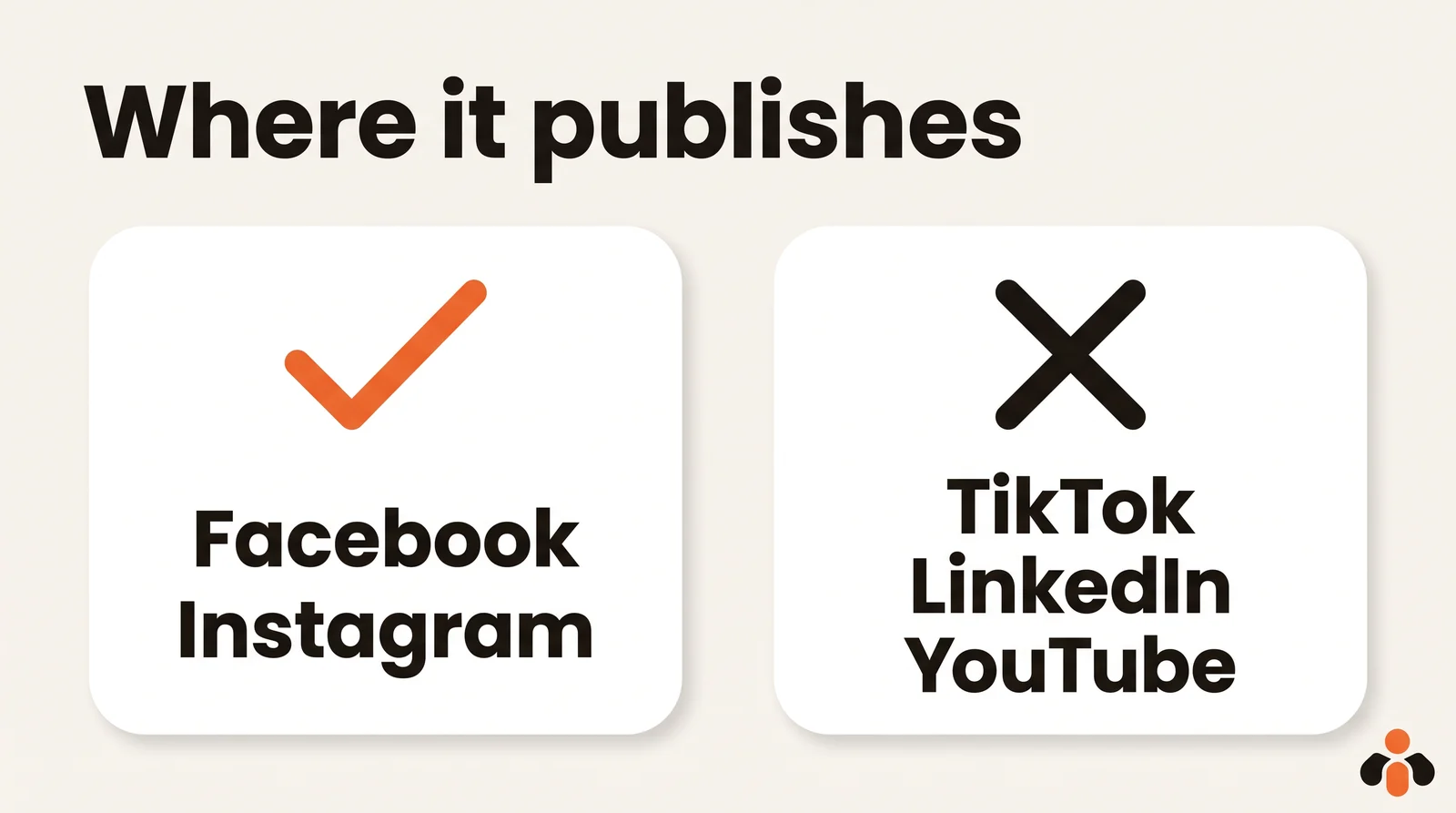
For TikTok, LinkedIn and YouTube, each network has its own free scheduler: see our guides on how to schedule TikTok posts, how to schedule LinkedIn posts, and the full tour of free native scheduling tools.
When a scheduled post does not publish
Meta has a whole page on posts that show an error, do not publish to both the Page and the Instagram account, or miss their scheduled time. It lists these causes:
- missing access to publish on the Page or the account;
- unresolved issues with your Instagram account: open the Instagram app, read any pop-up notification and follow its steps, then try again in Meta Business Suite;
- a hacked Instagram account;
- a system error that prevents the post from going out at the scheduled time.
In that last case, you can publish manually: Content, Scheduled, click the post that failed, then Publish now. For a launch that matters, check that tab shortly after the scheduled time.
When Meta's tool is enough, and when it is not
Meta Business Suite is enough if you post to a Page and an Instagram account: it is free, complete for those two, and the caption adapts to each. It hits its limit as soon as an announcement must also go to TikTok, LinkedIn or YouTube, for example a product launch for an online brand: one tool per network, each post rebuilt, several calendars to watch. What each network opens to outside tools is covered in the real limits of auto-posting to multiple networks, and the Instagram routes in how to schedule Instagram posts.
One calendar for Meta and the other networks
Kreatoai covers that case. It publishes to Instagram, Facebook Pages, TikTok, personal LinkedIn profiles, YouTube Shorts, Bluesky and Google Business profiles, right away or at the time you choose, with a calendar. The same post goes to several networks and accounts at once, and it can be edited (text, image, time) or canceled as long as it has not gone out. It also schedules stories for Facebook Pages and Instagram, a photo or a video without text.
You can even ask ChatGPT or Claude, with no code: "schedule this photo on our Page and Instagram for Thursday at noon, and the same text on LinkedIn" is enough, and the assistant asks for your approval before scheduling. See the ChatGPT setup or the Claude setup. Instagram and TikTok always need a photo or video that you provide. You can see the overview or create an account.
Key takeaways
- Meta Business Suite is free on desktop and in its app, and schedules posts, stories and reels for a Facebook Page, an Instagram account or a Facebook group.
- You need a business portfolio, full control or Content permission, and for Instagram a professional account connected to the Page.
- Desktop: Create post, Post to, Set date and time, Schedule. Mobile: Content, Create, Next, Schedule for later.
- For a Page, the window is 20 minutes to 29 days; Meta gives no window for Instagram in Business Suite, and the Instagram app goes up to 30 days.
- Upcoming posts sit in Content, Scheduled, and in the Planner; Manage post lets you edit, reschedule, move to drafts or delete.
- A post blocked by a system error can be published by hand with Publish now.
- TikTok, LinkedIn and YouTube stay outside: one tool per network, or one scheduler connected to all of them.
Frequently asked questions
- Is Meta Business Suite free for scheduling posts?
- Yes. Meta's help center, read on October 30, 2026, says Meta Business Suite is free to use on desktop and in the Meta Business Suite mobile app. Your business needs a business portfolio, which holds the Facebook Page, the Instagram account and the people who have access to them.
- How do I schedule a post in Meta Business Suite?
- On business.facebook.com, click Create post, select the Facebook Page, the Instagram account or both under Post to, add your photos and text, then set the date and time under Scheduling options. Click Schedule to finish.
- How far in advance can you schedule in Meta Business Suite?
- For a Facebook Page, Meta's help center gives a window of 20 minutes to 29 days, in your current time zone. Meta Business Suite's help page gives no figure for Instagram; the Instagram app itself schedules up to 30 days ahead, 25 posts a day at most.
- Can you schedule stories in Meta Business Suite?
- Yes, for Facebook and Instagram. Click Create story, choose the destination, add up to 10 photos or videos, then select Schedule under Scheduling options. Meta's help page on scheduling in the Instagram app covers reels, photos and carousel posts, not stories.
- How do I schedule Instagram posts with Meta Business Suite?
- Your Instagram account must be a professional account connected to your Facebook Page and in the same business portfolio, and you need full control or Content permission. Then click Create post, select Instagram under Post to, add up to 10 photos, write the caption and schedule it.
- Where do I see and edit scheduled posts in Meta Business Suite?
- Go to Content, the Posts and reels tab, then Scheduled, or open the Planner for a weekly or monthly calendar. Click the three-dot icon, then Manage post, to Edit post, Reschedule post, Move to drafts or Delete post.
- Why did my scheduled post not publish in Meta Business Suite?
- Meta lists missing access to publish, unresolved issues with the Instagram account, a hacked Instagram account, and system errors. For a system error, open Content, then Scheduled, click the post that failed and click Publish now.
- Can Meta Business Suite schedule TikTok, LinkedIn or YouTube posts?
- No. Meta Business Suite publishes to Facebook Pages, Instagram accounts and Facebook groups, and can cross-post to Threads from desktop. TikTok, LinkedIn and YouTube each have their own scheduler, or you can use a tool connected to several networks.
Have it done for you
Kreatoai publishes and schedules your posts on all your networks, from your dashboard or by asking ChatGPT and Claude, and its agent answers your direct messages. Ten free posts every month, no credit card.
Try it free