Automate Instagram Posts with n8n: Step by Step
Automate Instagram posts with n8n: Meta access, a 60-day token, a three-node workflow, carousels, Reels and stories, and the posting limit per 24 hours.
 By Kreatoai
You can automate Instagram posts with n8n, but n8n does not talk to Instagram by itself: it sends requests to Meta's API, and Meta is the one that requires a professional account, an app and an access token. Here is the complete workflow to publish a post, node by node, with the access you need before you start. Every rule below was checked against Meta's developer documentation and docs.n8n.io on October 30, 2026.
In this guide:
- what n8n does, and what stays Meta's responsibility;
- the access to get, the n8n credential to create and the token to refresh;
- the three-node workflow, then the carousel, Reel and story variants;
- the limits to know before you let the workflow run.
What n8n does with Instagram, and what it leaves to Meta
n8n is a workflow automation tool: you chain blocks called nodes (a trigger, then actions) and the workflow runs without you. For Instagram, n8n carries your requests, but it does not replace any Meta access.
The documentation of the Facebook Graph API node describes a generic node: you choose the host URL, the method (GET, POST or DELETE), the Graph API version, then a node such as /<page-id>/feed and an edge. That page does not mention Instagram. The HTTP Request node, for its part, makes HTTP requests to any app or service with a REST API, meaning a technical door that software can open.
So when people search for an "n8n Instagram node", there are two practical routes:
- the Facebook Graph API node, for setups that use the
graph.facebook.comhost; - the HTTP Request node, which works in every case, and is the one you need with Instagram Login, as shown below.
If you were looking for a ready-made Instagram node with a "publish" button, that is not what n8n's documentation describes: you call the endpoints of Meta's API. The rest of this guide gives them.
The access you need before using the Instagram API
You need three things: a professional account, a Meta app and an access token. In that order, they are the first three steps of the project, before you even open n8n.
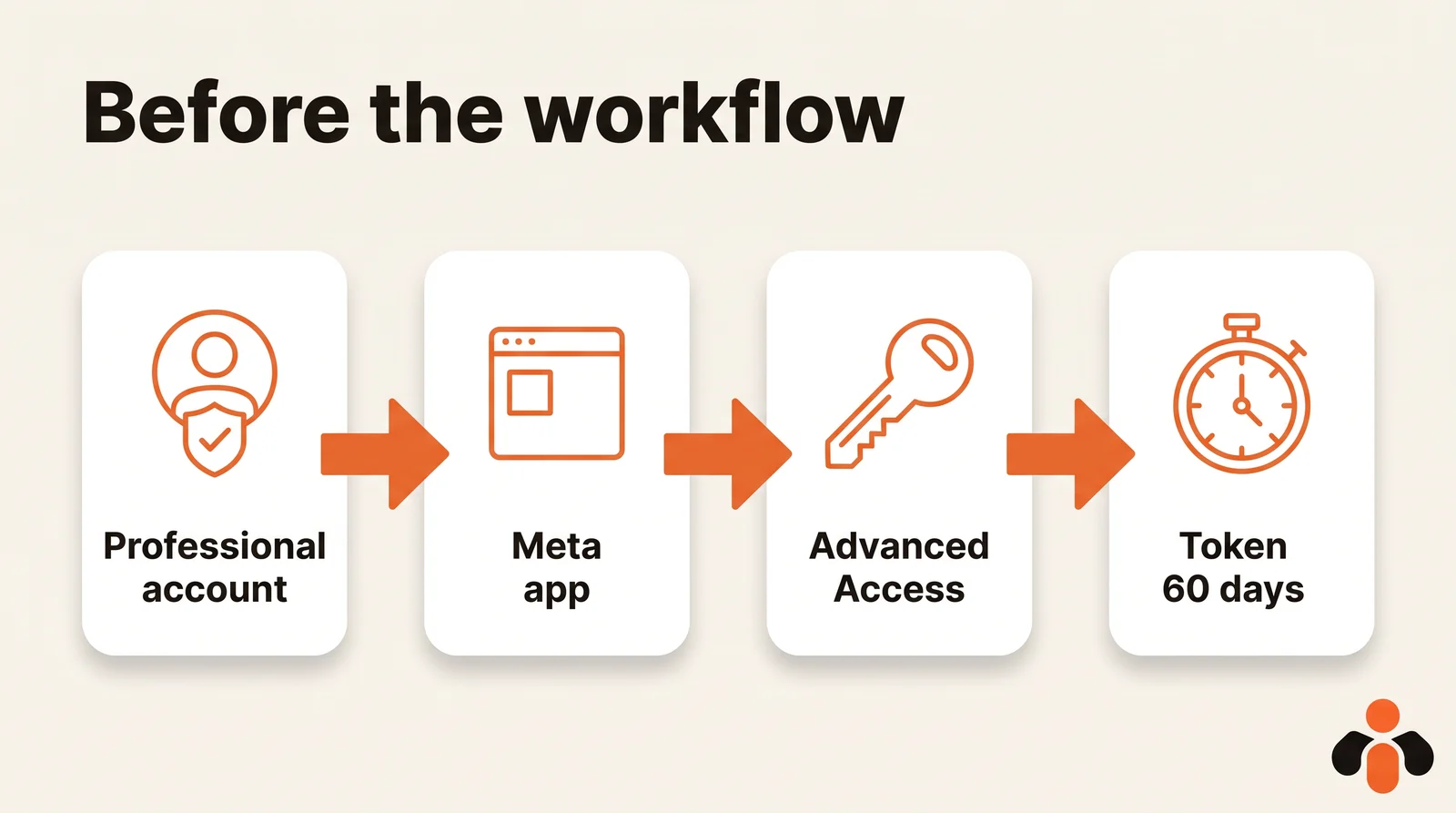
For the account, Meta's overview says your app users must have an Instagram professional account, business or creator. And Meta's content publishing page adds a trap: if the Facebook Page linked to the account requires Page Publishing Authorization (PPA), the account cannot be published to until PPA is completed.
For the app, Meta offers three setups. Unified Login is the one Meta recommends for new integrations; it needs no Facebook Page. Instagram Login serves professional accounts without a linked Page. Facebook Login serves professional accounts linked to a Facebook Page, and it is the only setup that requires one. Permissions change with the setup:
| Login setup | Token | Publishing permissions |
|---|---|---|
| Instagram Login | Instagram User access token | instagram_business_basic, instagram_business_content_publish |
| Facebook Login | Facebook Page access token | instagram_basic, instagram_content_publish, pages_read_engagement |
| Unified Login | Business Integration System User token | instagram_basic, instagram_content_publish |
Source: Meta's content publishing page, as of October 30, 2026.
Then the access level. Standard Access is the default access level for all apps, meant for people who have a role on the app. To serve accounts you don't own or manage, such as clients' accounts, you need Advanced Access, which requires Meta App Review and Business Verification. To publish to your own account, Standard Access is enough to start. For the reviews and quotas of each network, see auto posting to multiple social networks: the real limits.
Creating the Instagram credential in n8n
In n8n, a credential stores the token once and for all: it no longer appears in nodes or in the workflow export. The right credential type depends on your login setup.
For setups on graph.facebook.com, the Facebook Graph API credentials page lists two methods: OAuth2, or an app access token generated in the Graph API Explorer and pasted into the credential's Access Token field. The same page notes that while the app is in Development mode, only people with a role on the app (Administrator, Developer or Tester) can authenticate or generate tokens.
With Instagram Login, the Facebook Graph API node does not fit: its host options are only graph.facebook.com and graph-video.facebook.com, while Meta's requirements table ties Instagram Login to graph.instagram.com. Use an HTTP Request node instead. Most of Meta's examples send the token in an Authorization: Bearer <token> header, which n8n handles with a Header Auth credential, one of the generic credential types of the HTTP Request node.
- In n8n, open Credentials and create a Header Auth credential.
- Set the name to
Authorizationand the value toBearerfollowed by your token. - Select this credential in every HTTP Request node of the workflow.
The token needs maintenance. Meta says a long-lived Instagram user access token is valid for 60 days, obtained by exchanging a short-lived one. You refresh it with a GET request to https://graph.instagram.com/refresh_access_token with grant_type=ig_refresh_token, as long as the token is at least 24 hours old and not expired. And tokens that have not been refreshed in 60 days will expire and can no longer be refreshed. So plan a small second workflow, triggered once a month, that refreshes the token and updates the credential.
The n8n workflow to publish an Instagram post, node by node
The workflow fits in three nodes: a trigger, container creation, then publishing. Instagram always publishes in two steps: you first put the media in a container, then you ask for it to be published.
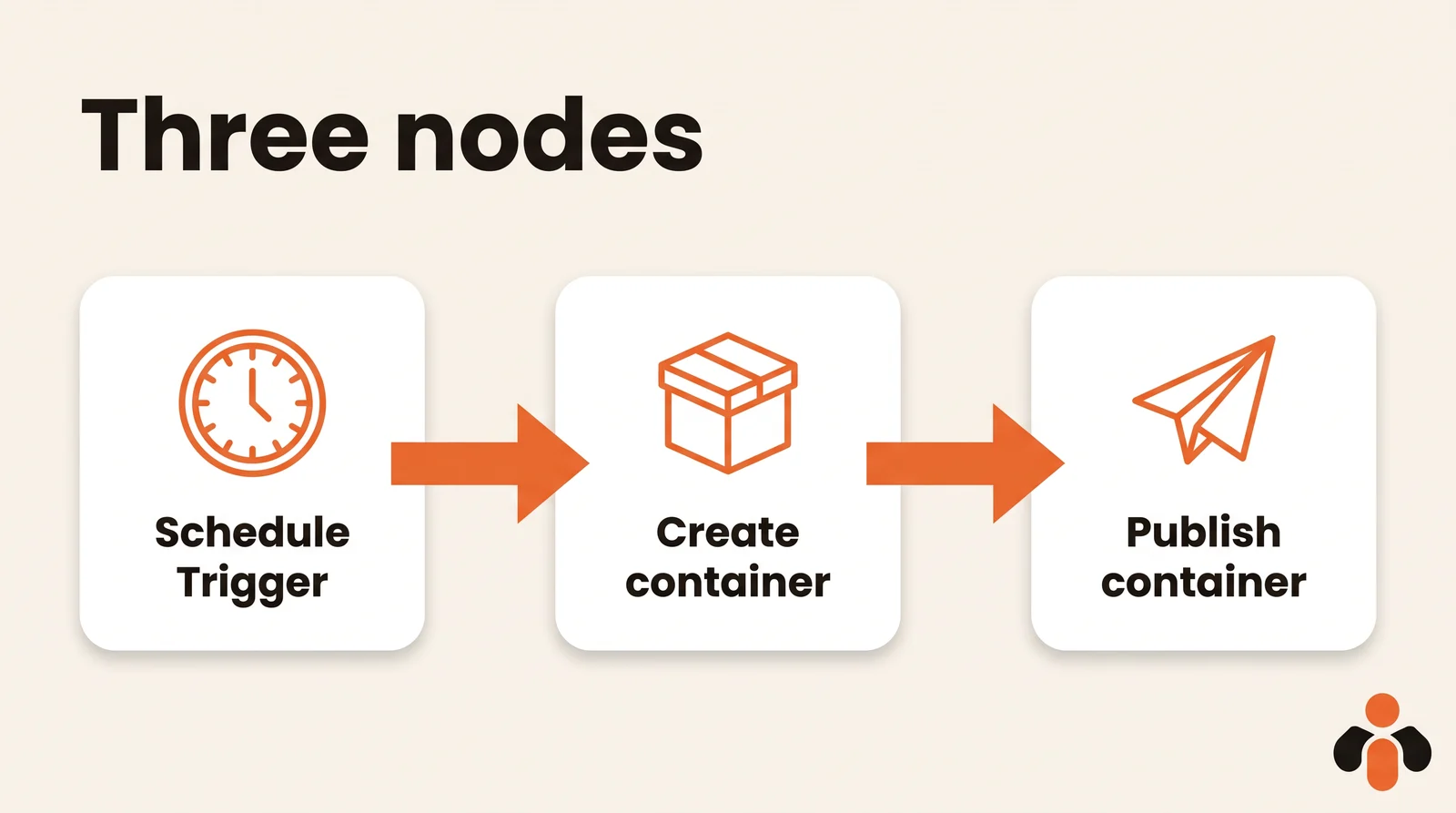
- The trigger. The Schedule Trigger node runs the workflow when you want: every hour, every day at a fixed time, or on a custom cron expression, for example
0 6 * * *for 6 am every morning. It uses the workflow's time zone, otherwise the instance's (America/New Yorkby default for self-hosted instances, as written in n8n's docs), and n8n's documentation says to save and publish the workflow for the schedule to run. You can also start from a spreadsheet or an RSS feed to publish what another tool prepares. - The container. An HTTP Request node sends a POST to
/<IG_ID>/media, with a JSON body holding the public address of the image inimage_url(orvideo_urlfor a video) and the text incaption. The response contains the container ID. That is what Meta describes in its documentation. - The publish step. A second HTTP Request node sends a POST to
/<IG_ID>/media_publish, withcreation_idset to the container ID. The response contains the ID of the published post.
In the JSON body of the second node, the expression {{ $json.id }} picks up the ID returned by the previous node. If you would rather not type everything by hand, the HTTP Request node's Import cURL option fills the fields from a curl command: paste Meta's example, then replace the values. This option always imports parameter values as strings, so switch to Using JSON to keep numbers and booleans as they are.
For a caption that comes from an earlier node (a text written by an AI, a spreadsheet row), wrap it with JSON.stringify in the expression: otherwise a line break or a quote breaks the JSON and the request fails.
Carousel, Reel and story: what each format changes
The workflow stays the same; only the container changes. For an n8n Instagram carousel, Meta's documentation asks you to first create one container per item with is_carousel_item set to true, then a parent container with media_type=CAROUSEL and children, a list of up to 20 container IDs. That parent container is the one you publish with media_publish.
For a Reel, use media_type=REELS with a video_url. For a story, media_type=STORIES. Both follow the same principle: container, then publish. In an n8n Instagram Reels automation, a heavier video can take time to process, so the workflow should read the container's status before publishing (see the limits section).
| Format | media_type value |
Expected media |
|---|---|---|
| Photo | not set | image_url, JPEG |
| Carousel | CAROUSEL |
up to 20 containers in children |
| Reel | REELS |
video_url |
| Story | STORIES |
image_url or video_url |
Source: Meta's content publishing page. Two features are off the table through the API: shopping tags and filters are not supported. And if your question is how to schedule a story by hand, that is a different path from n8n: see how to schedule Instagram Stories.
Posting to a Facebook Page with n8n too
For a Facebook post from n8n, the Facebook Graph API node is built for it: its documentation example targets /<page-id>/feed. A POST method, that node and a message field are all it takes.
The same workflow can end with two nodes in parallel: one publishes to Instagram, the other to the Facebook Page, with the same text and image. Mind the differences: Facebook publishes to a Page, never to a personal profile, and its permissions are not Instagram's. Page rules are covered in how to schedule Facebook posts.
To schedule ahead on the Instagram side, the simplest way is n8n's trigger: the workflow runs at the chosen time and publishes right away. If you prefer Meta's own tools, the options are in how to schedule Instagram posts.
The limits to read before you launch the workflow
Five Meta rules make most workflows fail: the posting cap, the image format, the container lifetime, the status check and the token.
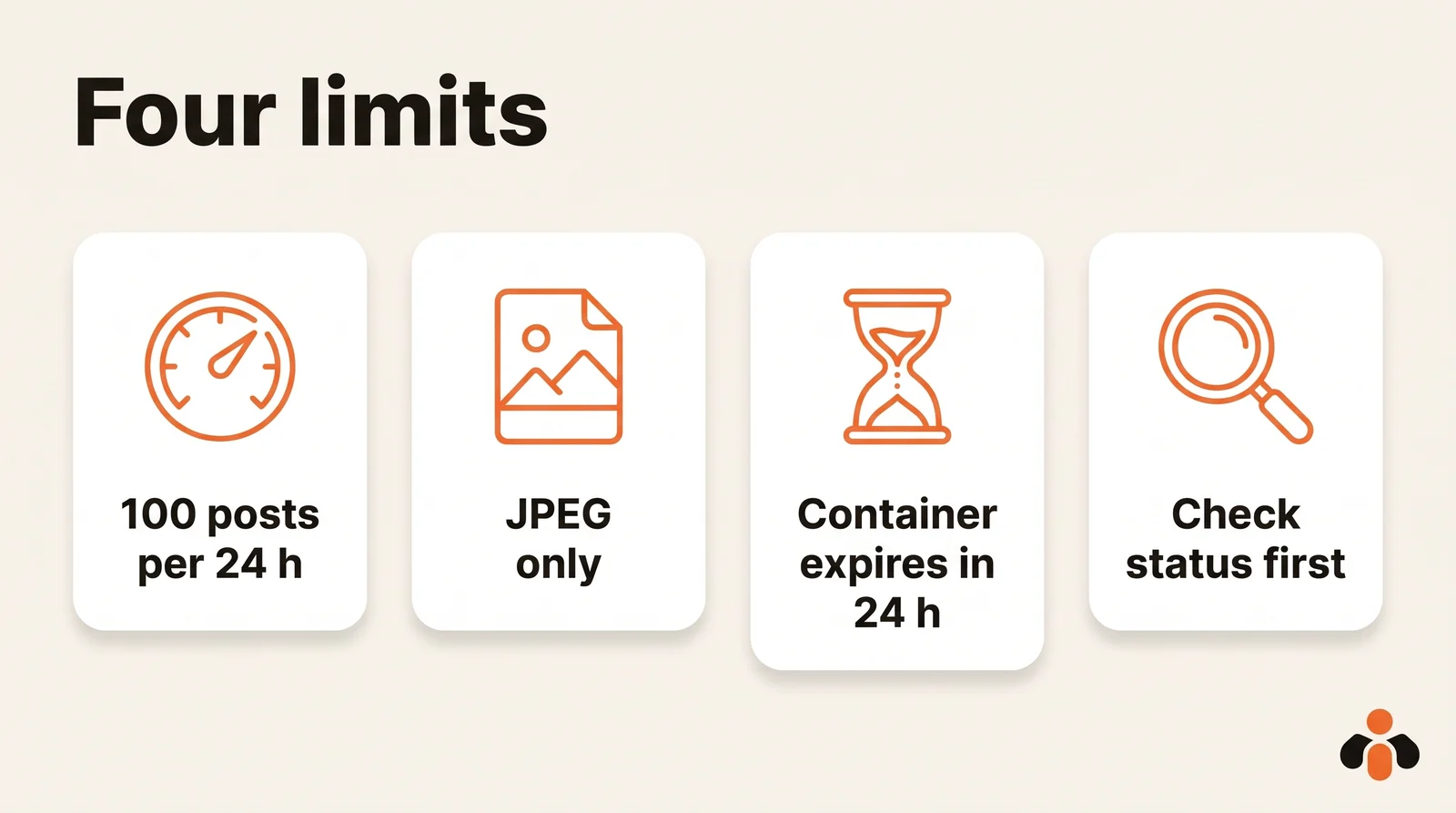
- The cap. Meta states that Instagram accounts are limited to 100 API-published posts within a 24-hour moving period, with a carousel counting as one. The carousel section of the same page mentions 50 published posts per 24 hours: the page contradicts itself, so plan around the lower figure if you post a lot. A GET on
/<IG_ID>/content_publishing_limitreturns your current usage. - The format. JPEG is the only image format supported: a PNG or WebP sent as is can be rejected. Convert first.
- The lifetime. A container that is not published within 24 hours moves to EXPIRED, according to the same page. Create and publish it in the same workflow run.
- The status. If
media_publishdoes not return an ID, readGET /<IG_CONTAINER_ID>?fields=status_code. Meta recommends querying a container's status once per minute, for no more than 5 minutes. Values are EXPIRED, ERROR, FINISHED, IN_PROGRESS and PUBLISHED. In n8n, a one-minute Wait node followed by an If node onstatus_codedoes the job. - The token. See above: 60 days, to refresh.
The media must also be hosted on a publicly accessible server at the time of the attempt, at the address you pass to image_url. And so the workflow does not just fail silently, connect an alert node (email, chat) to the error output of each HTTP Request node.
One request for every network
This workflow only publishes to Instagram. Each extra network (TikTok, YouTube, LinkedIn) adds its own app, permissions and token, as for TikTok.
Kreatoai skips those steps. It publishes to Instagram, Facebook Pages, TikTok, personal LinkedIn profiles, YouTube Shorts, Bluesky and Google Business profiles, right away or at the time you choose. From n8n, one HTTP request to its public API, sent with an API key, publishes to several networks and accounts at once, with no app to create and no review to pass. An idempotency key keeps a replayed request from posting twice, and a scheduled post goes out on its own, even if n8n is stopped. Webhooks tell you when a post goes out or fails, and an n8n AI agent can also publish through the MCP server with the MCP Client Tool node. See how it works, or create an account to get a key.
Key takeaways
- n8n has no "publish to Instagram" button: it calls Meta's API with the HTTP Request node, or with the Facebook Graph API node on
graph.facebook.comsetups. - You need an Instagram professional account, a Meta app and a long-lived access token, valid for 60 days and to be refreshed.
- The workflow fits in three nodes: a trigger, a POST to
/mediathat creates the container, then a POST to/media_publish. - Carousels, Reels and stories follow the same principle, with
CAROUSEL,REELSorSTORIESas themedia_type. - Meta caps the API at 100 posts per 24-hour moving period (50 in one section), accepts only JPEG images and expires an unpublished container after 24 hours.
- To publish to several networks without one app per network, a single API called from the same HTTP Request node replaces the whole setup.
Frequently asked questions
- Does n8n have an Instagram node?
- n8n's documentation describes a Facebook Graph API node, which talks to graph.facebook.com and graph-video.facebook.com, and an HTTP Request node that can call any REST API. That page does not mention Instagram. To publish, you call the endpoints of Meta's Instagram API with one of these two nodes.
- Do I need a Facebook Page to post to Instagram with n8n?
- It depends on the login setup. Meta's overview says Instagram API with Facebook Login is the only setup that requires an Instagram professional account linked to a Facebook Page. Instagram Login and the Unified Login that Meta recommends for new integrations do not need one. In every case, the Instagram account must be professional.
- What do I do when the Instagram access token in n8n expires?
- A long-lived Instagram user access token is valid for 60 days. You refresh it with a GET request to graph.instagram.com/refresh_access_token with grant_type set to ig_refresh_token, as long as it is at least 24 hours old and not expired. Tokens not refreshed in 60 days expire for good, so a second monthly n8n workflow can refresh it for you.
- Why is my Instagram post stuck in progress?
- After creating the container, publishing may not return an ID right away. Meta recommends querying the container's status_code once per minute, for no more than five minutes. FINISHED means ready to publish, IN_PROGRESS means still processing, and ERROR or EXPIRED mean you have to start again.
- How do I post to Instagram at a set time with n8n?
- The Schedule Trigger node runs the workflow at a time interval or on a custom cron expression, using the workflow's time zone, otherwise the instance's. n8n's documentation says to save and publish the workflow, and n8n must be running: the post goes out when the workflow runs.
- How many posts can n8n publish to Instagram per day?
- Meta's content publishing page states that Instagram accounts are limited to 100 API-published posts within a 24-hour moving period, with a carousel counting as one post. Its carousel section mentions 50 published posts per 24 hours instead, so plan around the lower figure if you post a lot. GET /<IG_ID>/content_publishing_limit returns your current usage.
- Can I post to Instagram from n8n without creating a Meta app?
- Yes, by calling an API that already holds that access. Kreatoai publishes to Instagram, Facebook Pages, TikTok, personal LinkedIn profiles, YouTube Shorts, Bluesky and Google Business profiles: one request to its public API from an n8n HTTP Request node is enough, with no app to create and no review to pass.
Have it done for you
Kreatoai publishes and schedules your posts on all your networks, from your dashboard or by asking ChatGPT and Claude, and its agent answers your direct messages. Ten free posts every month, no credit card.
Try it free