Social Media Content Calendar Template (Free to Copy)
A free social media content calendar template: the eight columns to keep, a sample week to copy into Excel, Sheets or Notion, and how to schedule it all.
 By Kreatoai
A social media content calendar is a table where every post gets its network, date, time and caption before it exists. The free template below has eight columns and works in Excel, Google Sheets or Notion: copy the columns, replace the sample week with your own posts, and schedule each row in waves. This guide was checked against LinkedIn, Meta, TikTok, Google and Notion help pages on October 30, 2026.
In this guide:
- what a content calendar is, and what it is not;
- the eight columns worth keeping, with an example for each;
- a filled-in week you can copy as a template;
- Excel, Google Sheets or Notion: which free tool to pick;
- how to fill the calendar with ChatGPT or Claude;
- how far ahead each network lets you schedule, and how to get the rows to post on their own.
What is a social media content calendar?
A social media content calendar, also called a content schedule, is the list of what you will post, where and when. One row per post, with a date. That is the whole idea.
It helps to know what it is not. It is not a vague list of content ideas, and it is not a strategy deck. A strategy says who you talk to and why. The calendar says "Tuesday, 6:30 pm, Instagram, carousel about our new feature, caption ready, image in the folder".
The benefit is practical. On the evening you have no inspiration, the cell is already filled. When you hand the work to a teammate, a freelancer or an AI, everyone reads the same table. And when a post does well, you can find out exactly what it was, when it went out and what the caption said.
A content calendar can also cover a blog or a newsletter. This guide sticks to the most common case: a creator, a brand or an agency posting on Instagram, TikTok and LinkedIn.
The eight columns of a content calendar that actually gets used
Most social media content calendar examples you will find online share the same core: the date and time, the network, the format, the message and a status. For daily use, add two more: the topic and the visual. Here is the set worth keeping.
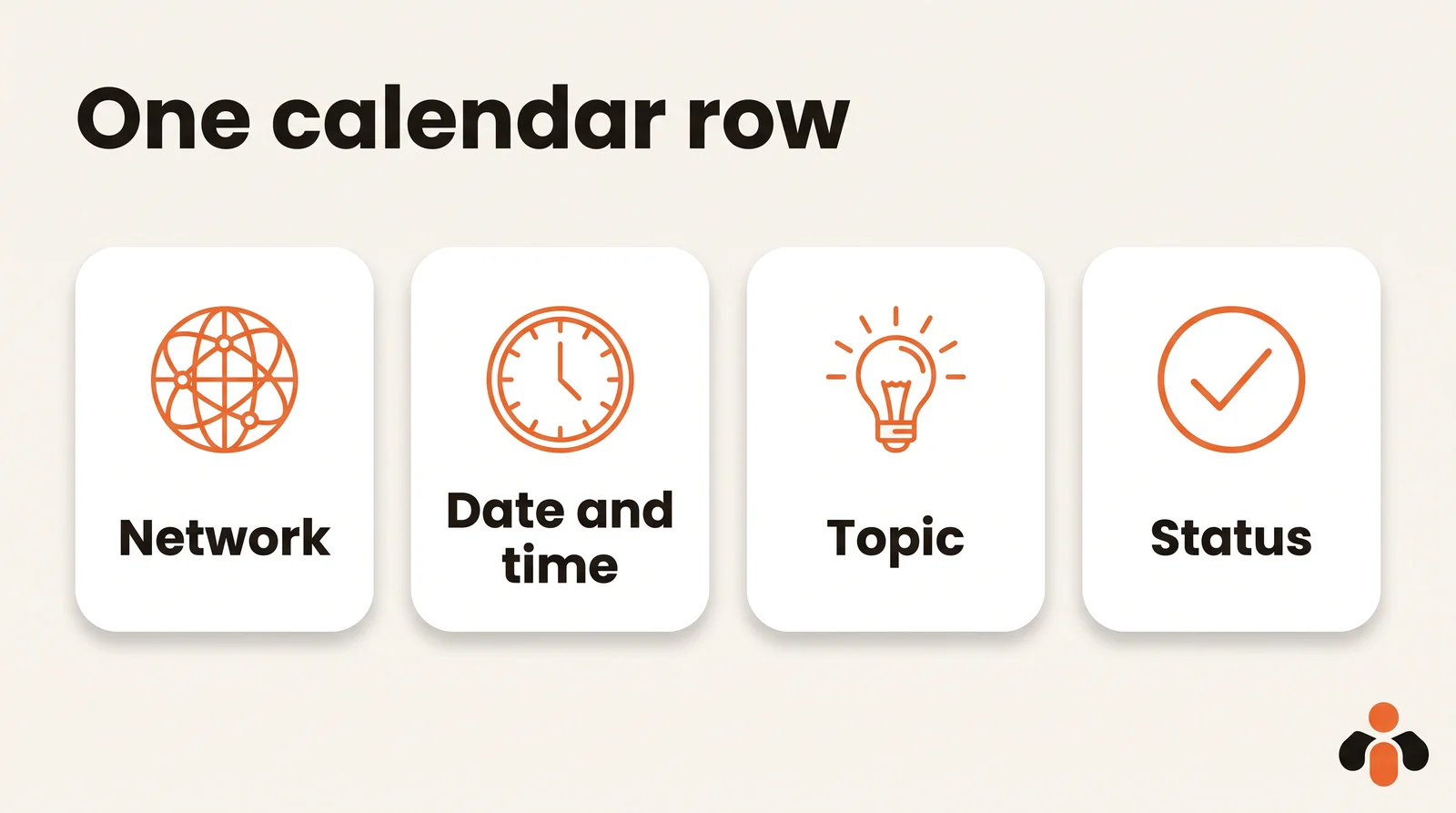
| Column | What goes in it | Example |
|---|---|---|
| Network | The account the post goes to | Instagram, brand account |
| Date | The day it goes out | Tuesday, November 10 |
| Time | The publishing time | 6:30 pm |
| Topic | The idea in one line | Behind the scenes of a product shoot |
| Format | The type of content | Carousel, Reel, text only |
| Caption | The full text, hashtags included | The exact text that will go out |
| Visual | The file name or link | shoot-nov-10.jpg |
| Status | Where the row stands | to create, to review, scheduled, published |
Status is the column people forget, and it is the one that prevents duplicates and gaps. Four values are enough: to create, to review, scheduled, published. A row only moves to "scheduled" once it has been scheduled for real.
Time should come from your own numbers, not from a generic chart. Our guide on the best time to post on Instagram shows how to read them in ten minutes.
A content calendar template to copy (a sample week)
Here is a filled-in week for an online skincare brand. Copy the columns as they are, replace the rows with yours, and the template works in any spreadsheet.
| Network | Day | Time | Topic | Format | Status |
|---|---|---|---|---|---|
| Monday | 12:00 pm | The new serum, in one photo | Photo | scheduled | |
| TikTok | Tuesday | 6:30 pm | The evening routine in 30 seconds | Short video | to review |
| Wednesday | 8:30 am | Why we changed suppliers | Text only | to create | |
| Thursday | 6:00 pm | Three customer reviews, before and after | Carousel | to create | |
| TikTok | Saturday | 10:00 am | Packing orders, behind the scenes | Short video | to create |
Five rows are enough for one week, at a pace you can keep. No network sets a required number of posts per week, so pick a rhythm you can hold for months. A short table you keep up beats a thirty-row table you abandon after ten days.
Once the template works for you, add the Caption and Visual columns from the previous table. They are what lets you schedule later without retyping anything. If you need topics to fill the rows, our list of Instagram post ideas sorted by goal gives twenty, and the free social media post ideas tool suggests more.
Free content calendar tools: Excel, Google Sheets or Notion?
A free social media content calendar template is already on your computer: any spreadsheet will do. Pick the tool that matches how you work.
- Excel suits you if you work alone and offline. A content calendar in Excel is just a file with columns, with nothing new to learn.
- Google Sheets suits a team that fills the table together. If you started in Excel, open Google Sheets, go to File, then Import, and pick your .xlsx file: Google says your Excel file won't be changed, even as you change the Sheets file. Be careful with the other route: opening the file from Drive with Open with Google Sheets saves all changes to the original Microsoft Office file.
- Notion suits you if you want a month grid. Notion's help center says that to use a calendar view, your database must contain a Date property. Then click + next to the name of your database or view and select Calendar. Building a content calendar in Notion takes five minutes from the table above.
Whatever the tool, keep one rule: one row per post and per network. If the same topic goes to Instagram and TikTok, that is two rows, because the caption, format and time are almost never the same.
A spreadsheet has one real limit: it does not publish anything. For the rows to go out on time, you need a second tool, which is what the last sections cover.
How to create a social media content calendar with ChatGPT or Claude
Filling a content calendar with an AI takes one conversation, not an evening. You give the context, the AI drafts the table, you correct it. Here is a method in five steps.
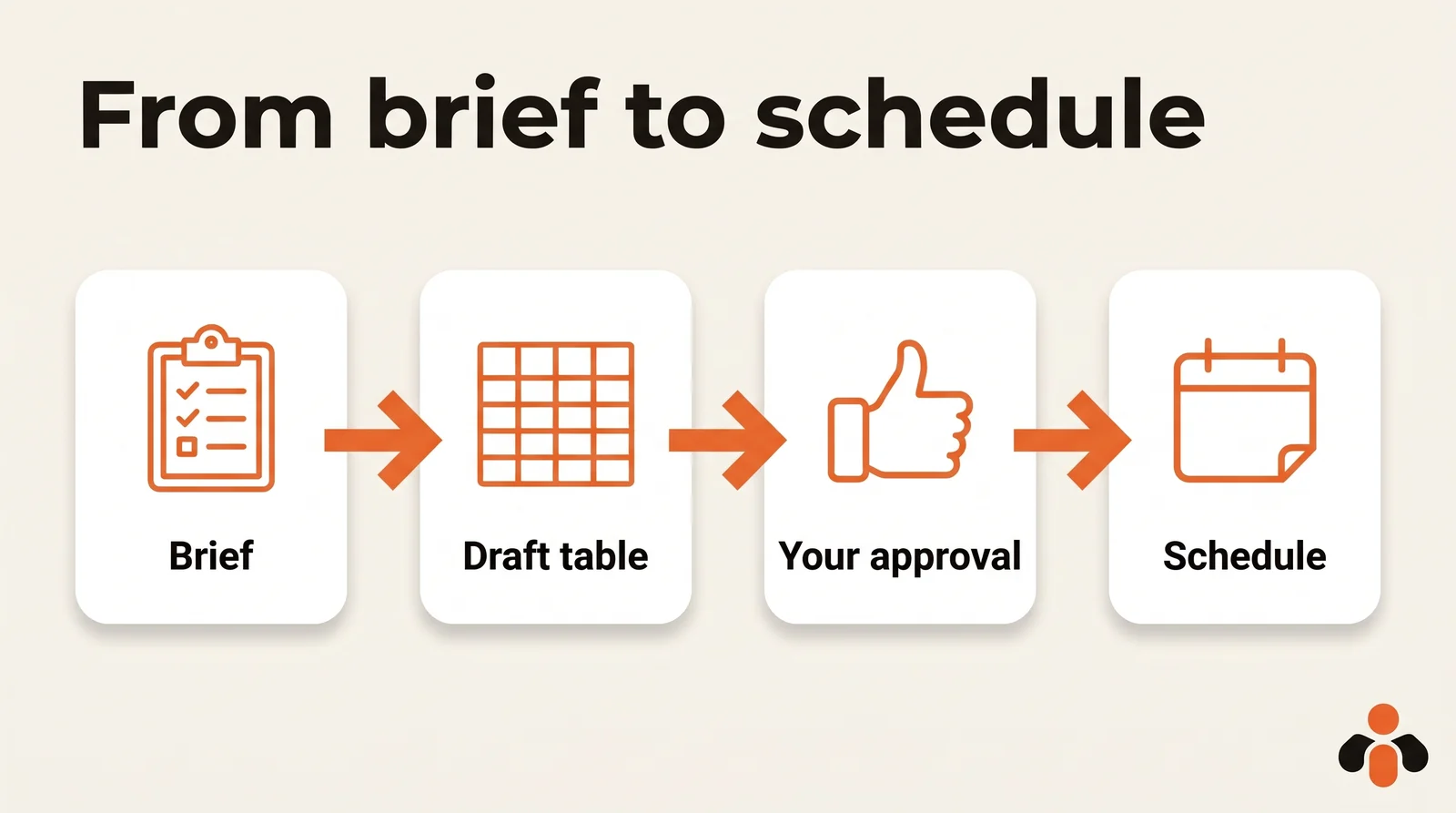
- Describe your business in three sentences: what you sell, to whom, on which networks.
- Set the pace: how many posts per week, on which accounts, and which days are off.
- Give the format by pasting the list of columns from this article.
- Ask for one week first, not a month: you will judge the tone on five rows.
- Correct row by row, then ask for the next week with the same table.
A ChatGPT prompt for a social media calendar can look like this:
I run an online skincare brand for women aged 25 to 40. Prepare a one-week content calendar for Instagram, TikTok and LinkedIn, with no more than three posts per network. Return a table with these columns: network, date, time, topic, format, full caption, visual needed, status. Set the status of every row to "to review".
Read each row before moving it from "to review" to "scheduled". That step, not the AI, is what keeps your brand's voice. Two cautions matter. The AI does not know your analytics, so the times it suggests are guesses to check against your own numbers. And it does not shoot your photos or videos: Instagram and TikTok always need a file, and you provide it. An AI saves you time on captions, not on filming.
Scheduling each row: how far ahead each network allows
A finished calendar is still paper until someone clicks Schedule. Each network has its own scheduler, and their windows are not the same.
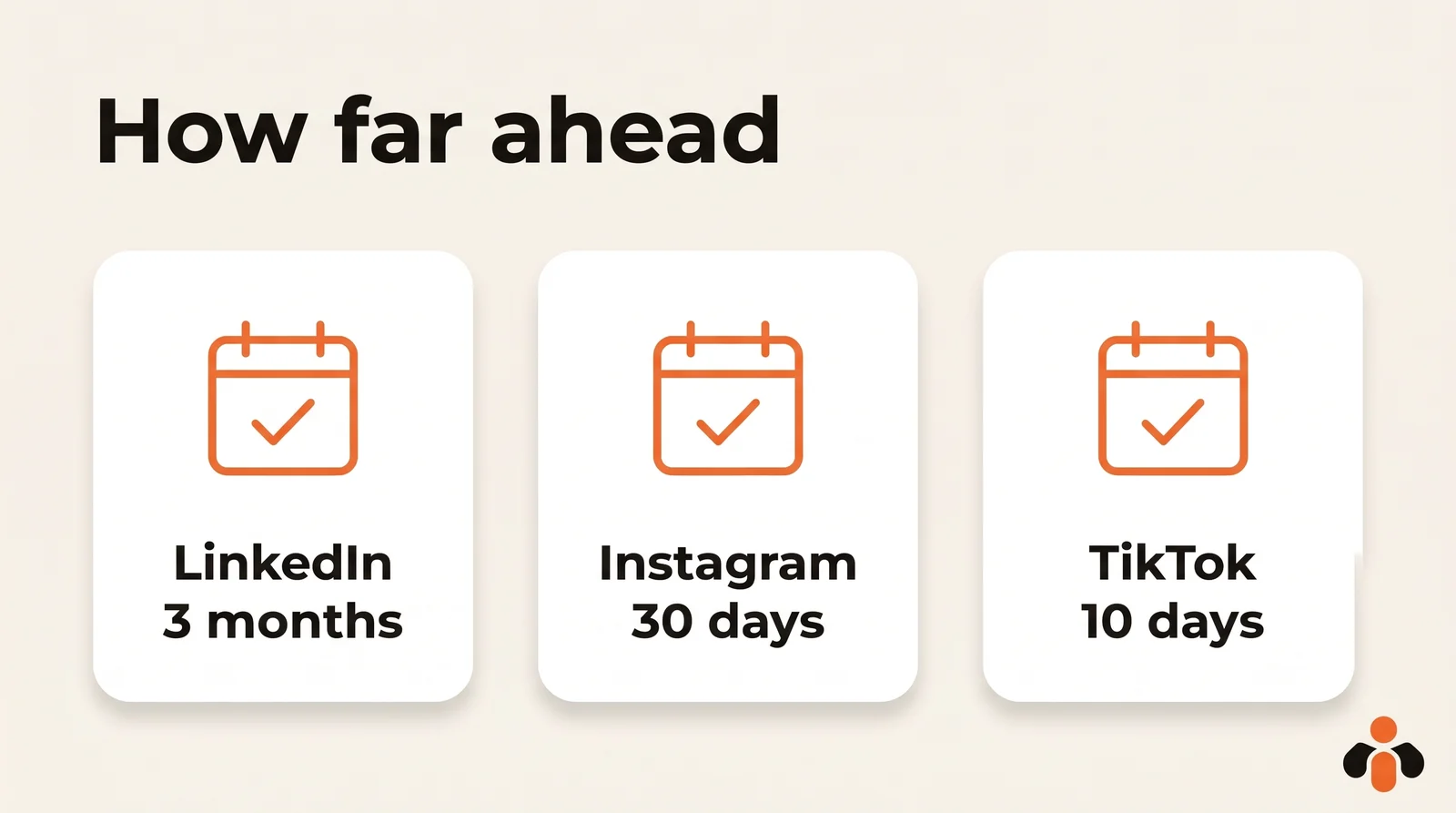
| Network | Scheduling window (as of October 30, 2026) | Source |
|---|---|---|
| 10 minutes to 3 months ahead | LinkedIn Help | |
| Up to 30 days ahead, up to 25 posts a day, public account | Meta Business Help Center | |
| Facebook Page | 20 minutes to 29 days ahead | Facebook Help Center |
| TikTok (desktop) | 15 minutes to 10 days ahead | TikTok Support |
Instagram. Meta's page says if you have a public Instagram account, you can schedule reels, photos and carousel posts from the Instagram app. A professional account is not required for that. Product tagging, collaborative posts, sponsored posts and fundraisers are not compatible with scheduled content. The full walkthrough is in how to schedule Instagram posts.
LinkedIn. You click Start a post, write, then click the Clock icon, choose a date and time, click Next and Schedule. LinkedIn notes that event posts and job posts can't be scheduled. Details in how to schedule LinkedIn posts.
TikTok. Scheduling happens on TikTok Desktop Web, from the Upload icon. TikTok says only Business accounts or accounts with 10,000 followers or more can access desktop scheduling, that scheduled posts cannot be edited (only deleted), and that the feature is not available on TikTok Mobile Web. With a 10-day window, a full month ahead is not possible. See how to schedule TikTok posts.
In practice, your social media content schedule splits into windows. You fill the table for the month, but you schedule in waves: LinkedIn posts in one go, Instagram two or three weeks ahead, TikTok week by week.
Scheduling the whole table without retyping it
Scheduling row by row in three apps means redoing by hand what the table already did. There are two ways around it.
The first is an automation in n8n, Make or Zapier: each spreadsheet row becomes a request to each network's publishing API. It works, but each network has its own permissions and limits, covered in the real limits of auto-posting to multiple social networks.
The second is to let the AI that wrote the calendar schedule it too, as long as it is connected to your accounts. It is the shortest route when you start from a conversation: the table and the scheduling live in the same place.
Whichever route you choose, one habit saves the day: before scheduling, check that every row has its visual and its full caption. A row with an empty Visual column cannot go out on Instagram or TikTok, and it is the most common reason a calendar stalls on the day. Do this check once a week, on the same day, in ten minutes: review the statuses, spot the rows still "to create", and push back what is not ready instead of posting in a rush. Our guide to managing social media in one hour a week builds a full routine around that session.
From calendar to scheduled posts in one conversation
Kreatoai connects ChatGPT and Claude to your social accounts. You ask the AI to prepare a week or a month of posts: it suggests the topics, writes the captions and the dates, then, after your approval, schedules them on Instagram, Facebook Pages, TikTok, personal LinkedIn profiles, YouTube Shorts, Bluesky and Google Business profiles. The same post can go to several networks and accounts at once, and you pick the account by name.
The dashboard then shows every post as a list or a calendar. Each one can be edited (caption, image, time) or canceled as long as it has not gone out, then goes out on its own at the set time. Instagram and TikTok still need an image or a video for each post, which you provide.
Two things it does not do: it does not pick the time for you, and it does not provide a calendar template to download. The table in this article stays yours. You can see how it works in ChatGPT or in Claude, read the overview, or create an account and connect your first network.
Key takeaways
- A social media content calendar is a list of dated rows, one per post, with at least a network, date, time, topic, format, caption, visual and status.
- A free spreadsheet is enough to start: Excel, Google Sheets or Notion with a Date property. Use File, then Import, to bring an Excel file into Sheets without changing it.
- To fill it with ChatGPT or Claude, give your business, your pace and your columns, and ask for one week before a month.
- Times suggested by an AI are guesses: your own analytics decide.
- Networks do not schedule equally far ahead: 3 months on LinkedIn, 30 days and 25 posts a day on Instagram, 29 days on a Facebook Page, 10 days on TikTok.
- Schedule in waves, ideally with one tool that posts to several networks from the same table, instead of row by row in each app.
Frequently asked questions
- Is there a free social media content calendar template?
- Yes, and a spreadsheet is enough: Excel, Google Sheets or a Notion database with a Date property. The minimum template has one row per post, with the network, date, time, topic, format, caption, visual and status. You can copy the columns and the sample week from this article into any of those tools.
- Can I use an Excel content calendar in Google Sheets?
- Yes. In Google Sheets, go to File, then Import, and pick the .xlsx file. Google's help center says the Excel file won't be changed, even as you change the Sheets file. Opening the file from Drive with Open with Google Sheets is different: changes are then saved to the original Microsoft Office file.
- How do I make a content calendar in Notion?
- Create a database with one row per post and add a Date property, which Notion requires for a calendar view. Then click the plus sign next to the name of your database or current view and select Calendar. Your posts appear on a month grid, and you can still use the table view to fill in captions and statuses.
- What is a good ChatGPT prompt for a social media calendar?
- Describe your business in three sentences, name your networks and how many posts per week you can handle, paste the list of columns you want, and ask for one week before a full month. Ask the AI to set every row to 'to review', then read each line before you schedule it.
- How far in advance can you schedule LinkedIn posts?
- LinkedIn's help center says you can schedule a post between 10 minutes and 3 months from the current time, as of October 30, 2026. Event posts and job posts cannot be scheduled. You schedule through the Clock icon in the post window, then Next and Schedule.
- Can you schedule a TikTok a month in advance?
- Not with TikTok's own desktop scheduler. TikTok's support page says you can schedule a minimum of 15 minutes and a maximum of 10 days in advance, and desktop scheduling is limited to Business accounts or accounts with 10,000 followers or more. Plan the month, but schedule TikTok videos in weekly waves.
- How do I get my content calendar to post automatically?
- A spreadsheet does not publish anything. You need a scheduler connected to your accounts. Kreatoai lets you ask ChatGPT or Claude to prepare a week or a month of posts, then, after your approval, schedule them on Instagram, Facebook Pages, TikTok, LinkedIn, YouTube, Bluesky and Google Business profiles.
Have it done for you
Kreatoai publishes and schedules your posts on all your networks, from your dashboard or by asking ChatGPT and Claude, and its agent answers your direct messages. Ten free posts every month, no credit card.
Try it free