How to Schedule LinkedIn Posts: Profile and Page Steps
How to schedule LinkedIn posts on desktop or mobile, from a profile or a company Page: time limits, where scheduled posts live, how to edit or cancel them.
 By Kreatoai
Yes, LinkedIn schedules posts itself, for free. In the post editor, the Clock icon lets you pick a date and time from 10 minutes to 3 months ahead on your personal profile, and from one hour to 3 months ahead on a company Page. The post goes out on its own, and until then you can edit it, reschedule it or cancel it. This step-by-step guide follows LinkedIn's help pages, read on October 30, 2026.
In this guide:
- profile or Page: what LinkedIn lets you schedule;
- how to schedule a LinkedIn post on desktop, then on mobile;
- where to find your scheduled posts;
- how to edit, reschedule or cancel a scheduled post;
- how to schedule on a company Page, and a simple weekly routine;
- what cannot be scheduled, and the carousel workaround;
- the methods compared, and when a scheduler helps.
Can you schedule LinkedIn posts?
Yes, on a personal profile and on a Page, from a computer and from the app. The feature is built into LinkedIn: nothing to install, and none of the help pages that describe it mention a Premium subscription. So you can schedule LinkedIn posts for free today.
The rules shift a little depending on whether you post as yourself or as a company:
| Personal profile | Company Page | |
|---|---|---|
| Minimum lead time | 10 minutes | 1 hour |
| Maximum | 3 months | 3 months |
| Who can schedule | you | super admins and content admins |
| Formats excluded | events, jobs | events, multiple photos, reshares, polls, jobs, service posts |
| Edit text before it goes out | yes | yes, other admins too |
| Where to see upcoming posts | Clock icon, View all scheduled posts | Page posts, schedule icon, View all scheduled posts |
Sources: LinkedIn help for profiles, LinkedIn help for Page posts and scheduled posts on Pages, read on October 30, 2026.
How to schedule a LinkedIn post on desktop
Here are the steps as LinkedIn describes them for a personal profile:
- On your LinkedIn homepage, click Start a post.
- Type your post in the What do you want to talk about? field, and add an image, video or document if you need one.
- Click the Clock icon in the lower-right corner of the editor.
- In the Schedule post window, choose the date and time.
- Click Next. The scheduled date and time appear above the post: check them.
- Click Schedule. A confirmation appears in the lower-left of the page.
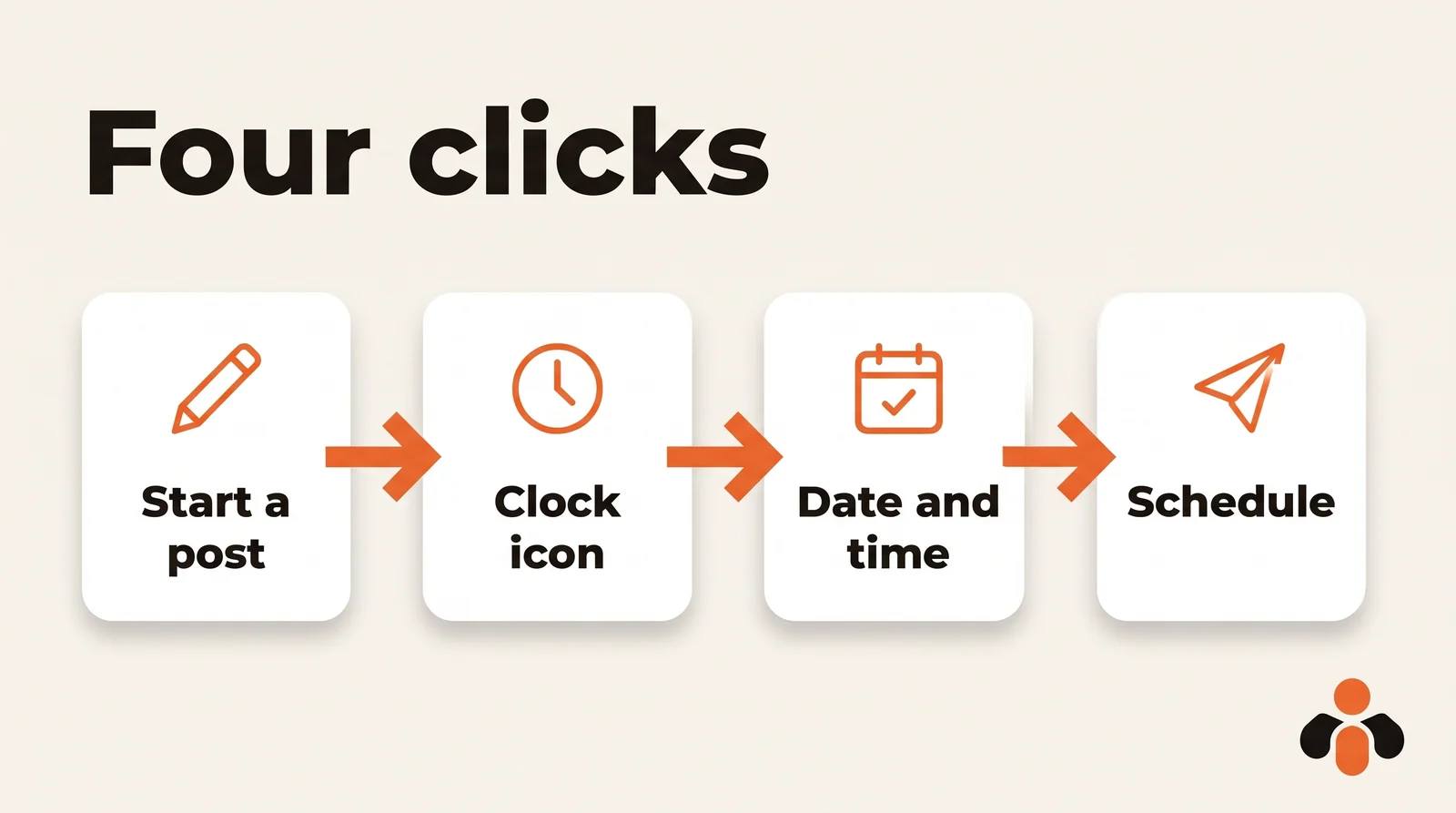
Two details prevent surprises. The dropdown offers 30-minute slots, but you can type a specific time, such as 8:10. And scheduled times are converted to UTC based on your device's time zone. If you schedule while traveling, or for an audience in another time zone, do the math before you confirm.
How to schedule a LinkedIn post on mobile
On a phone, the path is almost the same with different labels (LinkedIn help):
- Tap Post in the navigation bar.
- Type your post in the Share your thoughts... field.
- Tap the Clock icon in the upper-right corner.
- Choose the date and time in the Schedule pop-up, then tap Next, then Schedule.
The window is the same as on desktop, and your scheduled posts sync across both. You can draft a post on your laptop on Monday and fix a typo from your phone on Wednesday.
Where to find scheduled posts on LinkedIn
A scheduled post does not show anywhere on your profile until it goes live. To find it, according to LinkedIn:
- on desktop: click Start a post. If posts are waiting, a badge next to the Clock icon shows how many. Click the Clock icon, then View all scheduled posts;
- on mobile: tap Post, tap the Clock icon, then View all.
That opens the Scheduled posts page, where each post appears with its date and time. LinkedIn's help describes a list there, not a calendar view. If you plan a month ahead, keep your topics in a social media content calendar so you know what is already booked.
How to edit, reschedule or cancel a scheduled LinkedIn post
Some well-ranked guides still say you can only change the time of a scheduled LinkedIn post, not its content. That is outdated: LinkedIn's help page, read on October 30, 2026, describes both kinds of change.
Edit the text or the time. Open your scheduled posts, click the More icon in the upper-right of the post, then choose Edit post for the content or Modify schedule for the date. On mobile, the options read Modify schedule or Edit.
Cancel the schedule but keep the post. Click Edit next to the time shown above the post, then Clear time (on mobile, Clear). The post becomes a regular draft: click Post to publish it now, or close it.
Delete the post. In your scheduled posts list, click the Delete icon next to the post, then confirm. For Pages, LinkedIn is blunt: you cannot recover a deleted post. If only the timing is wrong, reschedule instead.
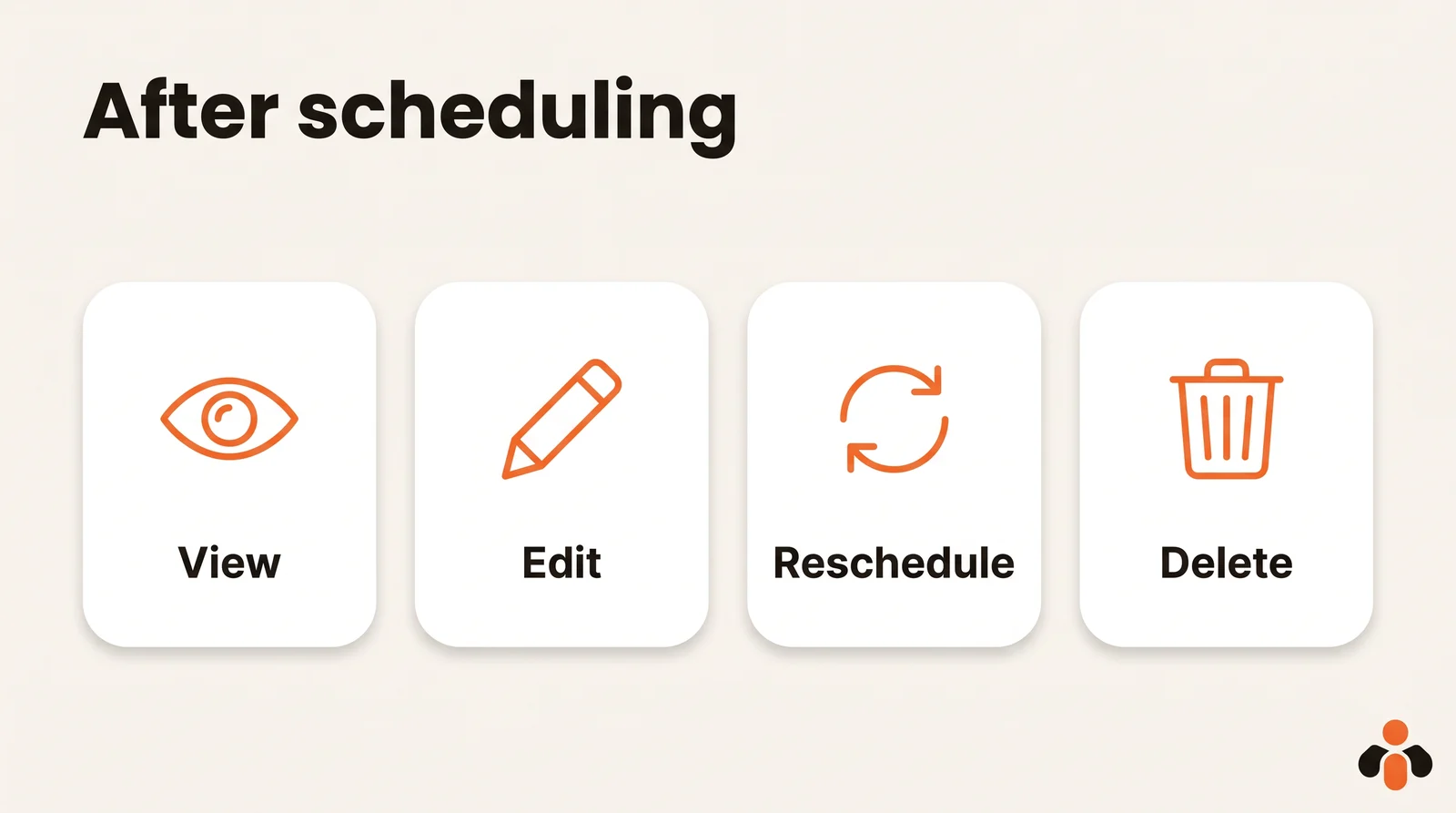
A good habit: when news makes tomorrow's post feel off, clear the time rather than deleting. You keep the text, and you schedule it again once the moment has passed.
How to schedule posts on a LinkedIn company Page
Pages can be scheduled too, but only by their super admins and content admins. On desktop:
- Open the Page's super admin or content admin view.
- Click Page posts in the left menu.
- Click Start a post.
- Click the schedule icon in the lower right to open Schedule post.
- Choose the date and time, then click Next.
- Finish the post, then click Schedule.
On mobile, tap Dashboard in the upper-left, select Page posts, tap Post, then tap the schedule icon in the upper-right to open Schedule (LinkedIn help).
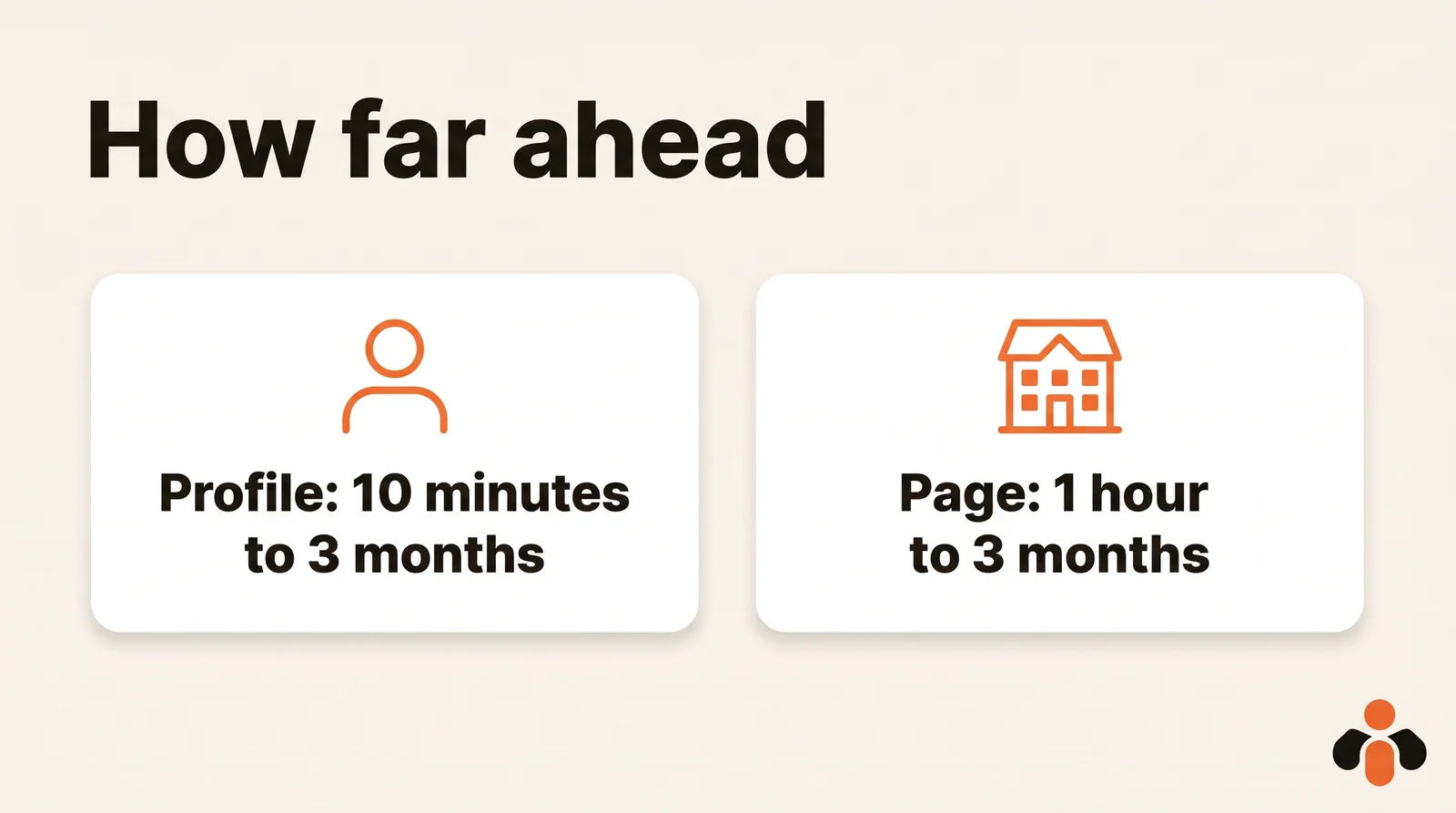
Three differences from a profile. The minimum becomes one hour. Other admins can view, edit, reschedule and delete posts you scheduled, and if an admin is removed from the Page, their scheduled posts move to the admin who removed them. Finally, a scheduled post cannot be promoted through Browse existing content in Campaign Manager until it is published.
To edit a scheduled Page post: Page posts, Start a post, the schedule icon, View all scheduled posts, then the More icon on the post and Edit post (LinkedIn help). You can change the content, the visibility, who can comment and, if required, the brand partnership label.
Newsletters get a mention on the same page: LinkedIn says Page super admins and content admins can schedule posts and newsletter articles. The help pages read for this guide do not describe scheduling articles from a personal profile, so check the article editor before you count on it.
A simple weekly routine for LinkedIn
LinkedIn's three-month window is long enough to batch. A routine that works for a consultant, a recruiter or a founder posting in their own name:
- Pick the slots once. Two or three fixed times a week, for example Tuesday and Thursday at 8 am in your audience's time zone.
- Write in one sitting. Draft the week's posts together, so the tone stays consistent and nothing is written in a rush the morning it goes out.
- Schedule them all. Use the Clock icon for each post and type the exact time rather than relying on the 30-minute slots.
- Check the list on Monday. Open View all scheduled posts, reread each post, and clear the time on anything that no longer fits the week's news.
Because LinkedIn lets you edit text and time until the last minute, batching costs you no flexibility.
What LinkedIn will not schedule, and the carousel workaround
On a profile, only two formats are excluded: Events and Jobs posts. On a Page, the list is longer: events, multiple photos, reshares, polls, jobs and service posts. If the Clock icon is missing or LinkedIn scheduling is not working, check first that your post does not contain one of these.
Carousels need a word. On LinkedIn, a carousel is not a set of photos like on Instagram: it is a document, usually a PDF, that readers swipe page by page. LinkedIn's developer documentation sets the limit at 100 MB and 300 pages, in PDF, PPT, PPTX, DOC or DOCX. Documents appear in neither exclusion list. So on a Page, where a post with several photos cannot be scheduled, combining your images into one PDF is the route to try.
Example: a design agency announcing a case study can export eight slides as a single PDF, write a two-line hook, and schedule it on its Page for Tuesday at 8 am. The same slides as eight separate photos would not get the Clock option.
The methods compared
| Method | Accounts | Lead time | Several networks | Cost |
|---|---|---|---|---|
| LinkedIn, profile | yours | 10 minutes to 3 months | no | free |
| LinkedIn, Page | Pages you admin | 1 hour to 3 months | no | free |
| Scheduling tool | several profiles or Pages, depending on the tool | set by the tool | yes | free tier or paid |
| AI assistant with a connector | connected accounts | set by the connector | depends on the connector | depends on the connector |
| API or n8n | authorized accounts | your workflow keeps the date | yes, one connection per network | development time |
On the API side, LinkedIn separates the two cases. Posting on a profile needs the w_member_social permission, with a limit of 150 requests per member per day. Posting as a Page needs another permission, w_organization_social, restricted to the Page's admins. Our article on the real limits of auto-posting to multiple networks covers what each network opens to outside tools.
LinkedIn's built-in scheduler is enough for one profile and a few posts a month. A scheduling tool takes over when you also post elsewhere, manage several accounts or want everything in one calendar. For the free options on each network, see free social media scheduling with native tools. If you are comparing paid tools, our pages on the best Buffer alternatives, Hootsuite alternatives and Later alternatives go through them.
Scheduling LinkedIn from a chat or with other networks
Kreatoai publishes and schedules on personal LinkedIn profiles, Instagram, Facebook Pages, TikTok, YouTube Shorts, Bluesky and Google Business profiles, with a calendar, and the same post can go to several networks and accounts at once. On LinkedIn, text alone is enough, and a carousel goes out as a multi-page document. A scheduled post can be edited (text, image, time) or canceled as long as it has not gone out.
You can also ask ChatGPT or Claude, with no code. Kreatoai is listed in ChatGPT's plugin directory and in Claude's connector directory, so "write a LinkedIn post about our new course and schedule it for Thursday at 9 am" is enough, and the assistant asks for your approval before scheduling. See how to set it up in ChatGPT or in Claude. The LinkedIn scheduling page shows everything it does for LinkedIn.
The limit: it does not publish to LinkedIn company Pages, only personal profiles. If that fits, you can create an account and connect your profile first.
Key takeaways
- LinkedIn schedules posts for free, on desktop and mobile, through the Clock icon in the post editor.
- On a profile, the window is 10 minutes to 3 months; on a Page, 1 hour to 3 months, and only super admins and content admins can schedule.
- Scheduled posts sit behind the Clock icon, under View all scheduled posts (View all on mobile).
- A scheduled post can be edited, text and time, rescheduled, or turned back into a draft with Clear time; a deleted post cannot be recovered.
- Events and Jobs posts never schedule; on a Page, polls, reshares and multi-photo posts do not either.
- A LinkedIn carousel is a document (PDF, up to 300 pages and 100 MB), which is also the way to schedule several images on a Page.
- Once you post on several networks or accounts, a scheduling tool saves you from switching between apps.
Frequently asked questions
- Can you schedule posts on LinkedIn?
- Yes, without any outside tool. In the post editor, the Clock icon lets you pick a date and time between 10 minutes and 3 months ahead for a personal profile. LinkedIn's help center says Events and Jobs posts cannot be scheduled.
- Is scheduling LinkedIn posts free?
- Yes. Scheduling is built into LinkedIn on desktop and in the mobile app, and the LinkedIn help pages that describe it do not require a Premium subscription. A scheduling tool becomes useful when you manage several accounts or several networks.
- Where can I find my scheduled posts on LinkedIn?
- On desktop, click Start a post, then the Clock icon, then View all scheduled posts. On mobile, tap Post, tap the Clock icon, then View all. For a company Page, start from Page posts in the super admin or content admin view.
- Can you edit a scheduled LinkedIn post?
- Yes, both the text and the time. In your scheduled posts list, click the More icon on the post, then choose Edit post to change the content or Modify schedule to change the date. LinkedIn's help center, read on October 30, 2026, describes both options.
- How do I cancel a scheduled LinkedIn post?
- There are two ways. To keep the post and publish it now, click Edit next to the scheduled time, then Clear time, then Post. To remove it, click the Delete icon next to the post in your scheduled posts list and confirm. LinkedIn says a deleted scheduled Page post cannot be recovered.
- Can you schedule posts on a LinkedIn company Page?
- Yes, if you are a super admin or content admin of the Page, from one hour to three months ahead. On a Page, LinkedIn does not allow scheduling for events, multiple photos, reshares, polls, jobs and service posts.
- Why is LinkedIn scheduling not working for my post?
- Usually the post contains a format LinkedIn will not schedule: an event or a job on a profile, or a poll, a reshare or several photos on a Page. Also check the time: a profile post needs at least 10 minutes of lead time, a Page post at least one hour.
- Can ChatGPT or Claude schedule LinkedIn posts?
- Not on their own: they need a connector linked to your account. Kreatoai is such a connector for personal LinkedIn profiles. Once the profile is connected, you ask, for example, to schedule a post for Thursday at 9 am, and the assistant does it after your approval. Kreatoai does not publish to LinkedIn company Pages.
Have it done for you
Kreatoai publishes and schedules your posts on all your networks, from your dashboard or by asking ChatGPT and Claude, and its agent answers your direct messages. Ten free posts every month, no credit card.
Try it free