Schedule Instagram Posts From PC or Mac: Step by Step
Schedule Instagram posts from a PC or Mac with Meta Business Suite: the account you need, each step, the photo limit, and how to edit a scheduled post.
 By Kreatoai
Yes, you can schedule Instagram posts from a PC or a Mac, but not from instagram.com. Meta's help pages, read on October 30, 2026, describe two places to schedule: the Instagram app on your phone, and Meta Business Suite on a computer. Only Business Suite works with a keyboard and mouse, and it needs a professional (business or creator) account connected to a Facebook Page.
In this guide:
- what Meta offers for scheduling on a computer;
- the account setup to check before you start;
- the steps on PC or Mac, from Create post to Schedule;
- dates, times and the 10-photo limit;
- where to find, edit or move a scheduled post;
- the four reasons scheduling fails on desktop.
Can you schedule Instagram posts from a PC?
Yes, through Meta Business Suite. Meta's help page on scheduling for Instagram only covers the phone app: a public account can schedule reels, photos and carousel posts from the Instagram app. It does not describe any scheduling on instagram.com. On a computer, the path Meta documents is Meta Business Suite, which creates and schedules posts for Facebook and Instagram and is free to use on desktop and in its mobile app.
The two routes do not follow the same rules. The figures in this table come from the two Meta pages above.
| Instagram app | Meta Business Suite on desktop | |
|---|---|---|
| Where | phone | browser, at business.facebook.com |
| Account needed | any public account | full control or Content permission on the Instagram account |
| How far ahead | 30 days, 25 posts a day | no Instagram limit published |
| Media | photos, reels, carousels | 10 photos max for Instagram |
| Stories | no | yes |
So if you want to stay at your desk, Business Suite is the tool to open. To compare all three routes (app, Business Suite and API schedulers), see how to schedule Instagram posts.
What you need before scheduling on desktop
Check three things before you open your laptop: the account type, the link to a Facebook Page, and your permissions on both.
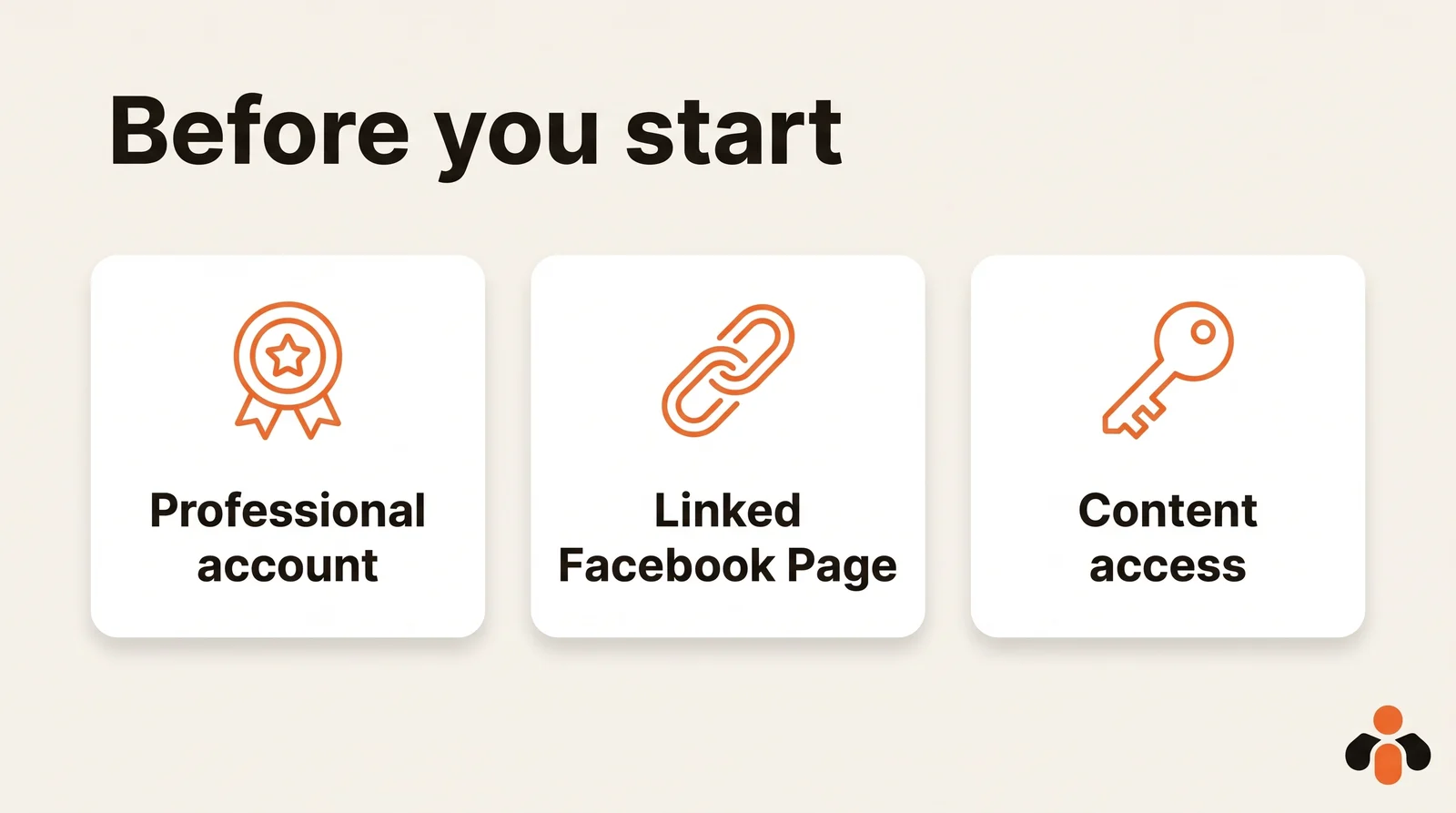
A professional account. To connect Instagram to a Page, Meta requires a professional Instagram account, either business or creator. A creator account works fine. If yours is personal, you will be prompted to switch during the linking process, so you do not need to do it first. One thing to know: a private personal account becomes public when it switches.
A connected Facebook Page. From the Instagram app, Meta's help center gives this path:
- Tap Profile or your profile picture, then Edit profile.
- With a business account, scroll to Public business information. With a creator account, scroll to Profile information.
- Tap Page, then Connect or create, then Continue.
- Tap Login to Facebook, choose the Page and tap Connect. No Page yet? Tap Create a new Facebook Page.
Meta adds a warning worth reading twice: once connected, anyone with access to either the Page or your Instagram account will be able to manage both. Think about it before giving a freelancer access to one of them.
The same business portfolio. A business portfolio is the container in Business Suite that holds your Page, Instagram account and the people who can manage them. On desktop, Settings, then Instagram accounts, then Add brings your account in. Each Instagram account can only be in one portfolio at a time.
Permissions. To create a post, Meta requires full control of the Page or Instagram account, or Content permission. Without one of them, you cannot publish.
How to schedule Instagram posts on PC or Mac, step by step
The steps are the same on Windows and macOS: Meta describes them "on desktop" and the tool runs in your browser. In short, you create the post, pick Instagram, set the time and confirm.
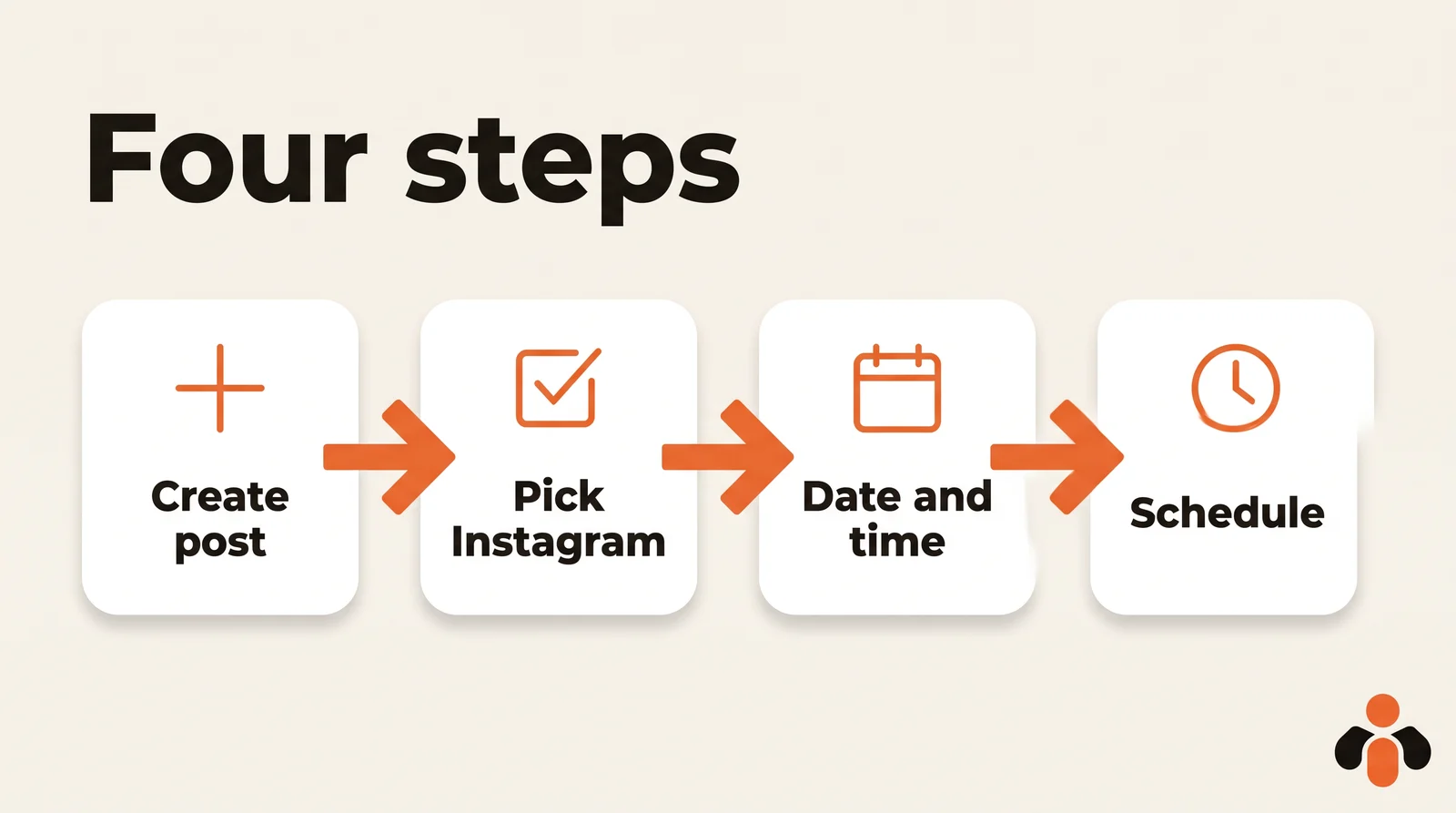
The official steps:
- Go to Meta Business Suite at business.facebook.com.
- Click Create post, from the home page or the Content tab.
- Under Post to, select where the post goes: your Instagram profile, your Facebook Page or both.
- Under Media, add your photos.
- Under Post details, write your text. You can customize it for Facebook and for Instagram, and add hashtags or a location with the icons below the text box.
- Under Scheduling options, select the date and time you want to publish.
- Click Schedule. Publish and Finish later sit in the same place.
An Instagram post always needs a photo or a video, which you supply: this flow does not create the visual for you.
At step 5, one caption can serve both networks. Customizing is optional: keep hashtags for Instagram, and add a link and one more sentence for Facebook.
Before clicking Schedule, read the destination, the text, the photos and the time together. A mistake is not final: a scheduled post keeps the Edit post option, covered below.
Choosing the date, time and photos
When you set the time, Business Suite offers an Active times button. It recommends times based on when your followers were most active on Facebook and Instagram over the past 7 days. Treat it as a hint, not a rule: seven days is a small sample. How to find the best time to post on Instagram shows how to read your own insights before deciding.
On photos, Meta is explicit: the limit for posting to Instagram is 10 photos from Business Suite. A longer carousel has to be split into two posts.
On timing, Meta's desktop help page for Business Suite gives no scheduling window for Instagram. For Facebook Pages, Meta states between 20 minutes and 29 days away, in your current time zone. For Instagram, the date picker tells you how far you can go. The phone app goes up to 30 days.
An example: an agency running the Instagram account of a software startup prepares the next two weeks every Monday morning on the office laptop. Product tips go out on Tuesday and Thursday at the time the client's insights point to; the Friday post links to a webinar on Facebook and keeps hashtags on Instagram. Two captions, one post, one click.
Can you schedule reels and stories from a PC?
Yes, both go through Meta Business Suite too. Meta describes Business Suite as the place to schedule, publish and manage posts, stories, reels and more, on desktop as on mobile.
Stories have their own button. The desktop steps from Meta's help center:
- Click Create story, from the home page or the Content tab.
- Under Post to, choose your Instagram profile, your Facebook Page or both.
- Under Media, click Add photo/video and upload up to 10 photos or videos.
- Click Edit on each one to crop, trim, or add text, mentions or stickers. Add link adds a URL viewers open by swiping up.
- Under Scheduling options, select Schedule, pick the date and time, then click Schedule.
A computer is actually the better place for a story with a link: Meta's help page for the Business Suite mobile app does not mention links. Use vertical media, ideally 1080 by 1920 pixels. Music, polls and the phone route are covered in how to schedule Instagram stories.
How to view, edit or reschedule scheduled Instagram posts on desktop
Once scheduled, the post lives in Business Suite. According to Meta's help center:
- Open Meta Business Suite and click Content in the left menu.
- In the Posts & reels tab, select Scheduled. The other tabs are Published, Drafts, Expiring and Expired.
- Select the post, click the ... icon, then Manage post.
- Choose Edit post, Reschedule post, Move to drafts or Delete post.
The calendar view shows everything planned, by week or month.
Move to drafts cancels the time without losing your text. It is the right move when news makes a scheduled post feel off.
If you also schedule from your phone, the Instagram app keeps its own list: Profile, Menu, then Scheduled content below Your insights and tools. There you can delete, edit, reschedule or share now. If you mix both routes, you have two lists to check.
Why can't I schedule Instagram posts on desktop?
When the Instagram option is missing under Post to, the cause is almost always one of these four, all drawn from Meta's own requirements.
- The account is still personal. Meta requires a professional account, business or creator, to connect to a Page. Until then, Business Suite has nothing to offer for Instagram.
- The account is not connected to a Page. Connect it in Instagram, through Profile, Edit profile, then Page, as shown above.
- Your permissions are too low. Creating a post takes full control or Content permission. Someone with read-only access, such as an intern or a contractor, has to ask the Page admin for one of them.
- The account belongs to another portfolio. Each Instagram account can only be added to one business portfolio. If it is already in another, ask for access to it or remove it from there first.
One last check, the simplest: under Post to, make sure Instagram is selected before you write. If only the Page is ticked, the post goes to Facebook alone.
Scheduling from a computer with a tool on Meta's API
Business Suite is not the only way to schedule from a computer. An outside tool can do it through Instagram's publishing API, the technical door through which software talks to Instagram. Meta's documentation says it publishes on Instagram professional accounts, so a personal account does not work there either.
Why take this route? To schedule several networks from one place, or several Instagram accounts without switching portfolios. The API also accepts carousels of up to 20 images or videos, twice the Business Suite limit. The trade-off: one more tool to watch. Auto-posting to multiple social networks explains what each network allows.
One calendar for Instagram and your other networks
If you publish beyond Instagram, opening one tool per network ends up taking more time than the content. Kreatoai publishes and schedules on Instagram, Facebook Pages, TikTok, personal LinkedIn profiles, YouTube Shorts, Bluesky and Google Business profiles, right away or at the time you choose, with a calendar. One post can go to several networks and accounts at once, and it can be edited (text, image, time) or canceled as long as it has not gone out. It handles several accounts on the same platform, and you choose the account when you publish.
You can also ask ChatGPT or Claude, with no code. "Schedule this photo on Instagram for Thursday at noon" is enough, and by default the AI asks for your approval before publishing. Instagram still needs an image or a video, which you provide. See how it works in Claude or in ChatGPT, visit the home page, or create an account.
Key takeaways
- To schedule Instagram posts from a PC or Mac, Meta documents Meta Business Suite; the Instagram app schedules on phones only, and instagram.com is not described.
- You need a professional account, business or creator, connected to a Facebook Page, plus full control or Content permission.
- The path: Create post, Instagram under Post to, date and time under Scheduling options, then Schedule.
- Business Suite accepts up to 10 photos per Instagram post.
- Scheduled posts sit in Content, Posts and reels, Scheduled, where you can edit, reschedule, move to drafts or delete them.
- To schedule several networks from one place, a tool connected to the APIs replaces the back and forth between apps.
Frequently asked questions
- Can I schedule Instagram posts from my PC?
- Yes, with Meta Business Suite, Meta's free tool at business.facebook.com. Click Create post, select your Instagram profile under Post to, add your photos and text, set the date and time under Scheduling options, then click Schedule. Meta's help page on in-app scheduling only describes the Instagram phone app, not instagram.com.
- Can you schedule Instagram posts on a Mac?
- Yes. Meta Business Suite runs in the web browser, and Meta describes its scheduling steps for desktop without separating Windows and macOS. The path is the same on a MacBook or an iMac: Create post, Instagram under Post to, Scheduling options, then Schedule.
- Do I need a professional account to schedule Instagram posts on desktop?
- Yes, for Meta Business Suite. Connecting Instagram to a Facebook Page requires a professional account, either business or creator, and a personal account is prompted to switch during the linking process. You also need full control of the Instagram account or Content permission. The Instagram phone app, by contrast, schedules from any public account.
- How many photos can I schedule to Instagram from Meta Business Suite?
- Meta's help center says the limit for posting to Instagram from Meta Business Suite is 10 photos. For a longer carousel, split it into two posts, or use the Instagram app or a scheduler on Meta's API, which accepts carousels of up to 20 images or videos.
- How do I view scheduled Instagram posts on desktop?
- In Meta Business Suite, click Content in the left menu, open the Posts and reels tab, then Scheduled. Select a post, click the three dots, then Manage post to edit, reschedule, move to drafts or delete it. Posts scheduled in the Instagram phone app stay in that app's own Scheduled content list.
- Why can't I schedule Instagram posts on desktop?
- Usually one of four reasons: the account is still personal, it is not connected to a Facebook Page, your access is below full control or Content permission, or the Instagram account belongs to another business portfolio. Each Instagram account can only be in one business portfolio at a time.
- Can ChatGPT or Claude schedule Instagram posts from my computer?
- Not on their own, since they have no access to Instagram. With a connector such as Kreatoai, listed in Claude's connector directory and ChatGPT's plugin directory, you ask in plain words to schedule a photo for Thursday at noon, and the AI does it after your approval.
Have it done for you
Kreatoai publishes and schedules your posts on all your networks, from your dashboard or by asking ChatGPT and Claude, and its agent answers your direct messages. Ten free posts every month, no credit card.
Try it free