How to Schedule TikTok Posts: Desktop, Phone, Limits
How to schedule TikTok posts on desktop or in TikTok Studio: who gets the option, the 15-minute to 10-day window, why edits fail, and other tools.
 By Kreatoai
Yes, you can schedule TikTok posts for free with TikTok's own tool. On a computer, you upload the video on tiktok.com, turn on the schedule toggle and pick a time between 15 minutes and 10 days ahead. Two conditions matter more than anything else: desktop scheduling needs a Business Account or at least 10,000 followers, and the video has to be final, because nothing can be edited once it is scheduled. This guide was checked against TikTok's official help pages on October 30, 2026.
In this guide:
- which accounts get the schedule option, and why yours may not show it;
- how to schedule on desktop, step by step;
- what works on a phone, and what does not;
- the three limits: 15 minutes, 10 days, no edits;
- where to find, and delete, a scheduled TikTok;
- when a scheduler or the API makes more sense.
Can you schedule a TikTok? Check your account first
TikTok's help center is short and precise on this point: only a Business Account or an account with 10,000 or more followers can access desktop scheduling. A personal account under that threshold simply does not see the toggle. That one sentence explains most searches for "tiktok schedule post not showing".
If you run a brand account, switching is quick. TikTok's announcement of the feature gives the path: go to Settings, then Account, to change your account type.
The device matters as much as the account. Scheduling happens on TikTok Desktop Web, and TikTok states that the feature is not available for TikTok Mobile Web, meaning tiktok.com opened in your phone's browser.
One practical tip before you start: you schedule from the upload page of the website, so the finished video file has to be on the computer you use. Export it from your editor first. The web upload page accepts MP4 or WebM files, 720x1280 or higher, up to 30 minutes long and under 10 GB.
Desktop, phone or scheduler: the three options compared
| Desktop (tiktok.com) | Phone (TikTok Studio) | Third-party scheduler | |
|---|---|---|---|
| Account needed | Business Account or 10,000+ followers | not published by TikTok | depends on the tool |
| How far ahead | 15 minutes to 10 days | not published by TikTok | set by the tool |
| Edit after scheduling | no, delete and redo | not published by TikTok | depends on the tool |
| Several accounts | one account at a time | one account at a time | depends on the tool |
| Other networks | none | none | depends on the tool |
Sources: TikTok's help page on scheduling and TikTok's page on TikTok Studio, read on October 30, 2026.
How to schedule TikTok posts on desktop
With the file ready, the whole thing takes two minutes and happens on one upload page. The only setting you can miss sits near the bottom, below the sharing options.
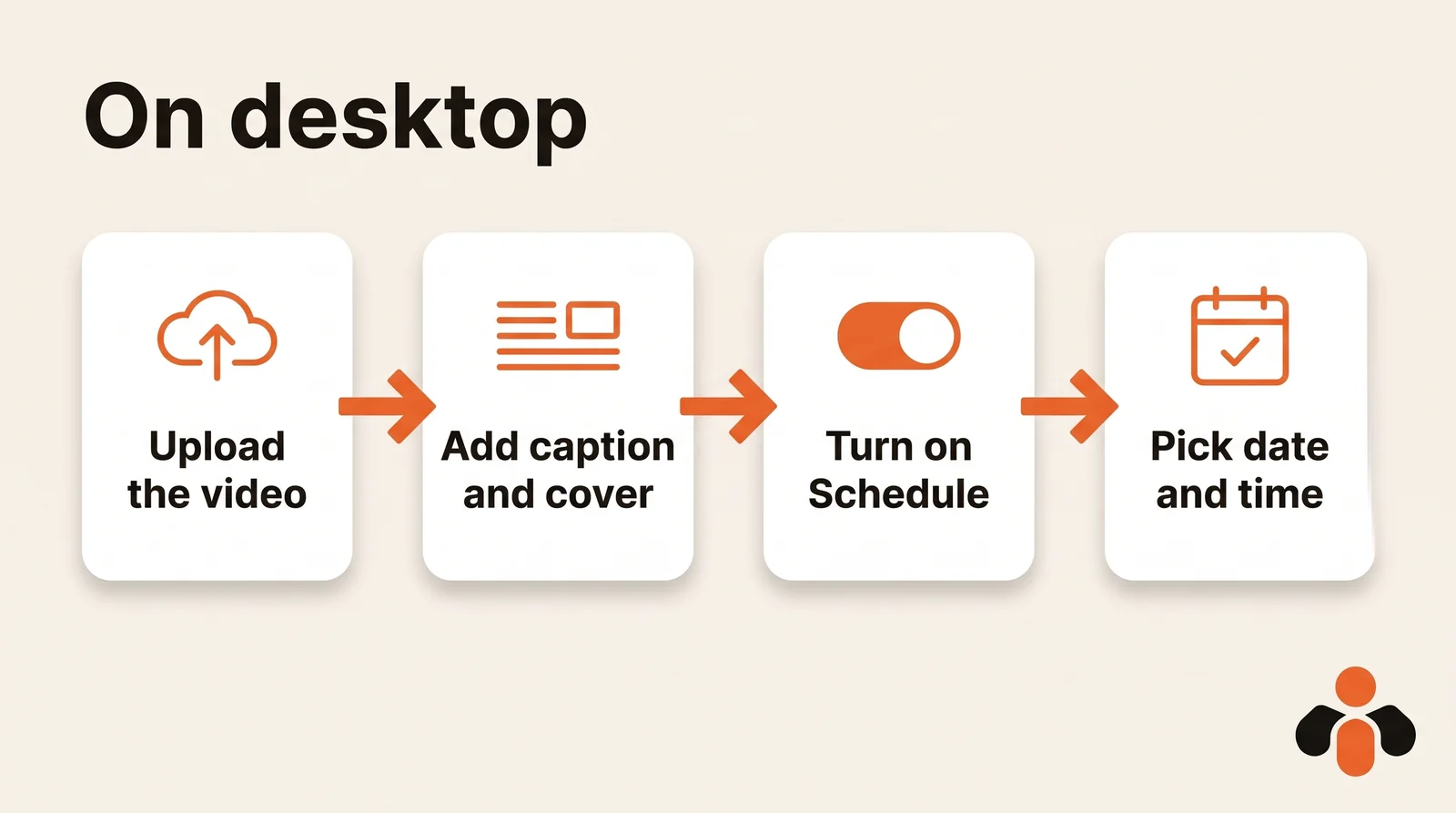
- Log into your account on tiktok.com from a computer, then click the Upload icon at the top of your feed.
- Upload the video you want to schedule, by dragging it in or selecting it.
- Fill in the details: caption, cover, who can watch the video, whether others can Duet or Stitch it, and whether comments are allowed. Take your time here, because you will not be able to come back to them.
- Turn on the schedule toggle.
- Pick a date and time between 15 minutes and 10 days ahead.
- Click Schedule to confirm.
One detail decides when the video really goes out: the time zone defaults to your computer setting. If you schedule from a laptop set to New York for an audience in London, your 6 pm video lands at 11 pm for them. Check your computer's clock before you confirm.
A realistic example: a creator selling an online course films four short lessons on Monday, then schedules them for Tuesday, Thursday, Saturday and the next Monday at 7 pm. Everything fits inside the 10-day window, and the course page link goes in the bio, not the caption.
Can you schedule TikTok posts on your phone?
On a phone, the browser is a dead end: scheduling is not available on TikTok Mobile Web. What exists on mobile is TikTok Studio, TikTok's set of creator tools. TikTok describes it as the place to upload, schedule, and edit posts, and says these tools are available in the TikTok app, on the web, and in the separate TikTok Studio app, which you download from Google Play or the App Store.
To open it from the TikTok app, tap Profile, then the Menu button at the top, then TikTok Studio.
Here is the honest part. TikTok's help pages do not describe the mobile scheduling steps, and they warn that tool availability varies across the app and web experiences, and some features may not be available in your region yet. So on iPhone or Android, look for a scheduling option in the post settings before you publish. If it is not there, the desktop method above remains the reliable route.
There is one documented mobile flow, for TikTok Shop creators posting shoppable videos. TikTok Shop's seller university explains that you tap More options, then Advanced settings, then Schedule post, pick a time, and the Post button becomes Schedule. That flow has its own rules, covered below.
The limits of TikTok's scheduler: 15 minutes, 10 days, no edits
Three rules explain nearly every bad surprise. The minimum is 15 minutes, the maximum is 10 days, and once a post is scheduled, nothing in it can change.
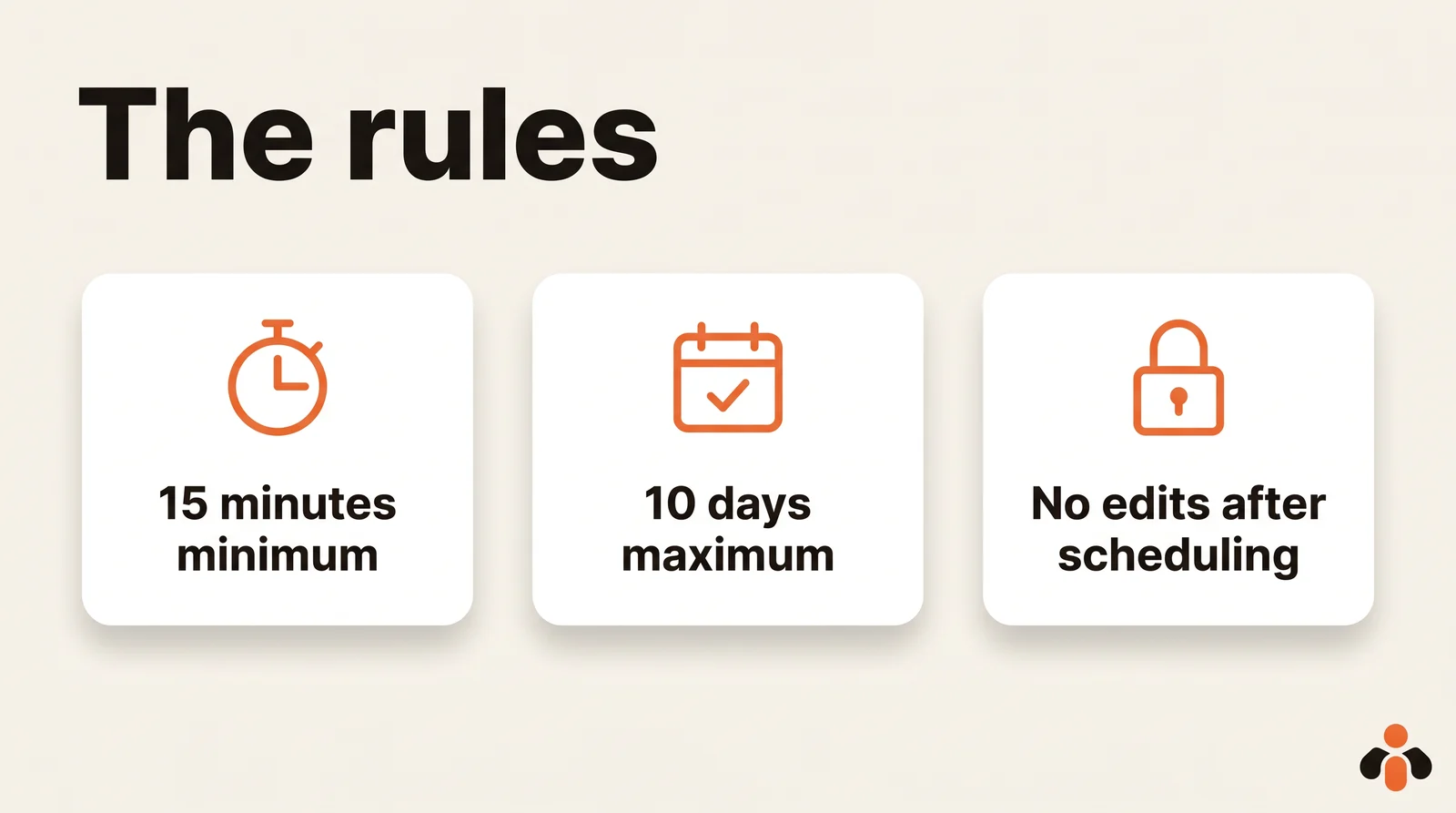
The window is narrow. TikTok's blog announcing the feature says you can schedule anywhere from 15 minutes to 10 days in advance, so a campaign prepared a month ahead does not fit. And the lock is complete: you won't be able to edit the video, captions, or scheduled time after scheduling. To fix a typo, you delete the scheduled post and re-upload it after making your edits.
Shoppable videos are the exception worth knowing:
| Standard scheduling | Shoppable videos (TikTok Shop) | |
|---|---|---|
| Minimum | 15 minutes | 30 minutes |
| Maximum | 10 days | 30 days |
| Scheduled videos per account | not documented | up to 50 |
| Before it goes live | can be deleted, not edited | stored privately, can be deleted |
The right column comes from TikTok Shop's seller university, which says the feature is available to all TikTok Shop creators. It applies only to that posting flow.
You will find guides that promise a month of scheduling for every account. TikTok's own help page, read on October 30, 2026, says 10 days for desktop scheduling. For anything that is not a shoppable video, plan on 10 days.
Where to find and delete a scheduled TikTok
According to TikTok, scheduled posts can be seen in the Profile view. TikTok's announcement adds that they appear alongside drafts. They cannot be edited, but they can be deleted. When the video goes live, you receive a push notification.
So the method to change anything is always the same: delete the scheduled post, then schedule a corrected version. Keep the final file and the caption in a document until the video is out, so redoing it takes one minute.
Signs you have outgrown TikTok's scheduler
If you post one or two videos a week on one account, TikTok's tool is enough. Four situations break it, and they show up fast once production gets organized.
- You batch more than 10 days ahead. A month of videos filmed in one day cannot go into TikTok's calendar at once. The 10-day limit sends you back every week.
- You manage several accounts. TikTok's tool schedules for the account you are logged into. An agency with five client accounts repeats the whole routine five times.
- The same video should also run as Reels or Shorts. TikTok's scheduler posts to TikTok only. Our guide on repurposing one video for Instagram, TikTok and YouTube Shorts covers the cropping and caption changes.
- You want posting triggered by a file, a sheet or an app. TikTok's scheduler is manual, one upload at a time. Dropping a video in a folder will not start anything.
For the free schedulers built into each network, see free social media scheduling with native tools. For the full list of what each network lets outside tools do, see the real limits of auto-posting to multiple networks.
For developers: TikTok's Content Posting API
A third-party TikTok scheduler goes through TikTok's Content Posting API. The tool keeps the date itself, so the 10-day limit no longer applies, but the API sets its own conditions.
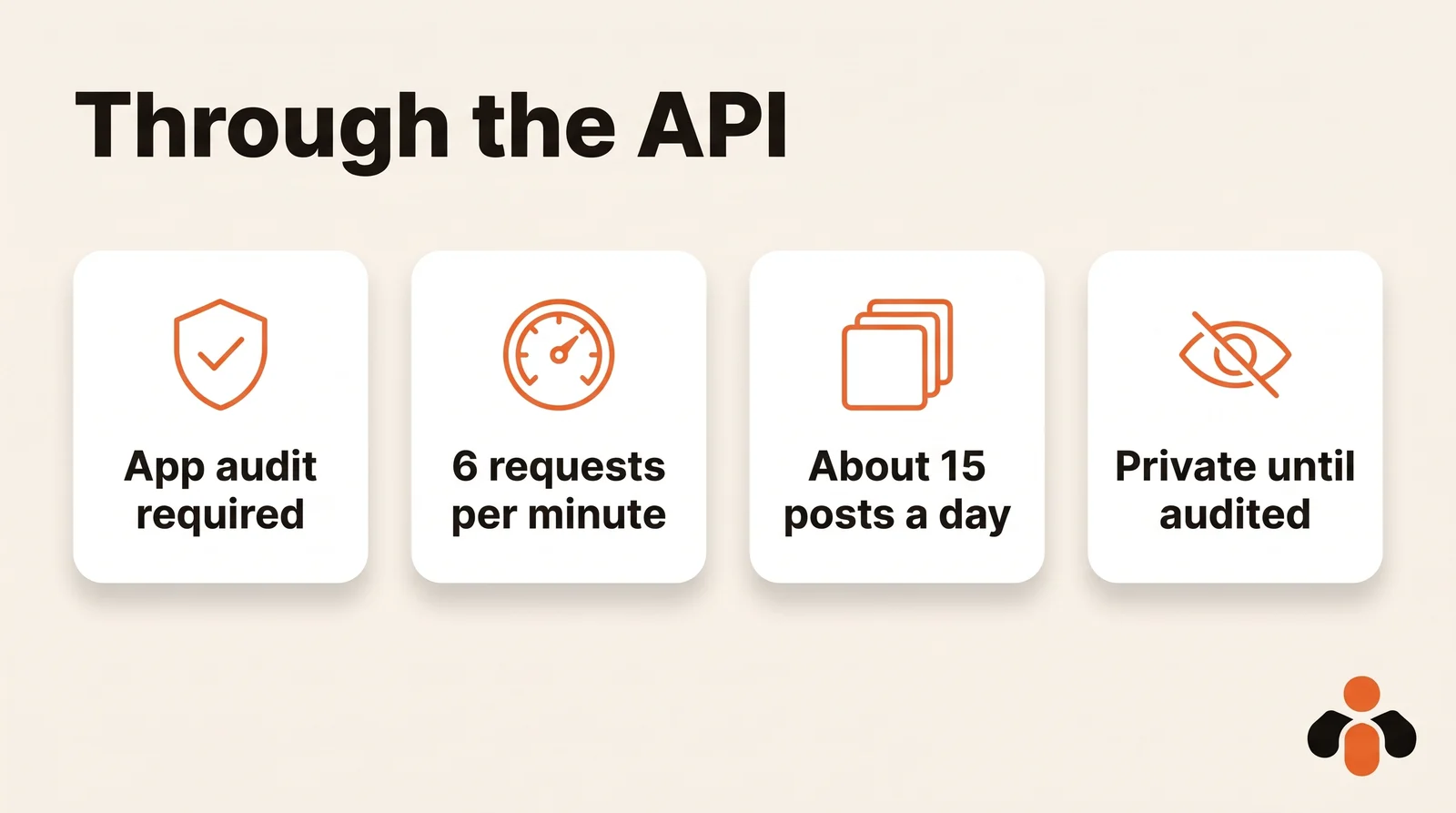
- An approved app. The app must be approved for the video.publish scope, and each user must authorize it. Until the app passes an audit, all content it posts is restricted to private viewing, and unaudited clients can let up to 5 users post in a 24-hour window.
- Bounded volumes. Each user access token is limited to 6 requests per minute to start a post, and the posting cap is typically around 15 posts per day per creator account, shared across all apps using Direct Post.
- Rules for the interface. TikTok's guidelines require apps to display the creator's nickname so you know which account the video goes to, and to let users edit any preset caption text before posting.
This is why automation tools such as n8n, Make or Zapier need either an HTTP request to an approved app or a service that already passed TikTok's audit. Building and auditing your own app makes sense for a product, rarely for one brand.
Scheduling TikTok with other networks from one place
Kreatoai is a tool of this kind. It publishes to TikTok right away or at the time you choose, on one or several TikTok accounts, and the same post can go to Instagram, Facebook Pages, personal LinkedIn profiles, YouTube Shorts, Bluesky and Google Business profiles at once, with a calendar. A scheduled post can still be edited (text, media, time) or canceled as long as it has not gone out, which removes TikTok's delete-and-redo step.
You can also ask ChatGPT or Claude, with no code: "schedule this video on our TikTok and as a YouTube Short on Thursday at 7 pm" is enough, and the assistant asks for your approval before scheduling. The ChatGPT setup page and the Claude setup page show the connection. For automation, a single request to its public API posts to several networks.
One limit to keep in mind: TikTok needs a video or images that you provide, and Kreatoai does not make videos. You can see how it works or create an account and connect TikTok first.
Key takeaways
- You can schedule TikTok posts for free on a computer, from tiktok.com, with the schedule toggle on the upload page.
- Desktop scheduling needs a Business Account or 10,000+ followers, and is not available in a phone browser.
- The window is 15 minutes to 10 days, in your computer's time zone: check the clock before you confirm.
- A scheduled TikTok cannot be edited. Delete it from your Profile view and upload it again.
- On a phone, TikTok Studio lists scheduling among its tools, but availability varies; desktop stays the reliable route.
- Shoppable videos from TikTok Shop creators follow their own rules: 30 minutes to 30 days, up to 50 scheduled.
- Beyond 10 days, several accounts or several networks, a scheduler connected to TikTok's API takes over.
Frequently asked questions
- Can you schedule a TikTok post?
- Yes, for free, with TikTok's own scheduler. On a computer, you upload the video on tiktok.com, turn on the schedule toggle and pick a date and time between 15 minutes and 10 days ahead. TikTok's help center reserves desktop scheduling for Business Accounts or accounts with 10,000 followers or more.
- Why is the TikTok schedule option not showing?
- The most common reason is the account. TikTok's help center says only a Business Account or an account with 10,000 or more followers can access desktop scheduling. The option is also not available on TikTok Mobile Web, meaning tiktok.com opened in a phone browser. Switch to a Business Account under Settings, then Account, or schedule from a computer.
- How far in advance can you schedule a TikTok?
- On desktop, between 15 minutes and 10 days before publishing, according to TikTok's help center as of October 30, 2026. Shoppable videos posted by TikTok Shop creators follow a separate flow that allows 30 minutes to 30 days ahead, with up to 50 scheduled videos per account.
- Can you edit a scheduled TikTok?
- No. TikTok says scheduled posts cannot be edited but can be deleted. The video, caption and scheduled time are locked once you confirm. To fix a typo or move the time, delete the scheduled post from your Profile view and upload it again.
- Can you schedule TikTok posts on your phone?
- Not from tiktok.com in a phone browser: TikTok says scheduling is not available on TikTok Mobile Web. TikTok Studio, which you open from the TikTok app or as a separate app, lists scheduling among its tools, but TikTok notes that tool availability varies between app and web and by region. If you do not see the option on your phone, schedule from a computer.
- Where do I find my scheduled TikTok posts?
- In your Profile view. TikTok's help center says scheduled posts appear there, can be deleted but not edited, and that you get a push notification when the scheduled video goes live.
- Is there a TikTok scheduler for several accounts?
- TikTok's built-in scheduler works for the account you are logged into, one at a time, and only posts to TikTok. A third-party scheduler that uses TikTok's Content Posting API can handle several accounts and other networks. Kreatoai is one: it publishes to TikTok and other networks from one calendar, or from ChatGPT and Claude.
Have it done for you
Kreatoai publishes and schedules your posts on all your networks, from your dashboard or by asking ChatGPT and Claude, and its agent answers your direct messages. Ten free posts every month, no credit card.
Try it free