Free Social Media Scheduling: Each Network's Own Tool
Free social media scheduling with each network's own tools: schedule on Instagram, Facebook, TikTok, LinkedIn and YouTube, and know where each one stops.
 By Kreatoai
Free social media scheduling already exists, inside each network. The Instagram app, Meta Business Suite, TikTok on desktop, LinkedIn and YouTube Studio all schedule posts at no cost. The catch: each one only sees its own network, so a free setup means four tools and a spreadsheet to keep track. Every step below comes from the networks' own help centers, read on October 30, 2026.
In this guide:
- which free tool to open for Instagram, Facebook, TikTok, LinkedIn and YouTube;
- the exact steps and limits of each, from the official help pages;
- a free social media planner in Google Sheets or Excel to tie them together;
- the point where a shared tool starts to save you time.
Free social media scheduling, network by network
The idea fits in one sentence: you prepare your posts ahead of time, and each network publishes them at the time you chose. No network schedules for the others, so a complete free setup takes four tools: the Instagram app, Meta Business Suite for Facebook and Instagram, TikTok on desktop, and the tools built into LinkedIn and YouTube.
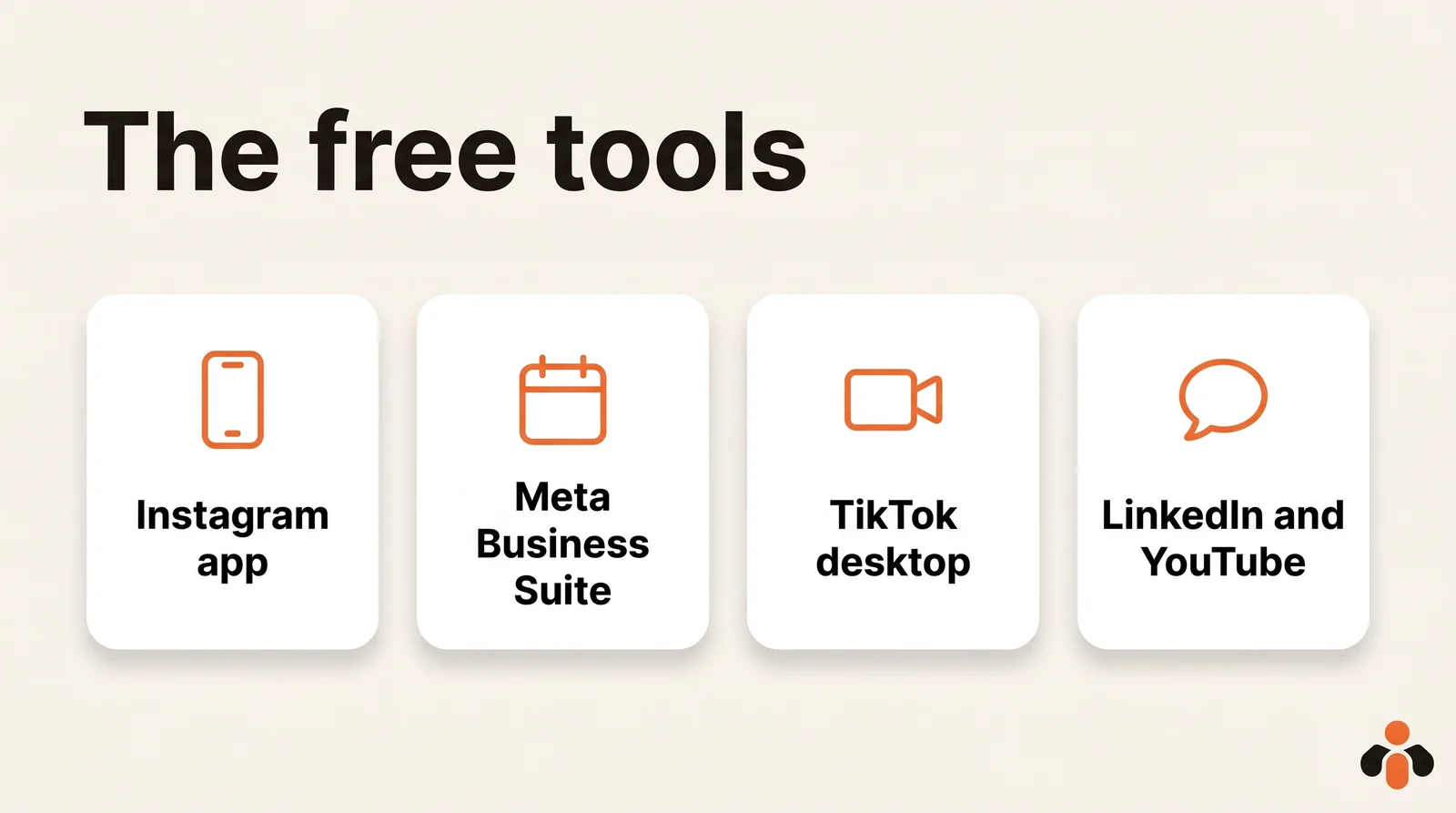
These tools have two things in common. They cost nothing, and each works under an account condition that varies by network: a public account for the Instagram app, a Business Account or a large audience for TikTok. Their shared flaw is that none of them sees the others. There is no common calendar across networks, which is what you will rebuild in a spreadsheet further down.
If you want to compare the different ways to schedule on Instagram first, our guide to scheduling Instagram posts goes through them. Here, we go network by network.
Schedule Instagram posts for free in the app
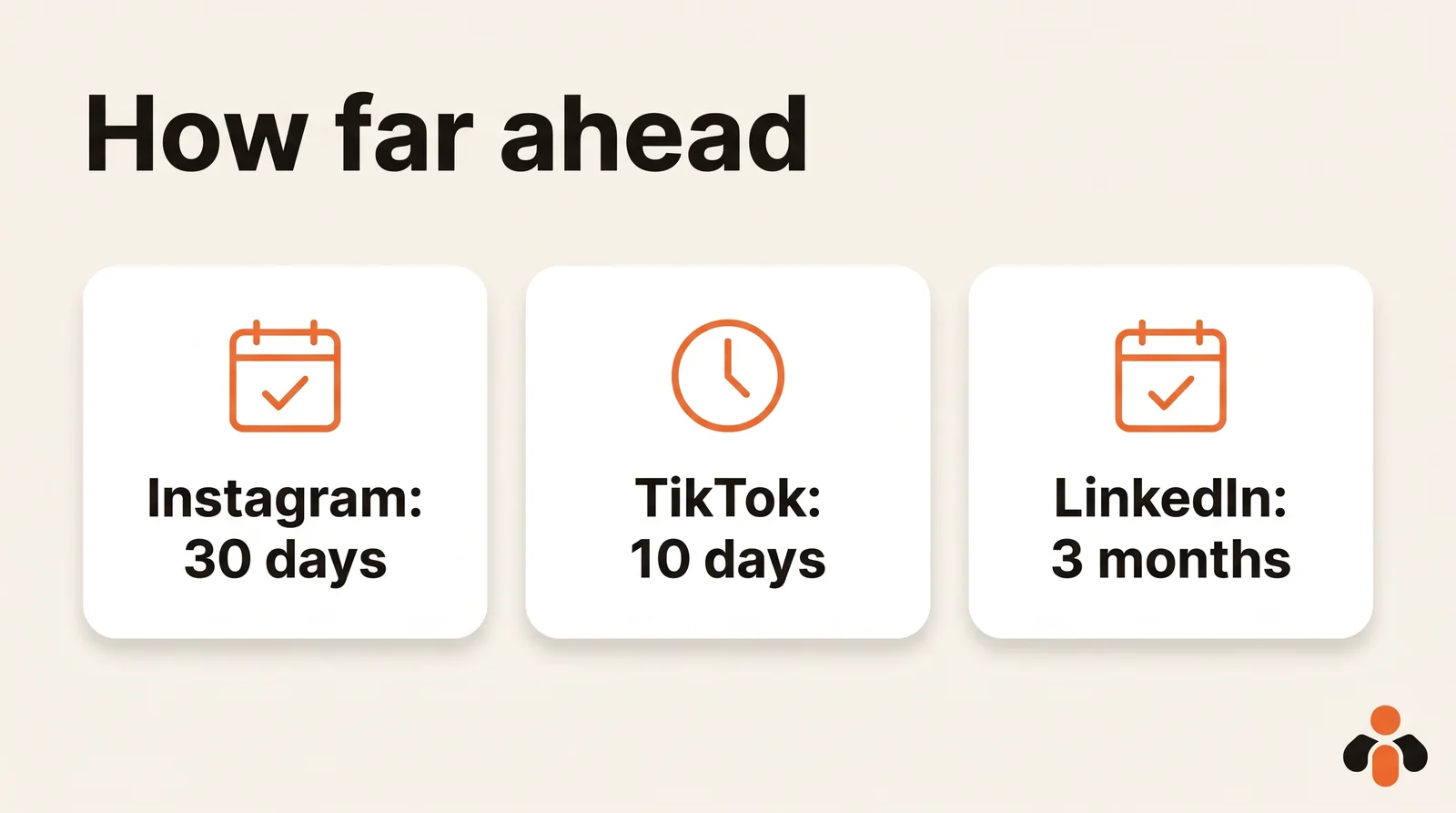
The most direct route is the Instagram app itself. With a public account, it schedules reels, photos and carousels, up to 25 posts a day and up to 30 days in advance.
The steps, as Meta describes them:
- Tap Create in the top left, then tap Post or Reel.
- Select a photo or video, then tap Next.
- Add a caption, effects or filters.
- Tap More options.
- Turn on Schedule this post or Schedule this reel, then choose a date and time.
- Tap Done, then Back, then Schedule.
To find what is waiting, go to your profile, tap Menu, then under Your insights and tools, tap Scheduled content. From there you can delete, edit, reschedule or share a post right away. Fixing a typo or moving a post never means starting over.
One limit: product tagging, collaborative posts, sponsored posts and fundraisers aren't compatible with scheduled content. If your post needs one of these, publish it by hand at the right time. And if you prefer a keyboard, scheduling Instagram posts from a PC covers the desktop options.
A free scheduler for Facebook and Instagram: Meta Business Suite
If your business runs on a Facebook Page as much as on Instagram, open Meta Business Suite instead. Meta says it is free to use on desktop and in the Meta Business Suite mobile app, and that you can create, schedule and manage your Facebook and Instagram content, then see it in a calendar view. One requirement: your business needs a business portfolio, the container that holds your Page and Instagram account.
To post, you need full control of the Page or Instagram account, or Content permission for it. Without one of those, nothing shows up.
The steps on desktop, from Meta's help center:
- Go to Meta Business Suite and click Create post, from the home page or the Content tab.
- Under Post to, pick the destination: your Facebook Page, your Instagram profile, or both.
- Under Media, add your photos. The limit for posting to Instagram is 10 photos.
- Under Post details, write your text. You can customize it for Facebook and for Instagram.
- Under Scheduling options, pick the date and time, then click Schedule.
A useful detail for timing: the Active times button suggests recommended times based on when followers were most active on Facebook and Instagram over the past 7 days. Our guide to the best time to post on Instagram shows how to read your own numbers.
Afterwards, the Content tab sorts everything by status (Published, Scheduled, Drafts, Expiring, Expired), and you can edit, reschedule, move to drafts or delete a post. What it does not do: TikTok, LinkedIn and YouTube stay out of reach. The full walkthrough is in our Meta Business Suite scheduling guide.
Schedule TikTok posts for free: account, window and limits
TikTok has the most restricted scheduling. Its help page says only a "Business Account" or over with 10,000 followers or more can access desktop scheduling, and the feature is not available for TikTok Mobile Web.
The steps, from TikTok's help center:
- Log into your account on TikTok's desktop website and click the Upload icon at the top of your feed.
- Upload the video you want to schedule and finish editing it.
- Toggle the schedule button and pick a date and time. The time zone follows your computer's setting, so check its clock first.
- Click schedule.
Three limits shape your planning. The video must go out a minimum of 15 minutes and a maximum of 10 days after you schedule it, so you can't load a full month at once. Scheduled posts can be seen in the Profile view and cannot be edited but can be deleted: to fix a caption, you start over. And the account condition shuts out small personal accounts. One reassurance: when the video goes out, you'll receive a push notification to alert you that your post is live.
The full detail, including the phone side, is in our guide to scheduling TikTok posts.
Schedule a LinkedIn post or a YouTube video without paying
These two networks have the most generous free tools.
LinkedIn schedules a post from desktop or mobile. Its help center says you can schedule between 10 minutes and 3 months from the current time, and scheduled times are converted to UTC based on your device's time zone settings. On desktop: click Start a post, write your text, click the Clock icon in the lower right, pick a date and time in the Schedule post window, then click Next and Schedule. On mobile, it is the same move, with the clock in the upper right.
That margin lets you write a month of posts in one evening and forget about them. To see what is queued, click the clock, then View all scheduled posts; from there, Modify schedule, Edit post or delete. Events and Jobs posts cannot be scheduled. More on this in our LinkedIn scheduling guide.
YouTube schedules from YouTube Studio. The steps, from YouTube's help center: click Create, then Upload videos, select the file and fill in the details, open the Schedule card, pick the date, time and time zone, then click Schedule. Two rules to know: the video must be set to scheduled or private to receive a publish time, and to move it, you keep it on Private and pick a new time. If your channel has a Community Guidelines strike, a scheduled video won't publish during the penalty period: it stays private and you reschedule it later. Last trap: the date on the watch page is based on Pacific time, so it can differ from Studio's date if you live ahead of it.
A free social media planner in Google Sheets or Excel
Four tools mean four places where you can forget what is already scheduled. The fix is a free social media planner in a spreadsheet: Google Sheets, Excel or a Notion database is enough. Professionals call it a content calendar.
Keep one row per post with these columns: network, day, time, topic, format, text, visual, status. The column that changes everything is status: to create, to approve, scheduled, published. When you schedule a row in a network's tool, switch it to "scheduled", and the sheet becomes the shared calendar the free tools don't give you. Our content calendar template gives the full model, filled in for one week.
A simple rhythm is enough to start. Once a week, fill in the next seven days: one topic per row, the full text written out, the image or video file named in the visual column. Then open each tool in turn and schedule its rows, starting with the network that has the shortest window. A week later, read the status column: any row still "to approve" is a post that will not go out.
Here is how it looks for a real estate agent who posts listings: the LinkedIn market update for the next three weeks can be scheduled right away, the Instagram carousel of a new listing up to 30 days out, but the TikTok walkthrough video only 10 days ahead, so it waits for next week's session.
| Network | Free tool | Window | Edit after scheduling |
|---|---|---|---|
| Instagram app | Up to 30 days | Yes | |
| Facebook and Instagram | Meta Business Suite | Not stated on the help page | Yes |
| TikTok | TikTok on desktop | 15 minutes to 10 days | No, delete only |
| 10 minutes to 3 months | Yes | ||
| YouTube | YouTube Studio | Date, time and time zone | Yes, while private |
When a shared tool becomes worth it
The free tools hold up as long as you post on one or two networks, a few times a week. They start to hurt in three cases: you post the same content on several networks, you manage several accounts on one network, or you want to see everything in one place without switching tools. If you are weighing automation, our guide to posting on multiple networks at once explains what each network's API really allows.
Kreatoai is that kind of shared tool. It publishes to Instagram, Facebook Pages, TikTok, personal LinkedIn profiles, YouTube Shorts, Bluesky and Google Business profiles, right away or at the time you choose, with a calendar, and you pick the account when you publish. The same post can go to several networks and accounts at once, and a scheduled post can be edited or canceled as long as it has not gone out. You can also ask ChatGPT or Claude, with no code: the AI suggests topics, writes the texts and dates, then schedules them after your approval. See how it works in ChatGPT or in Claude, read the overview, or create an account.
Key takeaways
- Every network offers a free scheduler: the Instagram app, Meta Business Suite for Facebook and Instagram, TikTok on desktop, LinkedIn and YouTube Studio.
- Windows differ: 30 days in the Instagram app, 15 minutes to 10 days on TikTok desktop, 10 minutes to 3 months on LinkedIn.
- TikTok requires a Business Account or 10,000 followers, and a scheduled TikTok can't be edited, only deleted.
- Meta Business Suite is free but needs a business portfolio and full control or Content permission on the account.
- The free tools don't talk to each other: a spreadsheet with a status column serves as your shared calendar.
- A shared tool starts paying off once you manage several networks or several accounts.
Frequently asked questions
- Is there a free social media scheduler?
- Yes: every major network ships its own, at no cost. Meta describes Meta Business Suite as free to use on desktop and in its mobile app, and it schedules Facebook and Instagram. The Instagram app, TikTok on desktop, LinkedIn and YouTube Studio each schedule their own posts. The cost is time, since you open one tool per network.
- How do I schedule social media posts for free on several networks?
- One free tool covers two networks: Meta Business Suite, for a Facebook Page and an Instagram account. For TikTok, LinkedIn and YouTube, you schedule in each network's own tool, one after the other. Bringing every network into one action takes a shared scheduling tool.
- How far in advance can I schedule a post?
- It depends on the network: up to 30 days in the Instagram app, between 15 minutes and 10 days for TikTok on desktop, and between 10 minutes and 3 months on LinkedIn. On YouTube, you pick the date, time and time zone in YouTube Studio when you upload.
- Can I schedule TikTok posts for free?
- Yes, on TikTok's desktop website. TikTok's help page says only a Business Account or an account with 10,000 or more followers can access desktop scheduling, between 15 minutes and 10 days ahead. Scheduled posts cannot be edited, only deleted, and the feature is not available on TikTok's mobile website.
- How do I make a free social media planner in Google Sheets?
- Create one row per post with these columns: network, day, time, topic, format, text, visual and status. Fill it once a week, then schedule each row in the network's own tool and switch its status to scheduled. The status column turns the sheet into the shared calendar the free tools don't offer.
- Can I edit a scheduled post after scheduling it?
- On Instagram, LinkedIn, Meta Business Suite and YouTube, yes: each lets you edit or reschedule a scheduled post. On TikTok, no: its help page says scheduled posts cannot be edited but can be deleted, so you delete and schedule again.
- How do I schedule Instagram, TikTok and LinkedIn in one place?
- With a shared scheduling tool. Kreatoai publishes to Instagram, Facebook Pages, TikTok, personal LinkedIn profiles, YouTube Shorts, Bluesky and Google Business profiles, right away or at the time you choose, with a calendar, and you pick the account when you publish. You can also ask ChatGPT or Claude to prepare and schedule a week of posts.
Have it done for you
Kreatoai publishes and schedules your posts on all your networks, from your dashboard or by asking ChatGPT and Claude, and its agent answers your direct messages. Ten free posts every month, no credit card.
Try it free