How to Schedule Instagram Reels: App, Desktop and Facebook
How to schedule a Reel on Instagram from the app, from a computer with Meta Business Suite, and on a Facebook Page: exact steps, limits, settings and edits.
 By Kreatoai
Yes, you can schedule a Reel on Instagram: in the app, after the caption, tap More options, turn on Schedule this reel, pick the date and time, then tap Schedule. On a computer, the path goes through Meta Business Suite and its Create reel button, which also schedules Reels for a Facebook Page. This guide walks through every step based on Meta's help pages as read on November 11, 2026, with the limits that most often block scheduling and the settings to check first.
In this guide:
- scheduling a Reel from the Instagram app, step by step;
- scheduling a Reel from a PC or Mac with Meta Business Suite;
- scheduling a Reel on a Facebook Page, and on both at once;
- doing it from your phone with the Meta Business Suite app;
- the format to respect and what can't be scheduled;
- finding, editing or rescuing a scheduled Reel;
- a table comparing the three paths.
Can you schedule Reels on Instagram?
Yes. Meta says so at the top of its help page: with a public Instagram account, you can schedule Reels, photos and carousel posts from the app. Three rules apply:
- the account must be public; a private account won't see the option;
- up to 25 scheduled posts a day, Reels included;
- up to 30 days in advance.
A scheduled Reel also keeps the privacy and audience settings you had when you scheduled it. You don't need a professional account for this, only a public one.
Schedule a Reel from the Instagram app
This is the quickest path when the video is already on your phone. The steps described by Meta:
- Tap Create in the top left, or swipe right anywhere in the feed, then choose Reel.
- Select the video and tap Next.
- Add the caption, effects or filters.
- Tap More options.
- Turn on Schedule this reel, then choose the date and time.
- Tap Done, then Back.
- Tap Schedule.
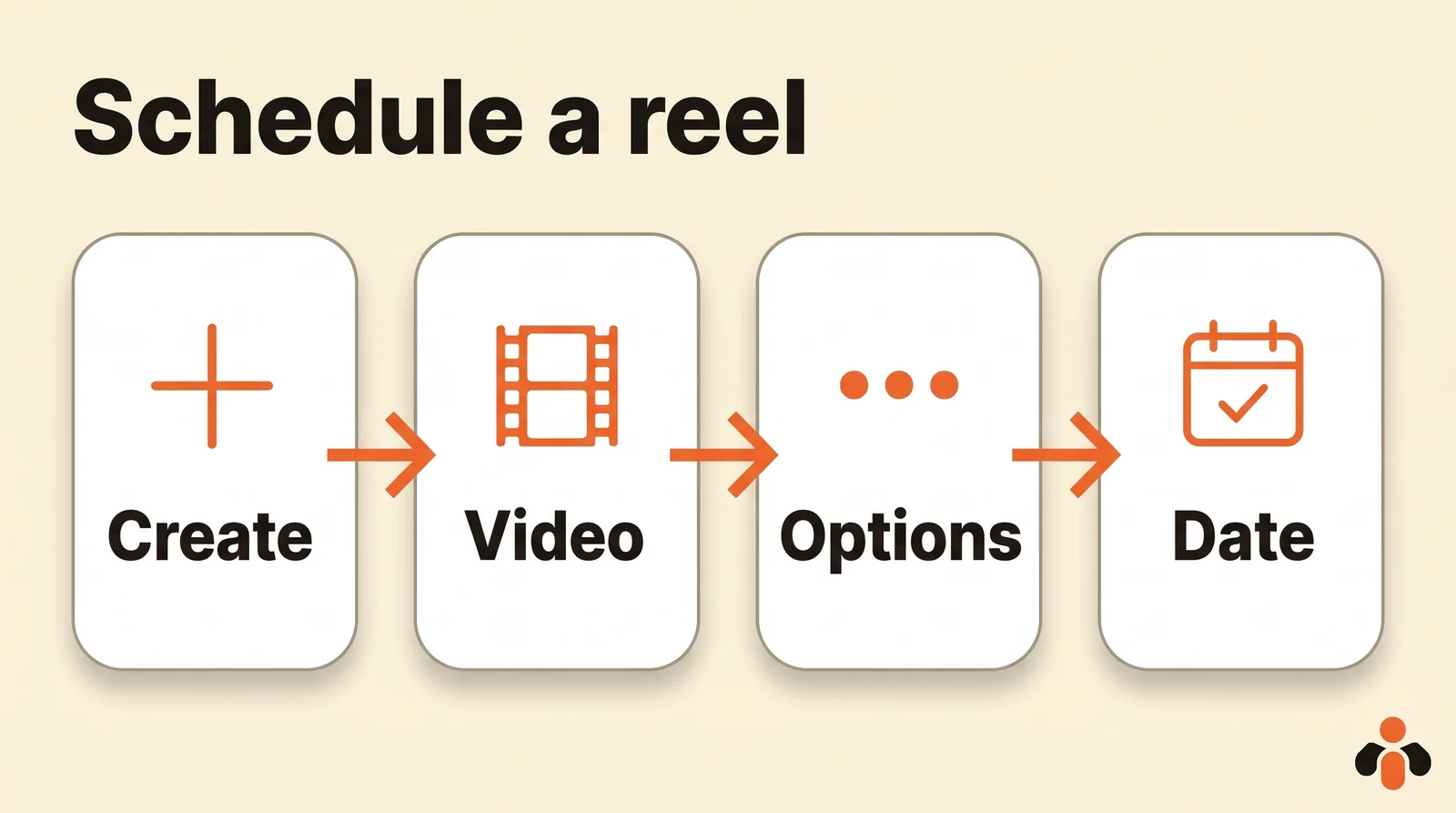
The switch lives under More options, which is where people usually get stuck. It only shows once the video is chosen and the caption written: if you don't see it, check that the account is public and that the Reel doesn't use one of the incompatible features (see below).
A real-world example. A fitness coach in New York films three Reels on Sunday. She schedules them that evening: Tuesday 7 am for the morning workout, Thursday 12:30 pm for the recipe, Saturday 9 am for the weekend session. She no longer opens the app during the week to post, only to reply to comments. To pick those times, see our guide on the best time to post on Instagram.
Schedule an Instagram Reel on desktop with Meta Business Suite
Meta's help page on scheduling in Instagram only covers the app. On a computer, the official path is Meta Business Suite, Meta's tool to create, schedule and manage Reels for a Facebook Page and an Instagram account in one place. It is free, and you need full control of the account or Content permission.
- Open Meta Business Suite and click Create reel, from the home page or the Content tab.
- Under Post to, choose your Instagram profile. You can tick a Facebook Page too.
- Under Media, click Add video, then choose a thumbnail under Thumbnail, or upload an image.
- Under Reel details, write the caption. You can tailor it for Facebook and for Instagram.
- Click Next.
- Choose to schedule the Reel, then pick the date and time.
- If needed, set Closed captions & translations, Remixing and original audio use, and Who can see this?.
- Click Schedule.
Two limits specific to Instagram, stated by Meta: from Meta Business Suite, you can't create an Instagram Reel from photos, and you can't edit the video when the Reel goes to Instagram. So finish the edit before uploading: trims, audio, on-screen text. If the video is still on your phone, our guide to transfer a video from your phone to your PC compares the options. For posts and Stories from a computer, see schedule Instagram posts from a PC.
Schedule a Reel on Facebook
For a Facebook Page, the path is the same in Meta Business Suite: Create reel, then the Page under Post to. The difference comes right after the caption. According to Meta, when the Reel goes to Facebook you can still:
- add or change the Reel's audio;
- change the video's aspect ratio;
- trim the video to shorten it.
On Facebook, a Reel can also be made from photos: Sound sync then times music to the images, and can be turned off if you don't want it.
Tick both the Page and the Instagram account under Post to, and the same Reel goes out on both at the time you chose, with its own caption on each if you customize it. For the Page's other formats, see our guide on how to schedule Facebook posts.
The help pages read for this guide describe Reel scheduling for a Facebook Page, through Meta Business Suite. They don't describe scheduling Reels from a personal Facebook profile.
Schedule a Reel from your phone with Meta Business Suite
The Meta Business Suite mobile app also schedules Reels, for the Page and for Instagram. According to Meta's help:
- Open the Meta Business Suite app.
- On the home screen, tap + at the bottom, then Reel.
- Pick videos from your gallery, or record with the camera. Several clips can be combined.
- Add audio, text, effects or stickers with the creative tools, and trim or reorder clips with Edit.
- Tap Next, then write the title and description.
- Under Share to, choose the Page, the Instagram account, or both.
- Under Scheduling options, choose Schedule for later, then the date and time.
- Tap Schedule.
Meta notes that Reels are public by default, and that Reels from business or creator Pages can only be posted publicly.
Before you schedule: format and settings
A Reel that fails at the planned time loses its slot. Four checks to run before scheduling.
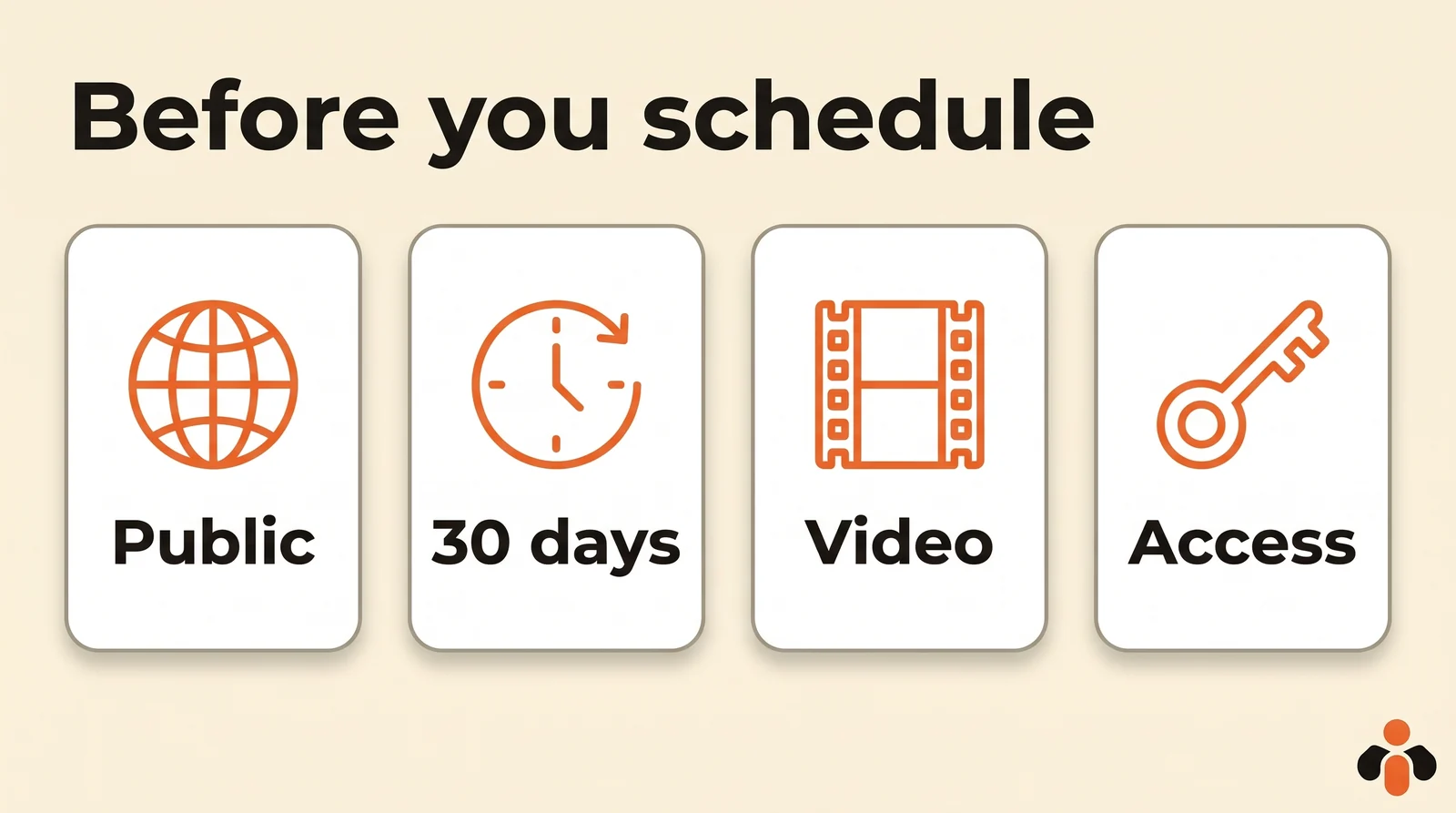
- Public: the Instagram account must be public to schedule from the app.
- 30 days: the date is no more than 30 days away, with no more than 25 scheduled posts that day.
- Video: Instagram's help asks for an aspect ratio between 1.91:1 and 9:16, at least 30 frames per second and 720 pixels of resolution. The recommended cover photo is 420 x 654 pixels, and it can't be changed after upload: pick it before scheduling.
- Access: in Meta Business Suite, full control of the account or Content permission.
On length, Instagram allows Reels up to 20 minutes, but Reels over 3 minutes aren't recommended to new audiences. To reach people who don't follow you, stay under 3 minutes.
What can't be scheduled
Meta notes it under the steps: product tagging, collaborative posts, sponsored posts and fundraisers aren't compatible with scheduled content. An online store that wants to tag products in a Reel, or a Reel made in collaboration with another account, has to be posted by hand at the right time.
What about trial Reels?
Trial Reels are shown first to accounts that don't follow you, to test an idea. They require a professional account, are turned on with the Trial switch just before sharing, and show their insights within 24 hours. Instagram can also share them with your followers automatically if they get many views in the first 72 hours, if you turn that setting on. Meta's help page describes trials at the moment of sharing and doesn't say whether they combine with scheduling: check in your app whether both options show together.
Find, edit or rescue a scheduled Reel
A scheduled Reel doesn't appear on your profile before its time. In the app, it waits in Profile, Menu, then Scheduled content, below Your insights and tools. The Options button next to the Reel offers four choices: Edit post, Reschedule, Share now and Delete. Another path: Create, then Reel, then Scheduled.
On desktop, in Meta Business Suite: Content, Posts & reels tab, then Scheduled. The ... icon, then Manage post, opens options that depend on the Reel's status, such as Edit reel, Reschedule post, Change date, Move to drafts, Delete reel or Change remix and audio use. Our guide to edit a scheduled post on Instagram covers each option.
If the Reel didn't go out, Meta lists four causes: missing access, an unresolved issue on the Instagram account, a hacked account or a system error. In the last case, open Content in Meta Business Suite, then the Scheduled tab, click the Reel in error and choose to publish it now.
Which path to choose
| Path | Where | Best for | Limit to know |
|---|---|---|---|
| Instagram app | More options, Schedule this reel | A video already on your phone | Public account, 25 a day, 30 days |
| Meta Business Suite on desktop | Create reel | Preparing several Reels calmly, Page and Instagram together | No Instagram Reel from photos, no editing for Instagram |
| Meta Business Suite app | +, then Reel, then Schedule for later | Editing and scheduling on the phone, Page and Instagram | Reels are public by default |
| Facebook Page only | Meta Business Suite, Create reel, the Page under Post to | A Facebook Reel, with audio, aspect ratio and trim | Pages only |
Meta's three tools don't go beyond Facebook and Instagram. Our guide on how to schedule Instagram posts also compares schedulers that cover other networks.
Schedule the same video on Instagram, TikTok and YouTube
A well-edited Reel often works elsewhere too: as a TikTok video, as a YouTube Short. With Meta's tools, you then redo the scheduling in each network's app, with its own caption, time and settings. Our guide to repurpose one video for Instagram, TikTok and YouTube Shorts gives the method.
Kreatoai does it in one go. It publishes to Instagram, Facebook Pages, TikTok, personal LinkedIn profiles, YouTube Shorts, Bluesky, Google Business profiles and Pinterest, right away or at the time you choose, and one post goes out to several networks and several accounts together. A video still on your phone joins the post without a transfer: on your computer, the From my phone button shows a QR code, you point your phone at it and pick the file. Every scheduled post can be edited (text, image, time) or canceled until it goes out. Kreatoai doesn't publish Facebook Reels: for a Page Reel, stick with Meta Business Suite.
You can also write to ChatGPT or Claude, connected to Kreatoai, like you would to a coworker: "schedule this video on Instagram, TikTok and YouTube Thursday at 6 pm, with a short caption for each". The AI writes the captions with you, asks for your approval, then schedules (see how to connect Claude). Ten posts are free every month, no credit card required.
Key takeaways
- A Reel can be scheduled in the Instagram app: More options, Schedule this reel, the date, then Schedule.
- You need a public account; Meta allows 25 scheduled posts a day, up to 30 days in advance.
- On desktop, Meta Business Suite schedules Reels with Create reel, but for Instagram you need a finished video.
- On a Facebook Page, the same path lets you change the audio, aspect ratio and length before scheduling.
- Recommended format: between 1.91:1 and 9:16, 30 frames per second, at least 720 pixels, and under 3 minutes to reach new audiences.
- Product tags, collaborations, sponsored posts and fundraisers can't be scheduled.
- Scheduled Reels live in Profile, Menu, Scheduled content, or in Meta Business Suite, Scheduled tab.
Frequently asked questions
- Can you schedule Reels on Instagram?
- Yes, with a public account. In the app, prepare the Reel, tap More options after the caption, turn on Schedule this reel, pick a date and time, then tap Schedule. Meta allows 25 scheduled posts a day, up to 30 days in advance.
- How do I schedule an Instagram Reel on desktop?
- Use Meta Business Suite, Meta's free tool: click Create reel, pick your Instagram profile under Post to, add the video, thumbnail and caption, click Next, then choose Schedule and the date. For Instagram, start from a finished video: Meta Business Suite can't make an Instagram Reel from photos and can't edit the video.
- Can you schedule Reels on Facebook?
- Yes, for a Facebook Page, in Meta Business Suite: Create reel, pick the Page under Post to, then Schedule at the last step. For Facebook, Meta Business Suite also lets you change the audio, aspect ratio and length before scheduling. The same Reel can go to the Page and the Instagram account.
- Where do I find a scheduled Reel on Instagram?
- In the app: Profile, Menu in the top right, then Scheduled content below Your insights and tools. The Options button offers Edit post, Reschedule, Share now and Delete. On desktop, it is in Meta Business Suite, under Content, Posts & reels, then Scheduled.
- Why can't I schedule my Reel?
- Meta only lets public accounts schedule, caps it at 25 posts a day and 30 days ahead, and doesn't support it with product tagging, collaborative posts, sponsored posts and fundraisers. In Meta Business Suite you also need full control of the account or Content permission.
- What format should a scheduled Reel use?
- According to Instagram's help, an aspect ratio between 1.91:1 and 9:16, at least 30 frames per second and 720 pixels of resolution. The recommended cover photo is 420 x 654 pixels and can't be changed after upload. A Reel can run up to 20 minutes, but Reels over 3 minutes aren't recommended to new audiences.
- Can I schedule a Reel on several networks at once?
- Meta Business Suite sends one Reel to a Facebook Page and an Instagram account. To add TikTok or YouTube, you need a multi-network scheduler such as Kreatoai, which schedules the same video on Instagram, TikTok and YouTube Shorts in one go, from its dashboard or by asking ChatGPT or Claude.
Have it done for you
Kreatoai publishes and schedules your posts on all your networks, from your dashboard or by asking ChatGPT and Claude, and its agent answers your direct messages. Ten free posts every month, no credit card.
Try it free