Edit a Scheduled Post on Instagram: Find, Reschedule or Delete It
How to find and edit a scheduled post on Instagram and Facebook, on mobile and desktop: the exact paths, every option, and what to do when a post doesn't go out.
 By Kreatoai

To edit a scheduled post on Instagram, open your profile, tap Menu, then Scheduled content: the Options button next to the post lets you edit it, reschedule it, share it now or delete it. On desktop, everything happens in Meta Business Suite, under Content, in the Scheduled tab. This guide gives the exact paths, on phone and on desktop, for Instagram and for Facebook Pages, based on Meta's help pages as read on November 9, 2026.
In this guide:
- where to find a scheduled post on Instagram and on Facebook;
- the four options in the Instagram app, and what each one does;
- the same on desktop, in Meta Business Suite;
- Facebook Pages, on desktop and on mobile;
- why the schedule option is missing, or why a post didn't go out;
- a table of where to go depending on your device.
Where to find scheduled posts on Instagram
A scheduled post doesn't show on your profile before its time: it waits in a separate list. Meta describes two ways to get there in the app.
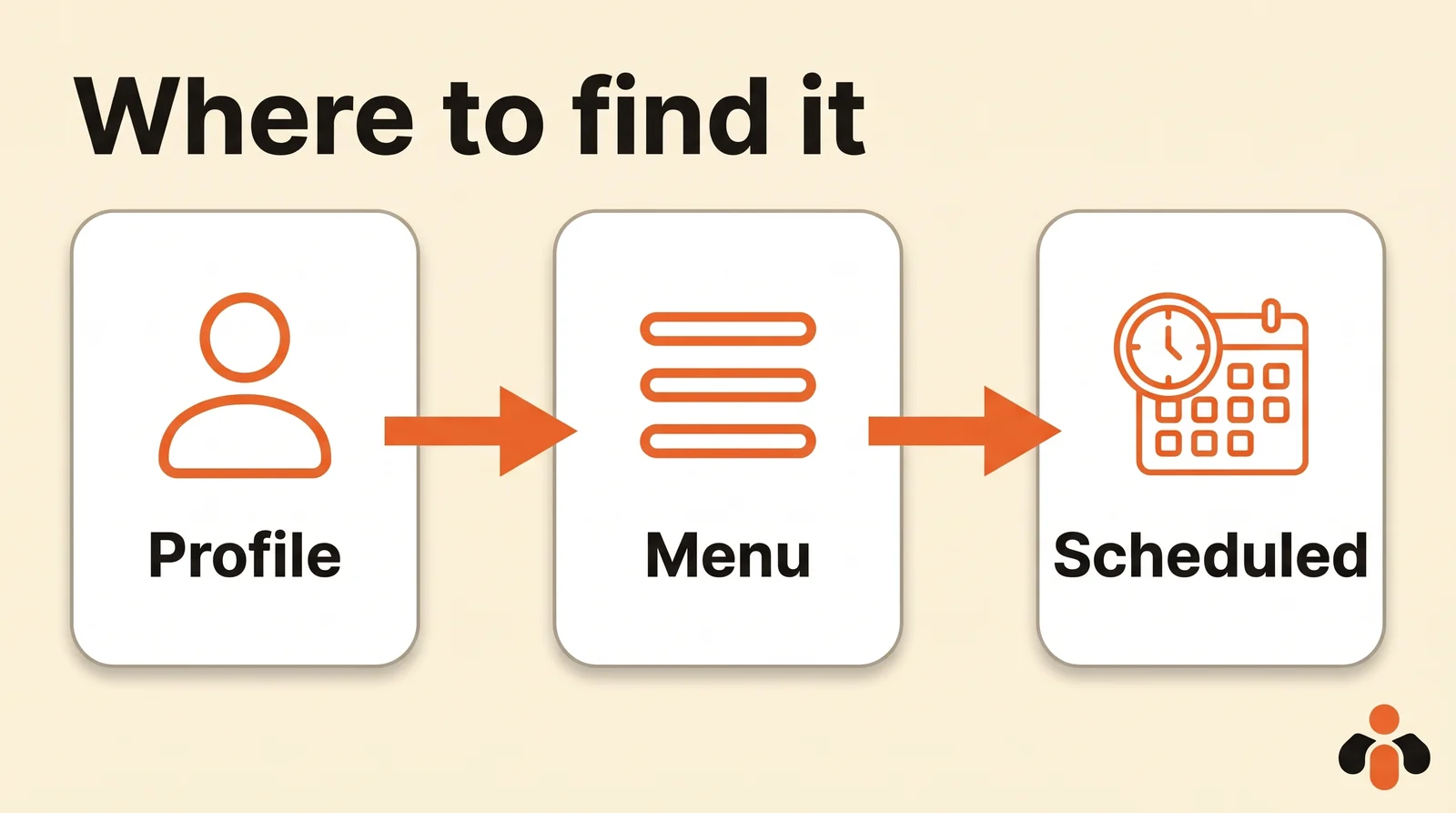
From your profile:
- Tap Profile, or your profile picture in the bottom right.
- Tap Menu in the top right.
- Below Your insights and tools, tap Scheduled content.
While creating a post:
- Tap Create in the top left, or swipe right anywhere in your feed.
- Choose Post or Reel.
- Tap Scheduled to see everything that is waiting.
The second route is handy when you are already preparing a new post and want to check what goes out this week. Stories are not there: the Instagram app only schedules posts, carousels and reels. A scheduled story was set up in Meta Business Suite, and that's where you'll find it, in its own tab (see our guide on how to schedule Instagram stories).
Edit, reschedule or delete in the app
In Scheduled content, tap Options next to the post. You get four choices, the same every time according to Meta's help.
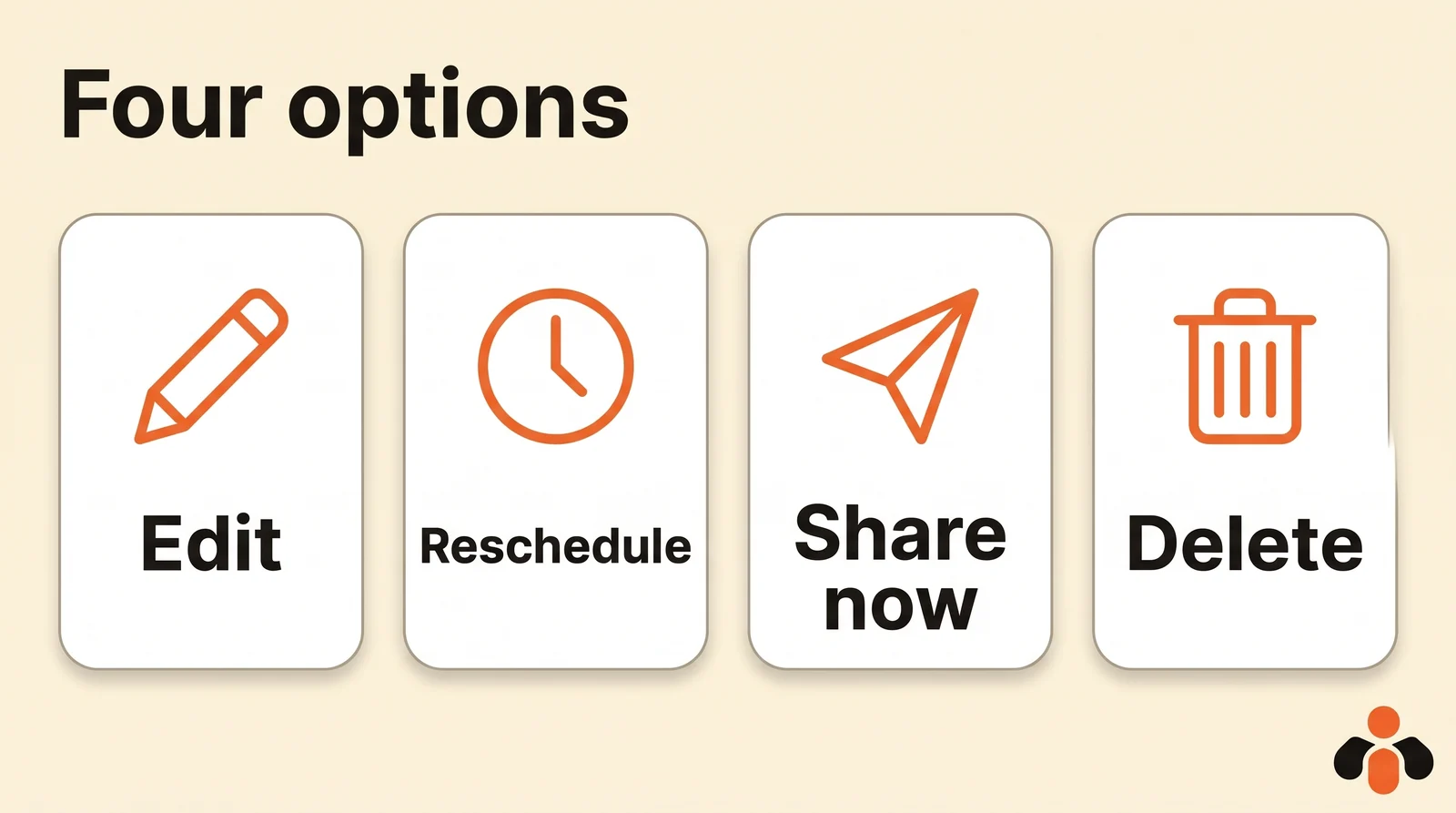
- Edit post: fix the caption before it goes out. This is the most common case: a typo, a price that changed, a link to replace, a tag you forgot.
- Reschedule: pick another date and time, up to 30 days ahead.
- Share now: the post goes out immediately instead of waiting. Useful when news moves your announcement forward.
- Delete: the post leaves the list and will not be published.
One detail from Meta to keep in mind: scheduled content keeps the privacy and audience settings that were set when you scheduled it. If you changed your account's audience since, check the post.
A practical tip: if you are torn between fixing and deleting, Reschedule the post to a far date while you decide. Deleting wipes out everything you prepared.
On desktop: Meta Business Suite
On a computer, scheduled Instagram and Facebook posts are managed in Meta Business Suite. The steps according to Meta:
- Open Meta Business Suite and click Content in the left menu.
- In the Posts & reels tab, content is sorted by status: Published, Scheduled, Drafts, Expiring and Expired. Choose Scheduled.
- Click the ... icon on the post, then Manage post.
- Pick an action. Depending on the status, Meta offers Edit post, Reschedule post, Move to drafts, Delete post, Add collaborator, or Enable remixing.
Move to drafts is the option the Instagram app lacks, and it is often the best one: the publishing time is canceled, but the text and image stay ready to go again. The Planner in Meta Business Suite also shows everything that is coming, by week or month, and opens the same menu when you click a post.
Watch out for menu names: Meta renames them from one version to the next, and some of its help pages still say Posts and stories and Calendar instead of Content and Planner. If you can't find a tab, look for its equivalent. Our guide to Meta Business Suite covers the whole tool, and the one on how to schedule Instagram posts from a PC covers creating the post.
What about a Facebook Page?
For a Page, scheduled posts are also managed in Meta Business Suite, but Facebook's help describes the path from the Page itself:
- Switch to the Page you want to manage.
- In the Page's left menu, click Meta Business Suite.
- Click Create post below the Page's profile picture.
- Click Planner in the left menu.
- Find the post on the calendar, in Week or Month view, and click it.
- Click the three dots, then Options.
The options go a little further than on Instagram, and Facebook's help says exactly what each does:
- Edit post changes the text, media, link or location;
- Duplicate post makes a copy as a new post;
- Reschedule post sets a new date and time;
- Move to drafts cancels the scheduled time and moves the post to the Page's drafts;
- Delete post removes it.
Two rules specific to Pages. A post can be scheduled between 20 minutes and 29 days away, and all times follow your current time zone: if your team works from New York and you travel to London, check the time before you reschedule. Also, only people with Facebook access or Task access to the Page can create and edit its scheduled posts: if the menu doesn't appear, ask an admin to check your access. For creating the post, see how to schedule Facebook posts.
Editing a scheduled Facebook post on your phone
On a phone, the Meta Business Suite app handles this, not the Facebook app. Meta's help describes the path: open the posts and stories section from the bottom menu, choose posts, then Scheduled, tap the post, then the three dots next to its details. From there you can reschedule it, edit it, duplicate it, move it to drafts or delete it. The same path works for stories, which can be rescheduled, deleted or published right away. Meta warns that this version of the app may not be available to your account yet: if your screens look different, the app's calendar leads to the same options.
Where to go, by device
| Where | How to get there | What you can do |
|---|---|---|
| Instagram app | Profile, Menu, Scheduled content (or Create, then Scheduled) | Edit, reschedule, share now, delete |
| Meta Business Suite on desktop | Content, Posts & reels, Scheduled, then Manage post | Edit, reschedule, move to drafts, delete, add a collaborator |
| Facebook Page on desktop | Page, Meta Business Suite, Planner | Edit, duplicate, reschedule, move to drafts, delete |
| Meta Business Suite app | Posts, then Scheduled | Reschedule, edit, duplicate, move to drafts, delete |
Why scheduling isn't working
Two problems come up: the schedule option is missing, or a scheduled post didn't go out.
The schedule option is not available
Here is what Meta requires in the Instagram app:
- the account must be public: a private account can't schedule;
- 25 posts a day at most, and 30 days in advance at most;
- some features aren't compatible with scheduling: product tagging, collaborative posts, sponsored posts and fundraisers. Add them after the post is live, or publish by hand at the right time;
- the switch sits in More options, after the caption: it is called Schedule this post or Schedule this reel.
The scheduled post didn't go out
Meta has a full page on posts that show an error, that don't publish to both the Page and the Instagram account, or that go out late. It gives four causes.
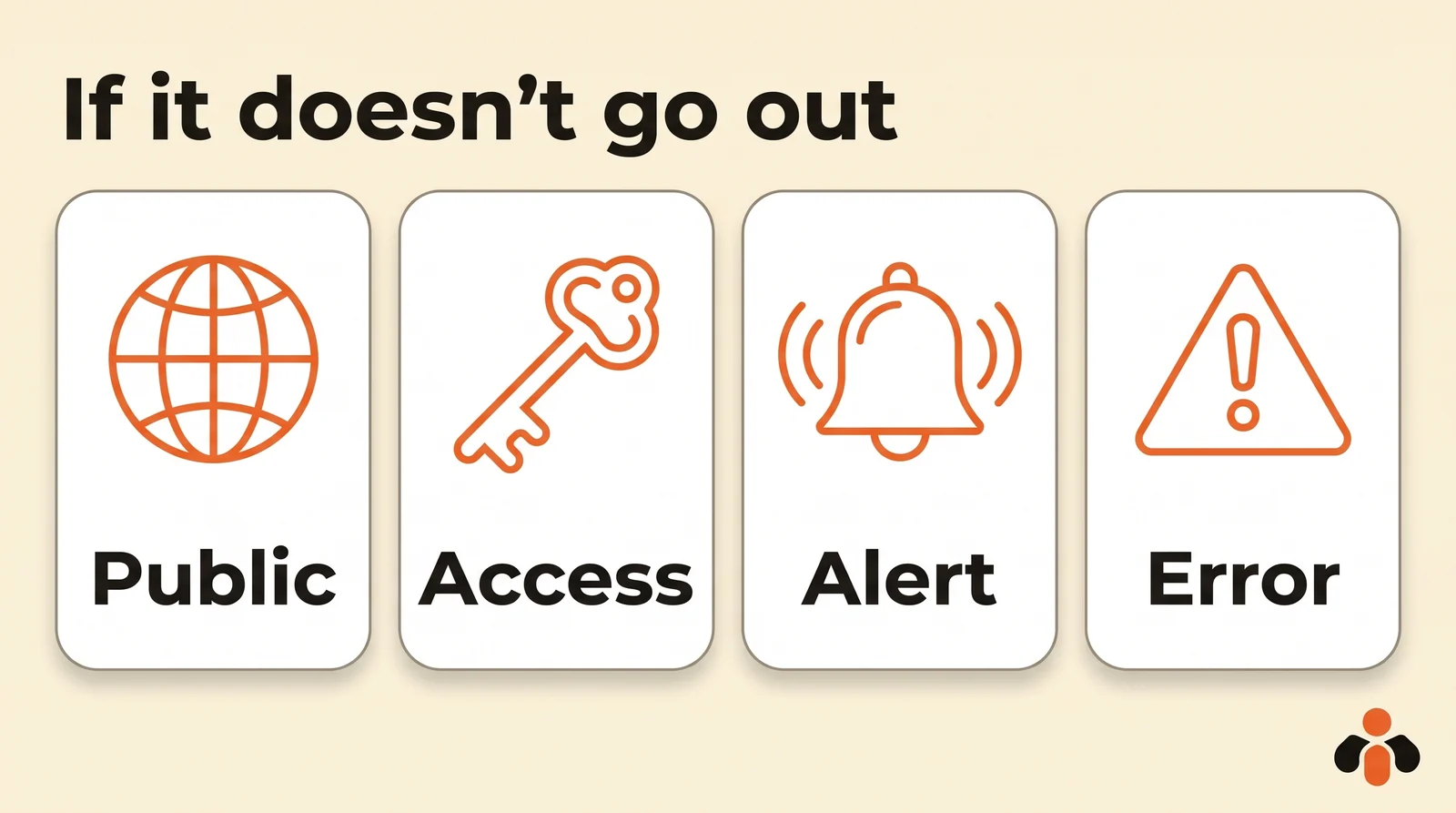
- Missing access. You need full control of the Page or Instagram account, or Content permission, to publish. Access removed between scheduling and publishing time is enough to block the post.
- An unresolved issue on the Instagram account. Open the Instagram app: if a pop-up notification appears, follow its steps, then go back to Meta Business Suite and try again.
- A hacked account. If you can no longer log in, Instagram's help explains how to recover it.
- A system error. It stops the post from going out at its time, through no fault of yours.
In that last case, publish the post by hand:
- In Meta Business Suite on desktop, click Content.
- Open the Scheduled tab and look for a message saying the post failed to publish.
- Click the post, then Publish now.
For a launch that matters, reopen that tab a few minutes after the scheduled time, and check on the profile that the post is live.
Edit every scheduled post in one place
The paths above work, but each network has its own: Scheduled content in Instagram, Meta Business Suite for Facebook, and other tools for TikTok, LinkedIn or YouTube. When one announcement goes to several networks and a price changes the day before, you have to fix it in every tool without missing one.
Kreatoai brings it all into one dashboard. It publishes to Instagram, Facebook Pages, TikTok, personal LinkedIn profiles, YouTube Shorts, Bluesky, Google Business profiles and Pinterest, right away or at the time you choose. Every post shows in a list or a calendar, and each one can be edited (text, image, time) or canceled as long as it hasn't gone out, then goes out on its own at the set time. A post scheduled in Kreatoai is found in Kreatoai, not in Instagram's Scheduled content.
You can also do it by writing to ChatGPT or Claude, connected to Kreatoai, like you would to a coworker: "what's still scheduled this week?", then "move Thursday's post to Friday at 6 pm and cancel Saturday's". The AI lists what is still scheduled, reschedules or cancels, and asks for your approval before canceling (see how to connect Claude). Ten posts are free every month, no credit card needed. For the three ways to schedule on Instagram, see our guide on how to schedule Instagram posts.
Key takeaways
- On Instagram, scheduled posts are under Profile, Menu, Scheduled content, or under Create, then Scheduled.
- The Options button offers Edit post, Reschedule, Share now and Delete.
- On desktop, everything is in Meta Business Suite: Content, the Scheduled tab, then Manage post. Move to drafts cancels the time without losing anything.
- On a Facebook Page, Edit post changes the text, media, link or location; scheduling runs from 20 minutes to 29 days ahead.
- On mobile, a Page's scheduled posts are managed in the Meta Business Suite app.
- Scheduling on Instagram requires a public account, and stops at 25 posts a day and 30 days ahead.
- A failed post can be published from Meta Business Suite, in the Scheduled tab, with Publish now.
Frequently asked questions
- Where are scheduled posts on Instagram?
- In the app, on your profile: tap Menu in the top right, then, below Your insights and tools, tap Scheduled content. You can also tap Create, choose Post or Reel, then tap Scheduled. On desktop, scheduled posts live in Meta Business Suite, under Content, in the Scheduled tab.
- How do I edit a scheduled post on Instagram?
- Open Scheduled content from your profile, tap Options next to the post, then Edit post. The same menu offers Reschedule to change the date and time, Share now to publish it right away, and Delete.
- How do I change the time of a scheduled post on Instagram?
- Tap Options next to the post in Scheduled content, then Reschedule, and pick a new date and time. Meta allows scheduling up to 30 days in advance. On desktop, use Manage post, then Reschedule post, in Meta Business Suite.
- What can I change in a scheduled post on a Facebook Page?
- According to Facebook's help, Edit post changes the text, media, link or location. Reschedule post sets a new date and time, between 20 minutes and 29 days away, and Move to drafts cancels the time without losing the post.
- Why is the schedule option not available on Instagram?
- Meta only lets public accounts schedule. Scheduling also stops at 25 posts a day and 30 days in advance, and it is not compatible with product tagging, collaborative posts, sponsored posts and fundraisers.
- Why didn't my scheduled Instagram post go out?
- Meta lists four causes: missing access to publish, an unresolved issue on the Instagram account, a hacked account, or a system error. Meta Business Suite then shows an error in the Scheduled tab, and you can publish the post by clicking it, then Publish now.
- Can I edit a scheduled post from ChatGPT or Claude?
- Yes, with a tool connected to the AI such as Kreatoai: ask it what is still scheduled, then to reschedule or cancel a post as long as it has not gone out. Text, image and time can also be edited in the Kreatoai dashboard.
Have it done for you
Kreatoai publishes and schedules your posts on all your networks, from your dashboard or by asking ChatGPT and Claude, and its agent answers your direct messages. Ten free posts every month, no credit card.
Try it free