Transfer a Video From Phone to PC: With or Without a Cable
How to transfer a video from your phone to your PC, iPhone or Android: USB cable, Quick Share, cloud storage, WhatsApp, QR code, and the limits of each method.
 By Kreatoai
The most reliable way to transfer a video from your phone to your PC is still a USB cable, and it keeps the original quality. Without a cable, three options work: Quick Share between Android and Windows, cloud storage, or a tool that links both devices with a QR code. WhatsApp and email either degrade large videos or refuse them. This guide covers each method for iPhone and Android, based on Apple, Microsoft, Google and WhatsApp help pages checked on November 7, 2026.
In this guide:
- cable methods, on Android and on iPhone;
- wireless methods and their catches;
- cloud storage, WhatsApp and email, and what they do to quality;
- a table to pick a method in ten seconds;
- what to do when the PC doesn't see the phone;
- and, if the video is headed for Instagram or TikTok, how to skip the transfer altogether.
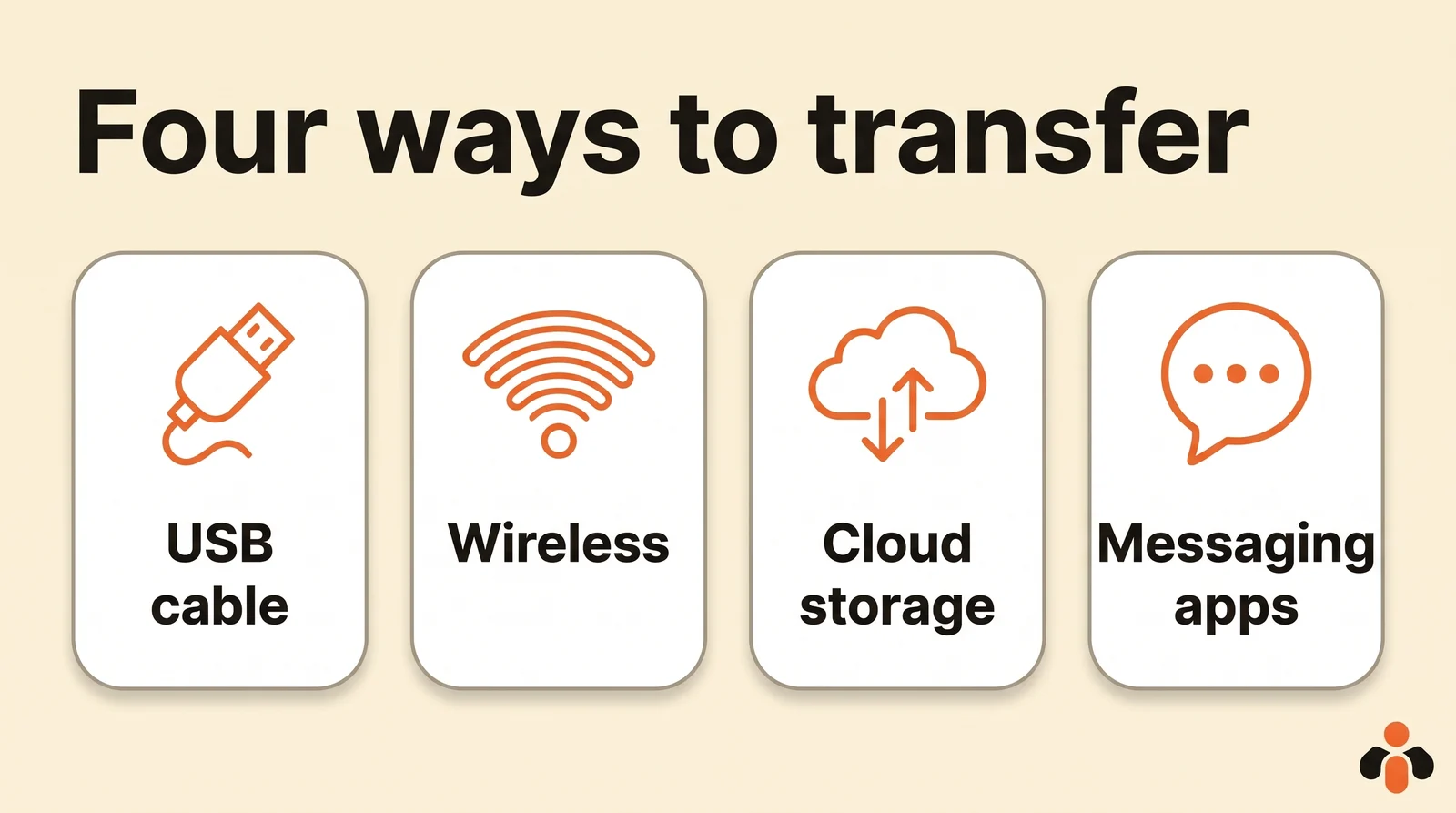
With a USB cable: the most reliable method
A cable has two strengths other methods don't always share: it needs no Wi-Fi and no online account, and the file arrives exactly as it is on the phone, with no recompression. A long 4K video goes through as easily as a few-second clip. The only catch is the cable itself: not every USB cable can transfer files, and some only charge.
From an Android phone
These steps come from Google's Android help:
- Unlock your phone.
- Connect it to the PC with the USB cable.
- On the phone, tap the "Charging this device via USB" notification.
- Under "Use USB for," select File transfer.
- A file transfer window opens on the PC: drag the video to a folder on your computer. Videos you shot are usually in the phone's DCIM folder.
- Eject the phone, then unplug the cable.
Step 4 is the one people miss: many phones connect in charging mode by default, and the PC then shows no files at all.
From an iPhone
On Windows, Apple adds one step. According to Apple Support:
- Install the Apple Devices app from the Microsoft Store.
- Connect your iPhone to the PC with a USB cable.
- Unlock the iPhone with your passcode, and tap Trust if it asks whether to trust this computer.
- On the PC, open the Windows Photos app, select Import, then your device, as Microsoft's help describes.
- Pick the videos to import and the folder to save them in.
Two iPhone-specific catches. First, if iCloud Photos is on, a video may only exist on the phone as a smaller version: Apple says to download the full-resolution originals to the iPhone before importing. Second, the iPhone records by default in a format some PCs struggle with. Apple suggests switching the camera to Most Compatible (Settings, Camera, Formats): new videos are then saved in H.264, which plays everywhere.
On a Mac it's simpler: the Mac Photos app imports a connected iPhone, and AirDrop sends a video with no cable. AirDrop only works between Apple devices: there is no AirDrop for a Windows PC.
Without a cable: wireless methods
Quick Share, between Android and Windows
Google offers Quick Share for Windows, an app you install on the PC from Google's website. It exchanges images, videos and documents between an Android phone and a nearby Windows PC. The receiver approves each transfer, and shared files are encrypted. For visibility, choose Your devices, signed in with the same Google account on the phone and the PC. Quick Share doesn't cover the iPhone.
Phone Link: not for videos
The Windows Phone Link app connects your phone to your PC, so it's the obvious thing to try. But Microsoft is clear: it copies recent photos and doesn't import videos. Don't look for your video there.
A QR code in the browser
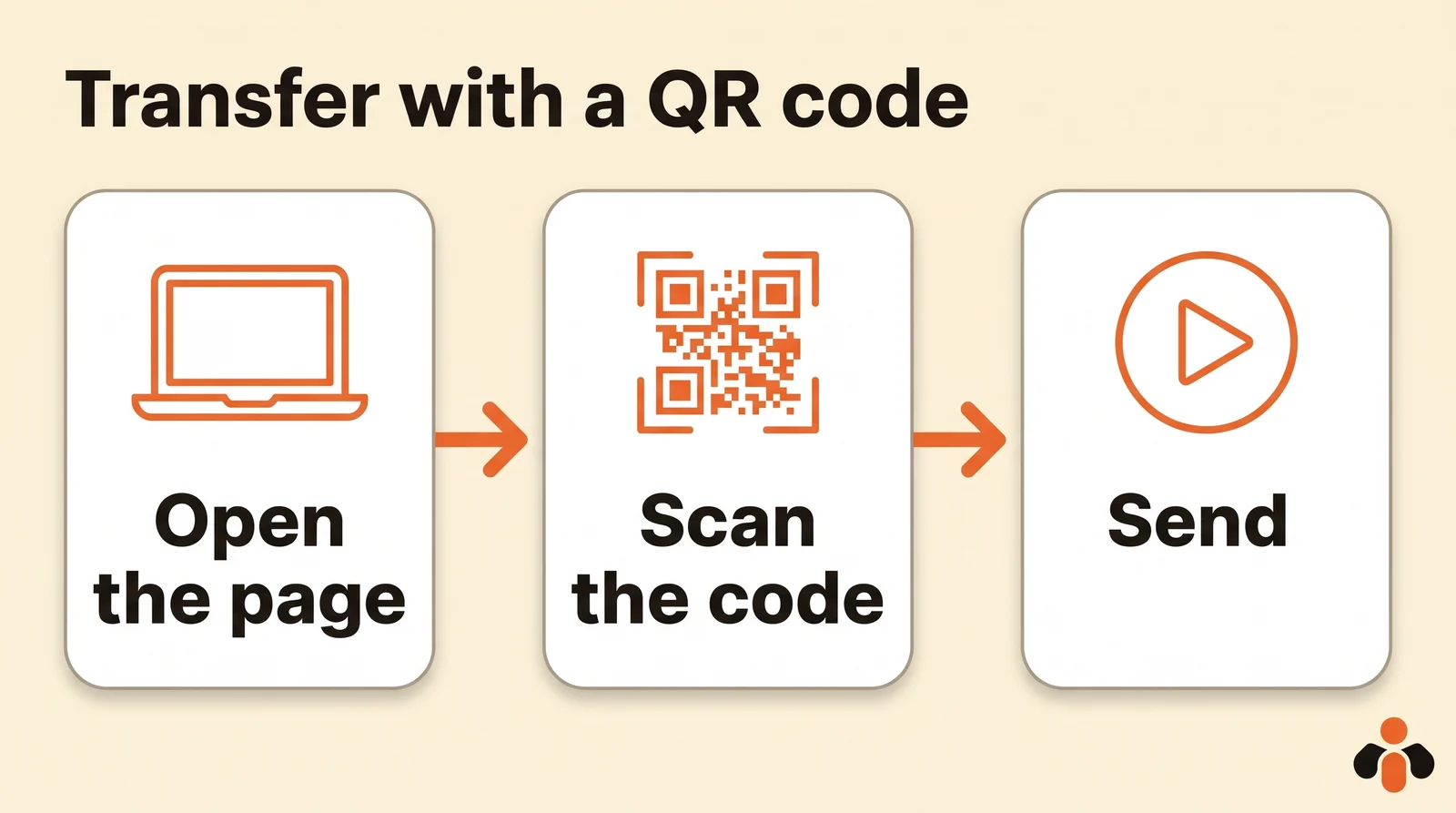
The last wireless option: a web tool that links the two devices with a QR code, with nothing to install. That's how our free tool to transfer files from phone to PC works:
- Open the page on the PC: a QR code shows up, unique to this transfer.
- Scan it with the phone's camera, iPhone or Android, and tap the link that appears.
- Pick the video: it lands in the PC's downloads.
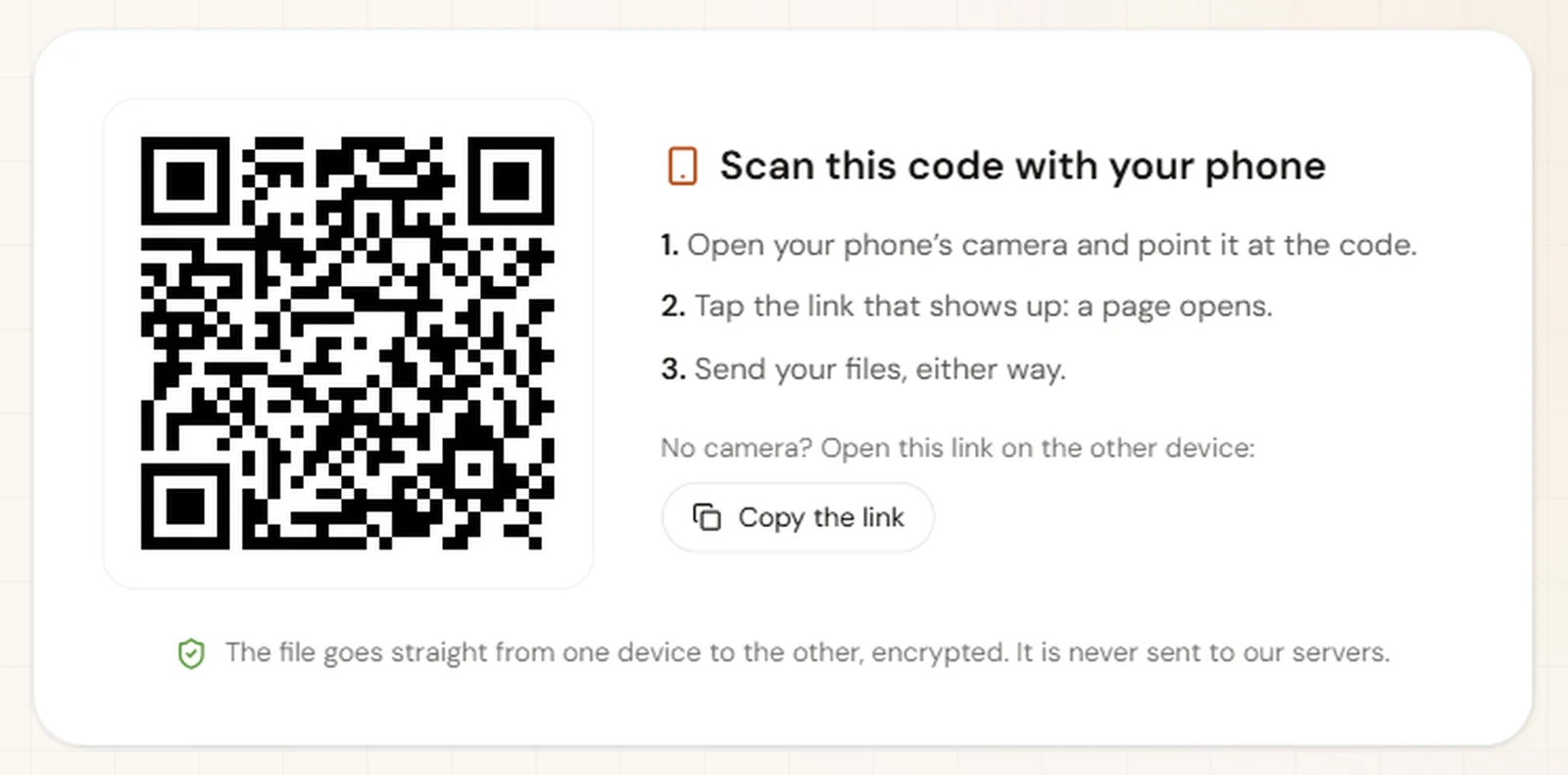
The file goes straight from one device to the other, encrypted, in original quality, without passing through a server, and it also works the other way, from PC to phone. There's no account and no app. Its limits, worth knowing: both pages must stay open during the transfer, since the file isn't stored anywhere, and some networks, often at work or on mobile data, block the direct connection. In that case, put your phone on the same Wi-Fi as the PC. On iPhone, choose "Actual Size" if you're offered a smaller size when picking the video.
With cloud storage
If your videos already back up to the cloud, they may already be reachable from your PC. Microsoft points this out: with automatic backup to OneDrive or Google Photos, just open the service on the computer and download the video.
- Google Photos or Google Drive: every Google Account includes 15 GB shared across Gmail, Drive and Photos. A few 4K videos fill it up. Also watch the backup quality: in "Storage saver," Google Photos keeps a reduced version.
- iCloud: on Windows, iCloud for Windows downloads the photos and videos in iCloud Photos. It uses the space in your iCloud plan.
For a single video, the cloud has two drawbacks: the file travels twice (upload, then download), and it takes up your space until you delete it.
WhatsApp or email: avoid them for video
Sending the video to yourself is the most common reflex. It's also the one that does the most damage.
WhatsApp recompresses videos sent as videos. According to WhatsApp's help, the default limit is 100 MB and 720p on a fast connection, 64 MB and 480p on a slow one. A video shot in 4K arrives in 720p at best. To send a large video on WhatsApp without losing quality, choose Document instead of Photos & videos: a document goes up to 2 GB, with no recompression. You then open it in WhatsApp on the PC and save it.
Email hits a wall fast. Gmail caps attachments at 25 MB for a personal account, a few seconds of HD video. Above that, Gmail swaps the attachment for a Google Drive link, which takes you back to cloud storage.
Which method should you pick?
| Method | Phones | Quality | Main limit |
|---|---|---|---|
| USB cable | Android, iPhone (with Apple Devices) | Original | A cable that carries data |
| Quick Share | Android to Windows | Original | App to install, devices nearby |
| AirDrop | iPhone to Mac | Original | No Windows PC |
| QR code in the browser | Android, iPhone | Original | Both pages open, a network that allows direct connections |
| Google Photos, Drive, iCloud | Android, iPhone | Original or reduced, depending on the setting | 15 GB free at Google, two trips |
| WhatsApp as video | Android, iPhone | Reduced (720p at best) | 100 MB by default |
| WhatsApp as document | Android, iPhone | Original | 2 GB |
| Email (Gmail) | Android, iPhone | Original | 25 MB |
For one video, a QR code or Quick Share is the fastest. To empty a phone of a hundred videos, the cable still wins.
The PC doesn't see the phone: what to check
- The phone is locked. Microsoft notes that a PC can't detect a locked device. Unlock it before plugging in.
- USB mode is set to charging. On Android, choose File transfer in the USB notification.
- The iPhone wasn't trusted. Unplug, plug back in, and tap Trust.
- The cable doesn't carry data. Try another one, ideally the one that came with the phone, or another port on the PC.
- The video stayed in iCloud. Download the original to the iPhone before importing.
- Wireless won't connect. Put both devices on the same Wi-Fi: company networks and mobile data often block direct connections.
Moving it just to post it? Skip the transfer
Plenty of videos go from phone to PC for one reason: to post them on Instagram, TikTok or YouTube while working on the computer. On a PC, Instagram goes through Meta Business Suite, and TikTok through tiktok.com and its Upload button, covered in our guide on how to schedule TikTok posts. Either way, the video has to reach the computer first, then be uploaded network by network.
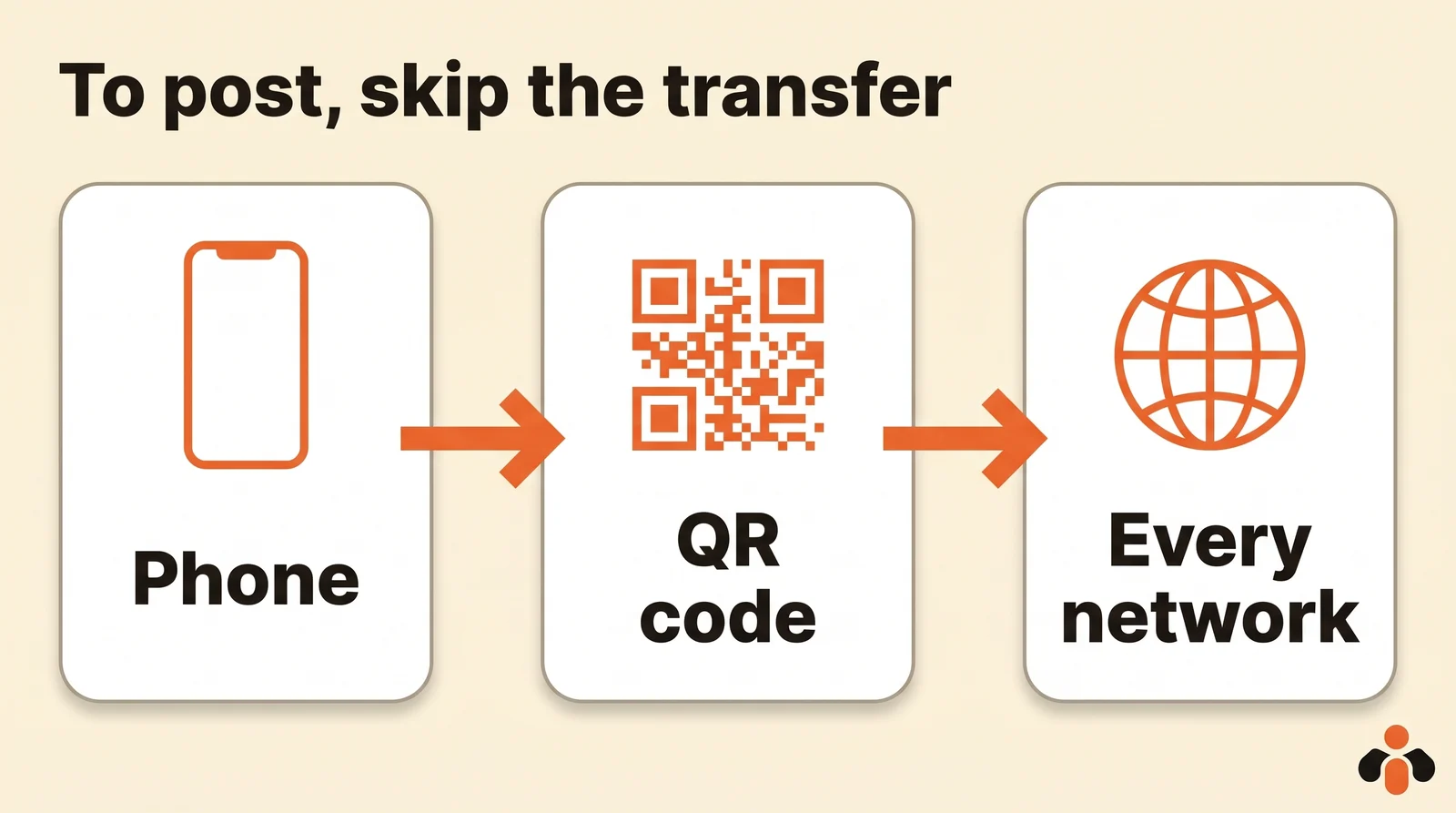
Kreatoai handles this differently. In the dashboard on your computer, the From my phone button in a new post shows a QR code: scan it with your phone, pick the video, and it joins the post with no transfer. You write the text on the big screen, one per network, then the post goes out right away or at the time you choose on Instagram, TikTok, YouTube, Facebook, LinkedIn, Bluesky, Google Business or Pinterest. One upload serves every network you picked.
You can also ask ChatGPT or Claude, connected to Kreatoai: the AI prepares the post and gives you an upload link, which shows a QR code on the computer. Scan it with your phone, pick the video, and the computer's page updates on its own. Kreatoai doesn't make the video: it posts the one you shot. Ten posts are free every month, no credit card needed. To fit one video to each network's format, see also how to repurpose a video for Instagram, TikTok and YouTube Shorts.
Key takeaways
- A USB cable keeps the original quality and has no size limit. On Android, choose File transfer. On an iPhone with Windows, install Apple Devices, then import with Photos.
- Without a cable: Quick Share between Android and Windows, AirDrop between iPhone and Mac, or a QR code in the browser for any phone.
- Windows Phone Link doesn't transfer videos.
- WhatsApp shrinks a video to 720p at best. Sent as a document, it goes up to 2 GB with no loss. Gmail stops at 25 MB.
- If the video only goes to the PC to be posted, send it straight from the phone into the post.
Frequently asked questions
- How do I transfer a video from my phone to my PC without a cable?
- Three options work without a cable: Quick Share between an Android phone and a Windows PC, cloud storage (Google Photos, Google Drive, iCloud) where you download the video on the PC afterward, or a browser tool that links both devices with a QR code, like Kreatoai's free tool, with no app and no account.
- How do I transfer a video from an iPhone to a Windows PC?
- With a cable: Apple says to install the Apple Devices app from the Microsoft Store, plug in the iPhone, unlock it and tap Trust, then import with the Windows Photos app. Without a cable: iCloud for Windows, or a QR code tool in the browser. AirDrop only works with a Mac.
- Why can't my PC see the videos on my Android phone?
- Most of the time, the phone is plugged in for charging only. Google says to tap the Charging this device via USB notification, then choose File transfer. If nothing changes, try another cable: not every USB cable can transfer files.
- Can I send a large video on WhatsApp without losing quality?
- Yes, by sending it as a document rather than a video. By default, WhatsApp caps a video at 100 MB and 720p on a fast connection, 64 MB and 480p on a slow one. A document goes up to 2 GB and is not compressed.
- Does the Windows Phone Link app transfer videos?
- No. Microsoft says Phone Link copies recent photos from your camera roll and screenshots, but does not import videos. For a video, use a cable, Quick Share, cloud storage or a QR code tool.
- How do I post a video shot on my phone to Instagram or TikTok from a PC?
- First get the video onto the PC, then use Meta Business Suite for Instagram, or tiktok.com and its Upload button for TikTok. With Kreatoai you skip the transfer: the From my phone button shows a QR code, the video leaves the phone once and is scheduled on every network you picked.
Have it done for you
Kreatoai publishes and schedules your posts on all your networks, from your dashboard or by asking ChatGPT and Claude, and its agent answers your direct messages. Ten free posts every month, no credit card.
Try it free