How to Schedule a YouTube Video: Steps and the Right Time
Schedule a YouTube video or a Short in YouTube Studio: the steps, changing the time, Premieres, the traps (private video, Pacific date) and the time to pick from your own analytics.
 By Kreatoai
You schedule a YouTube video for free in YouTube Studio: during the upload, the Schedule card lets you set the date, time and time zone, and the video stays private until then, then goes public on its own. Shorts are scheduled through the same window. One question YouTube won't answer for you: what time.
In this guide: the step-by-step on a computer, Shorts and the mobile app, scheduled video versus Premiere, how to change the time, the traps that make a video go out at the wrong moment, then the method to find your time in your own analytics, with a weekly grid and a test. Every help page cited was reread on November 26, 2026.
Can you schedule a YouTube video?
Yes. YouTube describes it on its help page “Schedule videos”: scheduled publishing lets you schedule a private video to go public at a specific time. It works from YouTube Studio on a computer, or from the YouTube app.
The idea is simple. Your video is uploaded now, but nobody sees it: like any private video, it doesn't show in search or on your channel. At the time you set, YouTube makes it public. You don't need to be there.
Schedule a video in YouTube Studio, step by step
Here are the steps on a computer, with the labels from YouTube Help:
- Sign in to YouTube Studio.
- Click Create, then Upload videos.
- Pick the file, then fill in the details: title, description, thumbnail, playlist, audience.
- Move on to the Visibility page and click the Schedule card.
- Set the date, time and time zone for publishing.
- Click Schedule.
On the Visibility page, YouTube offers two options, according to its upload help: Save or publish, to publish now as private, unlisted or public, and Schedule, to publish later. With Schedule, the video will be private until that date.
A handy detail: if you close the upload window before choosing your visibility settings, the video is saved as private on your Content page in YouTube Studio. Nothing is lost; you schedule it later.
Schedule a YouTube Short
Can you schedule YouTube Shorts? Yes, the same way. On a computer, YouTube Help sends Shorts through Create, then Upload videos, with a file that is:
- up to 3 minutes long;
- square or vertical.
So you land on the same Visibility page, with the same Schedule card. Two specifics:
- you can choose up to 15 short videos at a time, but you must click Edit draft to complete each one's details before publishing. It's the fastest way to prepare a week of Shorts in one sitting;
- Shorts aren't supported for Premieres: only regular scheduled publishing applies.
Schedule from your phone
YouTube Help states that scheduling also works from the YouTube app, not only in YouTube Studio on a computer. For a Premiere, the app offers Set as Premiere on the “Set visibility” page of the upload.
If the video is on your phone but you'd rather fill in the details on a big screen, move it first: see how to transfer a video from phone to PC.
Scheduled video or Premiere: which one
At the Schedule step, a Set as Premiere box turns the release into a Premiere: at the set time, a countdown starts, then your viewers watch the video together, with live chat.
| Scheduled video | Scheduled Premiere | |
|---|---|---|
| Before the time | private, invisible | public watch page, shareable, with reminder and chat |
| At the set time | the video goes public | a countdown starts, then the video plays |
| Shorts | yes | no |
| Restrictions | none of its own | no 360, VR180 or output above 1080p |
| Afterwards | regular video | regular video, Premiere views stay with it |
A Premiere suits a video your community is waiting for, a launch or a flagship episode: you can share its page ahead of time. For an everyday video or a Short, scheduled publishing is enough.
Change the time of a scheduled video, or publish it now
Plans changed? YouTube Help explains how to edit the scheduled time:
- In YouTube Studio, open Content from the left menu.
- Select the video.
- Click Edit, then Visibility from the dropdown.
- Make sure the visibility is Private, click Edit draft, then choose the new time under Schedule.
- To publish immediately, set it to Public instead.
- Click Publish.
The traps that make a video go out at the wrong time
- Time zone. The Schedule card asks for a time zone as well as a time. If your audience is mostly on the West Coast and you're in New York, pick your audience's time zone, or do the math.
- The date under the video. It's based on Pacific Standard Time. A video published at 7 a.m. on a Tuesday in London will show Monday's date, since it's still Monday night in California. If the date matters (an event, a dated announcement), schedule with that gap in mind.
- A strike on the channel. If your account has a Community Guidelines strike, a scheduled video won't publish during the penalty period: it stays private and you'll have to reschedule it.
- Processing. Upload well before the time you set, especially for a long video, rather than at the last minute.
- The upload limit. There's a limit to how many videos a channel can upload each day, across desktop and mobile. If you're preparing a month of Shorts, spread the uploads over several days.
What time to post on YouTube
The best time to post on YouTube isn't written anywhere in YouTube Help, for good reason: it depends on your audience. What YouTube does give you is a report built for it. In YouTube Studio, Analytics menu, Audience tab, the When your viewers are on YouTube report shows when your viewers are online over the last 28 days. YouTube itself presents it as the tool to understand when to schedule a Premiere or plan your next live stream.
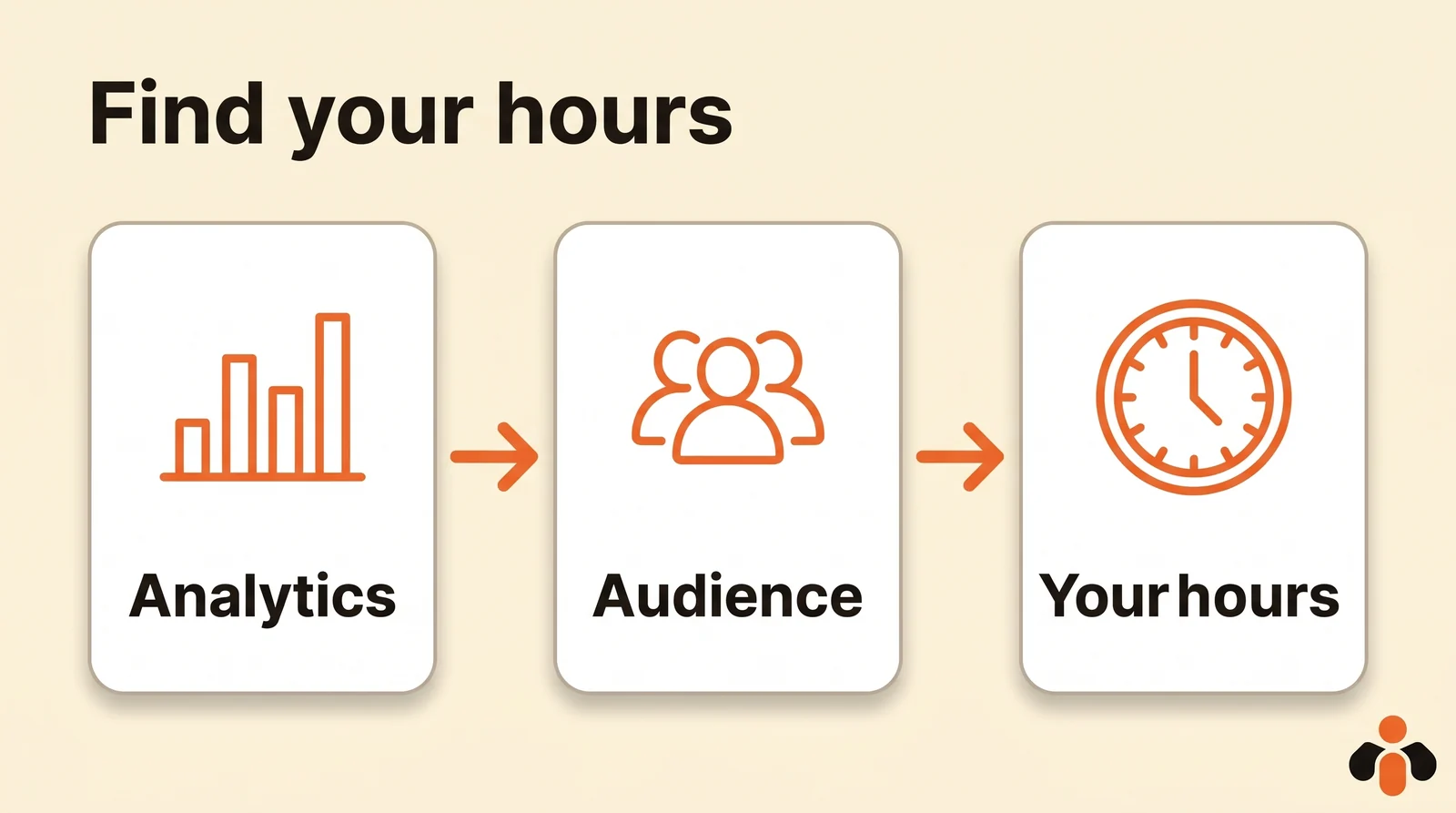
Three other reports in the same tab help you choose:
- Top geographies: the places with the most watch time for your channel (YouTube Help). It tells you which time zone to think in.
- Subscriber bell notifications: the share of those subscribers who actually get your notifications.
- Watch time from subscribers: how much comes from subscribers and how much from everyone else. The more subscribers weigh, the more their online hours matter.
How to read the hours report? Find the darkest slots and schedule a little before the peak rather than right in it: the video is already there when viewers arrive. For a long video, allow for processing time.
Best day and time, day by day
The question comes up for each day: best time to post on YouTube on Sunday, on Wednesday, on Saturday. The 28-day report answers day by day, for your own channel. Before you have numbers, start from your audience's habits, then let the report correct you.
Here is the grid of a fictional example: Maya, a fitness coach in New York, who posts three Shorts and one long video a week for an audience mostly on the East Coast.
| Day | Format | Starting guess | Why | After the report |
|---|---|---|---|---|
| Monday | Short | 7:30 a.m. | before work | 7 a.m. |
| Wednesday | Short | 12 p.m. | lunch break | 12:30 p.m. |
| Friday | Short | 6 p.m. | after work | 5:30 p.m. |
| Sunday | long video | 10 a.m. | weekend free time | 10 a.m., to test against 6 p.m. |
These times are an example, not a rule: a student app, a real estate agency or a restaurant will have a different grid. The 28-day report is your channel's own.
Shorts and long videos aren't always watched at the same moments. The Formats your viewers watch on YouTube report shows what your audience watches among videos, Shorts and live streams: if Shorts dominate, tune their slots first.
Test two time slots
The report gives you candidates; a test settles it.
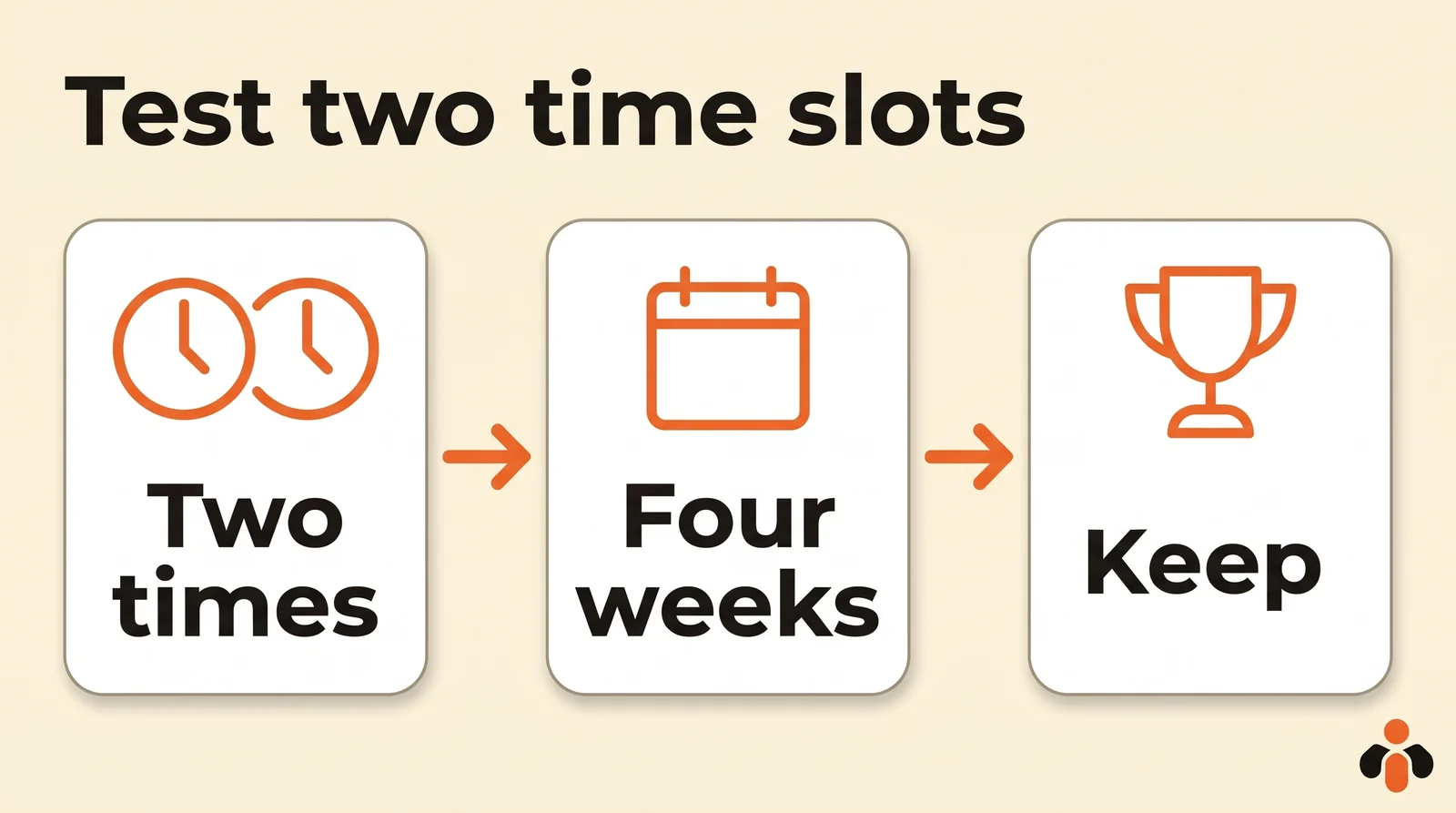
- Pick two times suggested by the report, for example 10 a.m. and 6 p.m. on Sunday.
- Keep everything else the same: same format, similar length, similar topics.
- Alternate every week for four weeks.
- Compare one metric chosen in advance. A video's key metrics (impressions, views, click-through rate, average view duration) are available within a few hours of publishing: compare both slots at the same delay, for example 48 hours after each upload.
- Keep the winner and rerun the test every quarter.
Plan a week of YouTube videos
Scheduling really pays off when you prepare several videos at once. One row per video is enough:
| Day | Time | Format | Topic | Status |
|---|---|---|---|---|
| Monday | 7 a.m. | Short | The 3-minute warm-up | scheduled |
| Wednesday | 12:30 p.m. | Short | A common posture mistake | scheduled |
| Friday | 5:30 p.m. | Short | A follower's question | to edit |
| Sunday | 10 a.m. | long video | Full plan for the week | editing |
For frequency, see how often you should post; to plan the month, reuse the columns of this social media content calendar template. The same timing questions come up elsewhere: see the best time to post on TikTok and the best time to post on Instagram.
Schedule the same Short on YouTube and other networks
YouTube Studio only schedules YouTube. If your Short also goes out as a Reel on Instagram and on TikTok, you open three tools and set three times and three captions. The method to repurpose one video for Instagram, TikTok and YouTube Shorts covers each network's settings.
Kreatoai brings these steps together: it publishes a YouTube Short and the same video to Instagram, TikTok and your other networks in a single post, right away or at the time you choose, with a calendar. A scheduled post can be edited (text, image, time) or canceled until it goes out. A video still on your phone can be added without transferring it: on a computer, the “From my phone” button shows a QR code. Kreatoai doesn't pick the time for you: you give it the slots from your report. Long videos are scheduled in YouTube Studio.
You can also ask ChatGPT or Claude, no code needed (Kreatoai in Claude):
Schedule my Monday Short on YouTube, Instagram and TikTok at 7 a.m. New York time.
Write a caption suited to each network and show them to me before confirming.
Ten posts are free every month, no credit card needed. The YouTube side of the setup is in connect ChatGPT to YouTube.
Key takeaways
- To schedule a YouTube video: Create, Upload videos, Visibility page, Schedule card, date, time and time zone.
- The video stays private until the set time; a Short is scheduled through the same window but can't be a Premiere.
- To change the time: Content, Edit, Visibility; the video must be private.
- The date under the video follows Pacific time, and a channel with a strike doesn't publish its scheduled videos.
- The right time is in Analytics, Audience tab, “When your viewers are on YouTube”, over 28 days; a four-week test settles between two slots.
Frequently asked questions
- Can you schedule a YouTube video?
- Yes, for free, in YouTube Studio on a computer or in the YouTube app. During the upload, open the Schedule card, set the date, time and time zone, then confirm. The video stays private until that time, then goes public on its own.
- Can you schedule a YouTube Short?
- Yes. On a computer, a Short goes through the same upload window as any video (Create, then Upload videos), with a square or vertical video of up to 3 minutes; the Visibility page then offers Schedule. Shorts can't be set as Premieres.
- How do I change the time of a scheduled YouTube video?
- In YouTube Studio, open Content, select the video, then Edit and Visibility. Make sure it is set to Private, click Edit draft and choose the new time under Schedule. To publish it right away, set it to Public.
- What is the best time to post on YouTube?
- YouTube doesn't publish a time that works for every channel. In YouTube Studio, Analytics, Audience tab, the When your viewers are on YouTube report shows when your viewers are online over the last 28 days; YouTube presents it as the tool to decide when to schedule. Pick a slot from that report, then test it.
- Why does my video show a different date than the one I scheduled?
- According to YouTube Help, the date on the watch page is based on Pacific Standard Time. If you schedule from a time zone ahead of it, in Europe for example, a video published early in the morning can show the previous day's date.
- Can I schedule a video on YouTube and other networks at the same time?
- YouTube Studio only schedules YouTube. Kreatoai publishes a YouTube Short and the same video to Instagram, TikTok and the other supported networks in a single post, right away or at the time you choose, with a calendar. The scheduled post can be edited or canceled until it goes out, and you can ask ChatGPT or Claude to do it, no code needed.
Have it done for you
Kreatoai publishes and schedules your posts on all your networks, from your dashboard or by asking ChatGPT and Claude, and its agent answers your direct messages. Ten free posts every month, no credit card.
Try it free