How to Schedule Instagram Messages (DMs): Steps and Limits
Can you schedule a message on Instagram, Messenger or LinkedIn? Instagram's official steps, what Messenger and LinkedIn offer instead, Meta's 24-hour rule and messages to copy.
 By Kreatoai
Yes, you can schedule a message on Instagram: in the app, on a phone or tablet, type your message in a chat, tap and hold the send button, then pick a date and time. The feature has limits, spelled out in Instagram's official help checked on November 20, 2026: text only (no photos, videos or GIFs) and not on desktop. Messenger and LinkedIn don't offer the same button; this guide covers what they offer instead.
In this guide:
- scheduling an Instagram DM, step by step;
- finding, sending right away or deleting a scheduled message;
- what Messenger allows, and what it doesn't;
- what LinkedIn allows, from Recruiter to away messages;
- Meta's 24-hour rule for businesses;
- messages to copy;
- a summary table.
Can you schedule a message on Instagram?
Yes. Meta announced it in February 2025, in its post on new Instagram DM features: type your text, hold down the send button, pick the date and time. The same post also mentions scheduled reminders for daily tasks.
The help page Schedule a message in a chat on Instagram sets three rules worth knowing first:
- Text only. "This feature is only supported for text only messages." A message with a photo, a video or a GIF can't be scheduled.
- App only. The page says the feature isn't available on desktop; it is described for the Android, iPhone and iPad apps.
- Your phone's time zone. The time you pick follows your device settings, not the recipient's. If you're in New York and your client is in Los Angeles, a message set for 9 am arrives at 6 am their time.
One more point people often ask about: only you can see the scheduled message until it's sent. Your contact receives nothing, and doesn't know a message is waiting, until the time you chose.
How to schedule an Instagram DM, step by step
The steps from Instagram's help, the same on Android and iPhone:
- Tap Messages at the bottom.
- Tap a conversation in your inbox.
- Tap Message… at the bottom. You can also tap and hold an existing message in the chat and then tap Reply: the reply is scheduled the same way.
- Enter your message.
- Tap and hold the send button next to your message.
- Choose the date and time to send the message.
- Confirm your choice at the bottom.
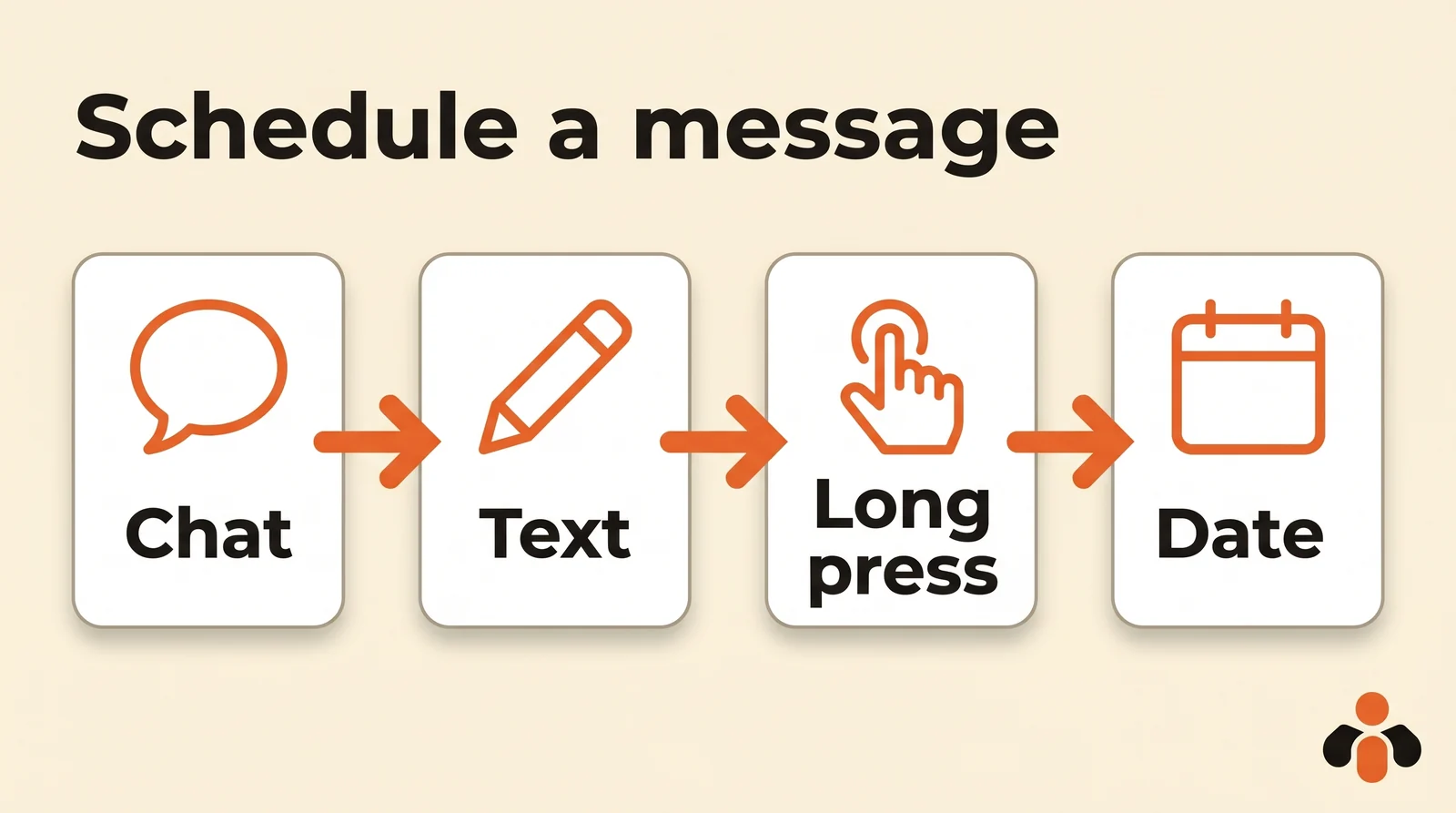
The long press is what matters: a quick tap sends the message right away. If nothing opens, check two things: that you're in the app and not on instagram.com, and that the message is text only.
The help page doesn't give a maximum delay. If you schedule a message weeks ahead, open the list of scheduled messages after confirming, to check it's there at the right date.
Find, send or delete a scheduled message
Scheduled messages stay in their chat. The page Manage scheduled messages describes the path:
- Tap Messages at the bottom.
- Tap a conversation where you've scheduled a message.
- Tap Scheduled message above the text field at the bottom.
- You'll see scheduled messages and replies, and when they're due to send.
- Tap and hold a scheduled message to pick an option.
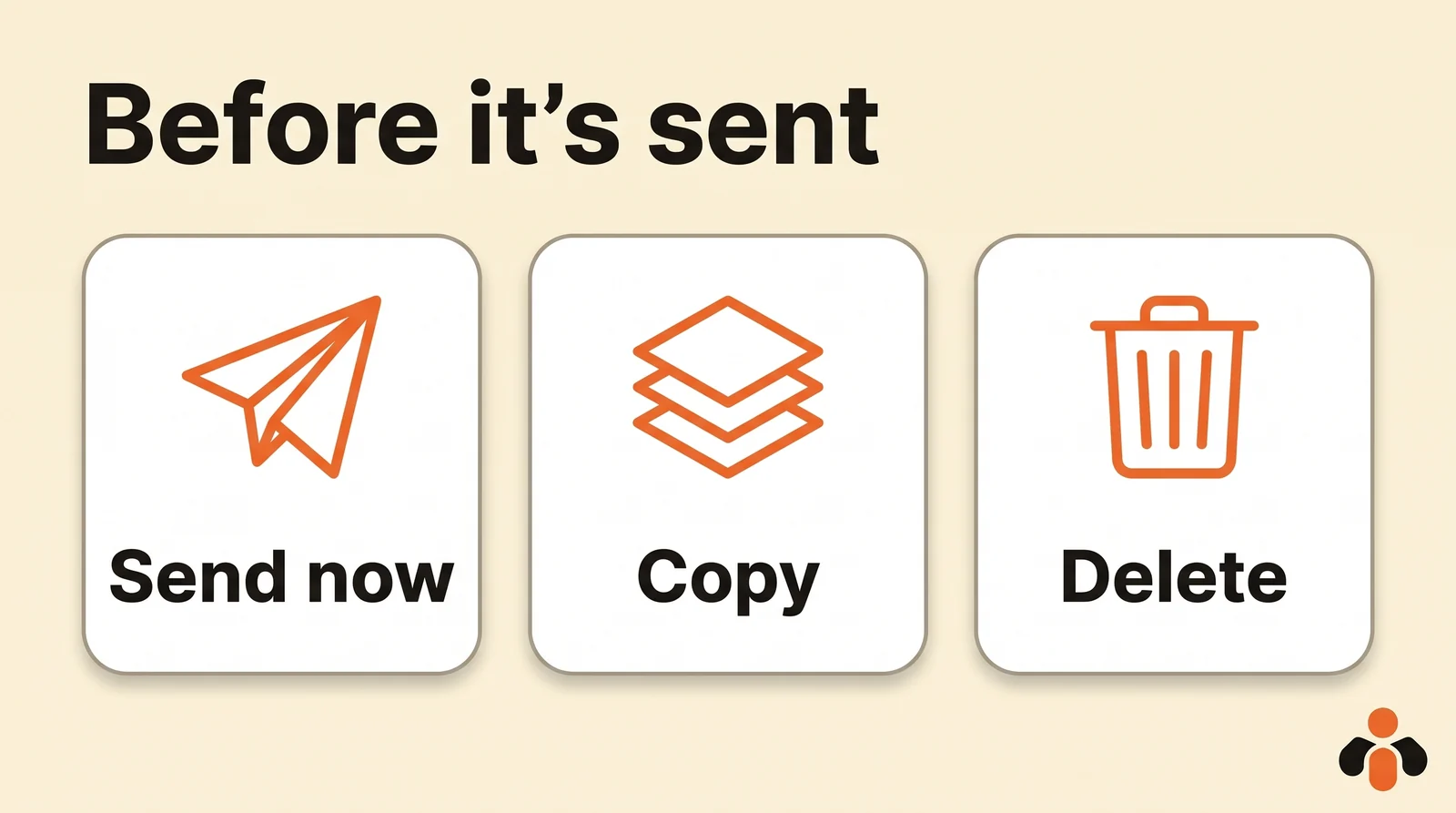
| Option | What it does, according to Instagram's help |
|---|---|
| Send now | The message is sent to the chat immediately instead of at the time you chose |
| Copy | The text of your message is copied |
| Delete | The message is deleted and won't be sent |
The page lists no option to edit the text or the time. To change a scheduled message, copy it, delete it, then paste, fix and schedule the text again.
One practical limit: Instagram's help describes no list of all your scheduled messages across chats. Each one lives in its own conversation, so keep a note if you schedule several.
Can you schedule a message on Messenger?
Nothing in the official help says so. Messenger's help pages, searched on November 20, 2026 for "schedule message", contain no article on sending a message later, on mobile or on desktop. You'll find editing, unsending and forwarding, but no scheduling. The same answer applies to "schedule message Messenger Facebook": Facebook's messaging is Messenger.
A Facebook Page has something else: Inbox automations in Meta Business Suite. The page About Inbox automations in Meta Business Suite lists them. They work for Facebook Pages, Instagram business accounts and WhatsApp Business accounts connected to Meta Business Suite:
| Automation | When it replies |
|---|---|
| Instant reply | When someone messages you for the first time |
| Away message | When you're not available |
| Frequently asked questions | When the person taps a suggested question |
| Location, Contact information, Hours | When a message asks for your address, contact details or hours |
| Custom keywords | When a message contains one of your keywords, on Meta Business Suite desktop only |
These aren't scheduled messages: nothing goes out until someone writes to you. But for a business, it's often what people really want: a customer gets an answer at 11 pm with nobody at the screen. The same page notes that turning on Meta Business Agent pauses existing automations. Our guide to Messenger auto reply covers the setup, with examples.
Can you schedule LinkedIn messages?
LinkedIn's help only describes scheduling a message in LinkedIn Recruiter and Recruiter Lite, the paid tools for recruiters. The page Schedule a message or follow-up in Recruiter and Recruiter Lite gives the steps:
- Click the Message icon on a candidate's profile.
- Add a subject and a message.
- Click the Send immediately via InMail dropdown at the top of the message.
- Under Send message, click Later.
- Select the date, time and time zone, and click Save.
- Click Send.
If you pick the recipient's time zone and it isn't on their profile, yours is used. Recruiter (not Recruiter Lite) adds an automatic follow-up, sent 3 to 28 days after the first message, 7 days by default, and only if the candidate hasn't replied. InMail credits are charged when you schedule, and refunded if you cancel.
For members without Recruiter, the closest tool is the away message, described on this help page:
- it's only for Premium members;
- it's visible only to your connections on direct messages, never in group chats;
- it lasts three months at most, with a start and an end date;
- the path: Messaging icon, More icon, set up the away message, turn on the Away message toggle, then Save.
What LinkedIn really lets everyone schedule is posts: our guide on how to schedule LinkedIn posts covers it.
Meta's 24-hour rule for businesses
Instagram's button is for you, in your own chats. A business sending messages through a tool or software connected to Meta follows another rule, set out in the Messenger Platform policy:
- the business has the length of the standard messaging window to reply to a person;
- for most user actions, that window lasts 24 hours;
- when someone writes for the first time after clicking an ad that opens Messenger or Instagram, it can last up to 7 days;
- after that, a message tag for a specific use case is needed, such as the Human Agent tag, which lets a team member reply manually within 7 days.
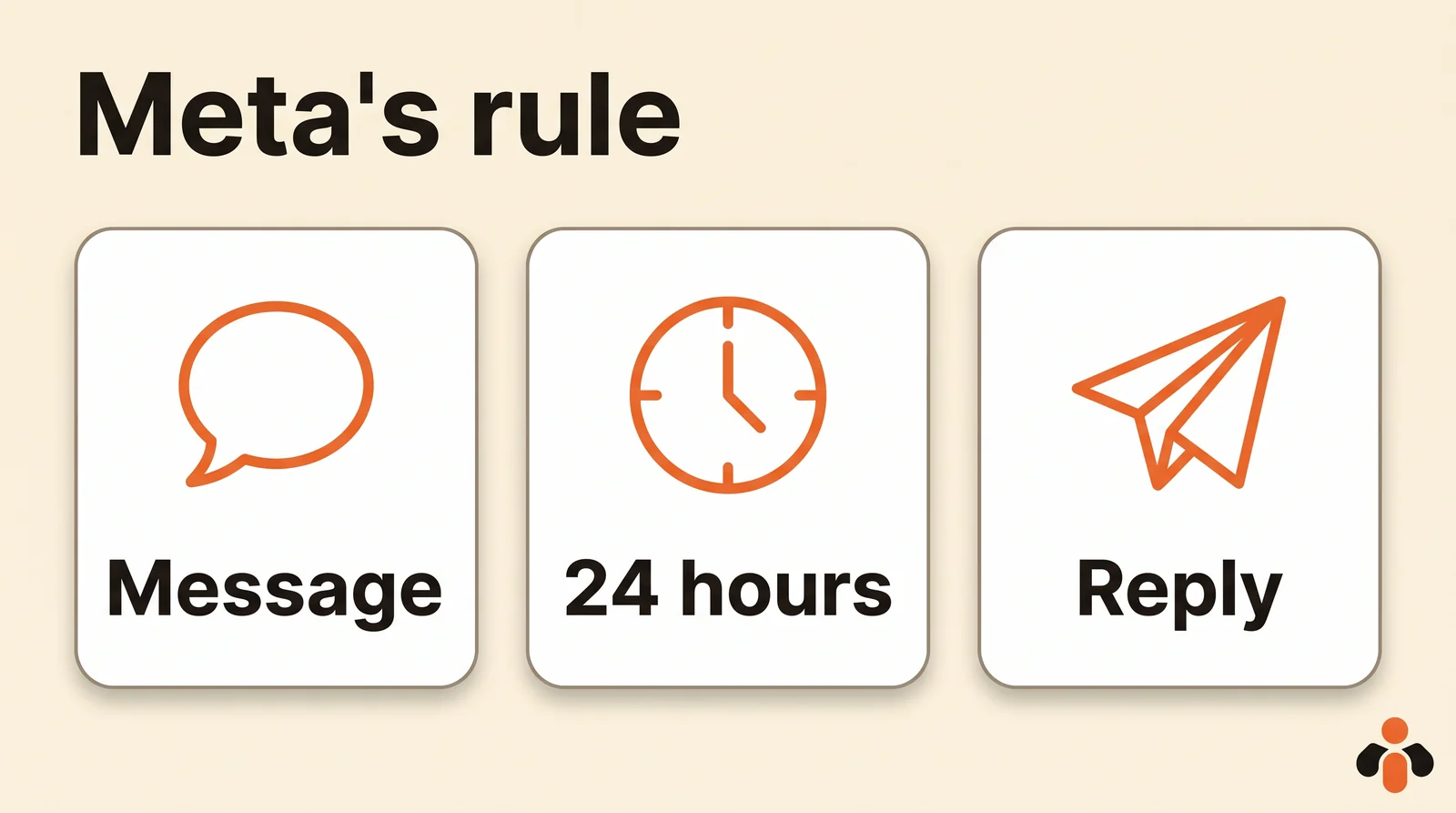
The upshot: no serious tool will let you schedule an announcement to all your followers on Instagram or Messenger. What works is replying fast to the people who write to you, by hand or with an auto reply. Our guide to Instagram auto reply explains how to set one up safely.
Messages to copy
Scheduled Instagram messages are text only, so these samples have no images or GIFs. Replace the parts in brackets.
Appointment reminder, for a coach, scheduled the evening before at 6 pm:
Hi [name]! Quick reminder: our session is tomorrow at [time]. Same link as usual. If something comes up, let me know here before 9 am.
Reply at a decent hour, for an online brand that reads messages late at night:
Hi [name], thanks for your message last night! Your size is in stock. You can order directly at [website], and delivery takes [time frame].
Follow-up after a viewing, for a real estate agent:
Hi [name], thanks for coming to see the apartment in [neighborhood] yesterday. Any questions? I can set up a second viewing this week if you'd like.
Launch message, for an app, to someone who asked to be told:
Hi [name]! As promised, the new version is live this morning. You'll find it in [app store]. Let me know what you think.
Two tips: schedule for when the person will read it, not when you write it, and check the chat's scheduled messages if things change in the meantime (a canceled order, a moved appointment).
Summary: what can be scheduled, network by network
| What you want to do | Possible? | Where, according to official help |
|---|---|---|
| Schedule a text message on Instagram | Yes | Android, iPhone, iPad app: long press on the send button |
| Schedule a photo, video or GIF in an Instagram DM | No | Text only |
| Schedule an Instagram message from a computer | No | Not available on desktop |
| Schedule a message on Messenger | Not described | No help page on the topic |
| Auto-reply to messages for a Page or business account | Yes | Meta Business Suite Inbox automations |
| Schedule an InMail on LinkedIn | Yes, with Recruiter or Recruiter Lite | Send immediately via InMail, then Later |
| Tell LinkedIn connections you're away | Yes, with Premium | Messaging, More, away message |
| Schedule a message on TikTok | No | See our guide to schedule TikTok messages |
Schedule your posts, and answer messages in time
Kreatoai doesn't schedule direct messages: it never messages someone who hasn't written first, and it follows Meta's 24-hour window. It handles two related jobs.
Posts. Kreatoai publishes to Instagram, Facebook Pages, TikTok, personal LinkedIn profiles, YouTube Shorts, Bluesky, Google Business profiles, Pinterest and Threads, right away or at the time you choose, with a calendar. It also schedules Instagram and Facebook Page stories. One post goes out to several networks at once, and each one can be edited or canceled as long as it hasn't gone out. Our guide on how to schedule Instagram posts compares the options.
Messages waiting for a reply. Kreatoai's inbox brings together Instagram and Messenger DMs. An agent replies for you, day and night, based on what you've taught it, and alerts a human when a question falls outside its scope. From ChatGPT or Claude connected to Kreatoai, you can also ask: "which messages are waiting for a reply?". The AI lists them, most urgent first, drafts a reply for each and sends them once you approve, as long as Meta's 24 hours haven't passed (see how to connect Claude).
Ten posts are free every month, no credit card needed.
Key takeaways
- Instagram lets you schedule a message: in a chat, tap and hold the send button, then pick the date and time.
- Only text messages can be scheduled; no photos, videos or GIFs.
- The feature exists in the Android, iPhone and iPad apps, not on desktop, and follows your phone's time zone.
- Nobody else sees the message before the chosen time; it sits under Scheduled message, where you can send it now, copy it or delete it.
- Messenger's help describes no scheduling; a Page has Meta Business Suite Inbox automations.
- LinkedIn only schedules messages in Recruiter and Recruiter Lite; away messages need Premium.
- For businesses using Meta's tools, the rule is to reply within 24 hours of the customer's message.
Frequently asked questions
- Can you schedule a message on Instagram?
- Yes. In the Instagram app on a phone or tablet, open a chat, type your message, tap and hold the send button, choose the date and time, then confirm. According to Instagram's help, checked on November 20, 2026, only text messages can be scheduled, and the feature isn't available on desktop.
- Can you schedule a photo or video message on Instagram?
- No. Instagram's help says scheduling is only supported for text-only messages: a message that includes a photo, a video or a GIF can't be scheduled to send at another time.
- If you schedule a message on Instagram, does the other person know?
- No. Instagram's help says only you can see your scheduled message until it's sent to the chat at the time you chose. It then arrives like any other message.
- How do you cancel or send a scheduled Instagram message right away?
- Open the chat, tap Scheduled message above the text field, then tap and hold the message. Three options appear: Send now, Copy and Delete. Delete cancels it.
- Why can't I find the option to schedule a message on Instagram?
- Instagram's help says the feature isn't available on desktop: it exists in the Android, iPhone and iPad apps. It also only works with text: if a photo or GIF is attached, the message can't be scheduled.
- Can you schedule a message on Messenger?
- Messenger's help pages, searched on November 20, 2026, describe no way to send a message later. A Facebook Page can set up Inbox automations in Meta Business Suite instead: instant reply, away message, frequently asked questions and custom keywords.
- Can you schedule LinkedIn messages?
- LinkedIn's help only describes scheduling a message in LinkedIn Recruiter and Recruiter Lite, for InMails: the Send immediately via InMail dropdown, then Later. For regular members, the closest tool is the away message, for Premium members only and up to three months.
- Can a business schedule direct messages to customers on Instagram or Messenger?
- Not as a campaign. For businesses using Meta's tools, the rule is the standard messaging window: usually 24 hours after the customer's last message to reply. Kreatoai follows that rule: it never messages someone who hasn't written first, and doesn't reply once Meta's 24-hour window has passed.
Have it done for you
Kreatoai publishes and schedules your posts on all your networks, from your dashboard or by asking ChatGPT and Claude, and its agent answers your direct messages. Ten free posts every month, no credit card.
Try it free