How to Post to Instagram via the API: Step-by-Step Guide
Post to Instagram with the Graph API: professional account, Meta app, access token, container then publish, Reels, stories, carousels and limits, with curl requests you can copy.
 By Kreatoai
To post to Instagram via the API, you need an Instagram professional account, a Meta app with the publishing permission and an access token; publishing then takes two requests: the first creates a container with the image or video URL, the second publishes it. This guide covers every step and every curl request, based on Meta's documentation as read on November 22, 2026.
In this guide:
- what the Instagram API is, and the three ways to connect to it;
- the access you need before your first call;
- getting an access token, then keeping it alive;
- publishing a photo in two requests;
- Reels, stories, carousels and uploading large videos;
- the limits and errors that make a post fail;
- a table of formats, and an FAQ.
If you work in n8n rather than in your own code, the same flow is covered node by node in our guide to automating Instagram posts with n8n.
What is the Instagram API?
The Instagram API, which Meta now calls the Instagram Platform, is the set of endpoints software calls to act on an Instagram professional account: publish, read and moderate comments, reply to messages, read insights. People often say "Instagram Graph API" because it follows the Facebook Graph API model: objects (an account, a media, a container) you read with GET and create with POST.
Personal accounts have no access. Meta states that a professional account can be a business or a creator account; the account_type field returns Business or Media_Creator.
Meta offers three setups, and your choice sets the host, the token and the permissions:
| Setup | Meta's recommended use | Host | Token | Publishing permissions |
|---|---|---|---|---|
| Unified Login | new integrations | graph.facebook.com |
Business Integration System User token | instagram_basic, instagram_content_publish |
| Instagram Login | accounts with no linked Facebook Page | graph.instagram.com |
Instagram User token | instagram_business_basic, instagram_business_content_publish |
| Facebook Login | accounts linked to a Facebook Page | graph.facebook.com |
Facebook Page token | instagram_basic, instagram_content_publish, pages_read_engagement |
Sources: Meta's content publishing page and the platform overview. The rest of this guide uses Instagram Login, the simplest for a first test since it needs no Facebook Page. With Facebook Login, the requests are the same on the graph.facebook.com host.
What you need before the first call
Four things, in this order.
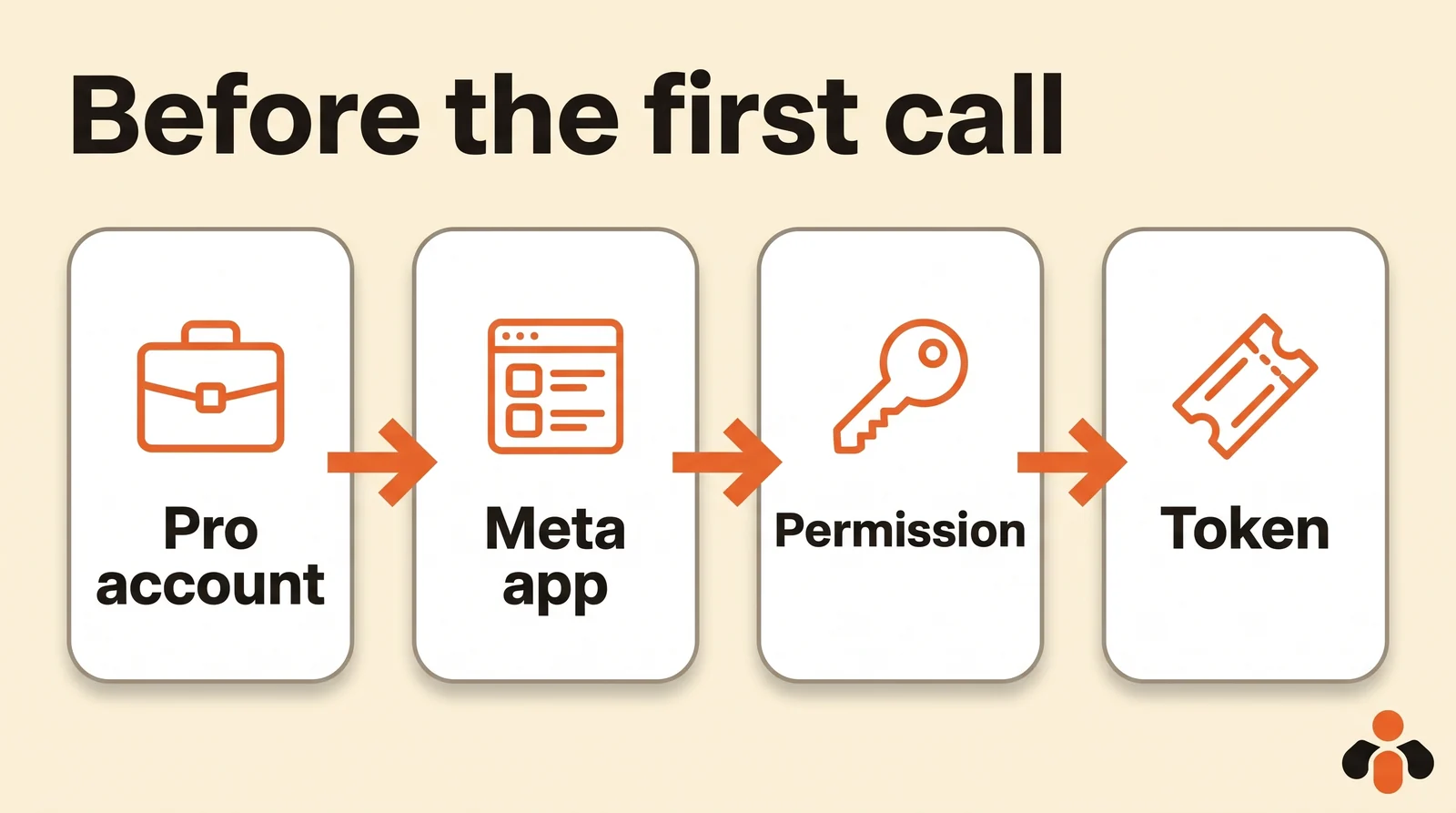
- A professional account. The Instagram account must be a business or creator account. With Facebook Login, it must also be linked to a Page.
- A Meta app. Register as a Meta developer, then create an app in the App Dashboard. Meta requires a Business type app: the Get started page says to create a new one if yours is not that type.
- The publishing permission.
instagram_business_content_publishwith Instagram Login,instagram_content_publishwith Facebook Login. - An access token, covered in the next section.
Then comes the access level. Standard Access is the default, and Meta writes that it is all you need if the app only serves your account or accounts you manage. To serve other people's accounts, such as the customers of a SaaS product, you need Advanced Access, which goes through App Review and Business Verification, according to Meta's overview.
One last trap: if the Page linked to the account requires Page Publishing Authorization, publishing stays blocked until it is completed. Meta advises completing it ahead of time, since there is no way to tell whether a Page will require it.
Getting an Instagram access token
Two paths, depending on whether you post to your own account or to your users' accounts.
For your own account: the App Dashboard
This is the shortest path, as Meta describes it:
- In the app dashboard, open Instagram, then API setup with Instagram business login.
- Click Generate token next to the Instagram account you want.
- Log into Instagram.
- Copy the token.
This is a long-lived token, valid for 60 days. Test it by asking for the account ID, which every following request needs:
curl -X GET "https://graph.instagram.com/v27.0/me?fields=user_id,username&access_token=<TOKEN>"
The response contains user_id: that is the professional account ID, written <IG_ID> below.
For your users' accounts: Business Login
When your software serves other people, each of them logs in and authorizes you. The official flow:
- Your button sends the person to Instagram's authorization window, with your Instagram app ID (
client_id), your redirect URI (redirect_uri),response_type=codeand the permissions inscope:
https://www.instagram.com/oauth/authorize
  ?client_id=<INSTAGRAM_APP_ID>
  &redirect_uri=https://your-site.com/callback/
  &response_type=code
  &scope=instagram_business_basic,instagram_business_content_publish
- Once they agree, Meta sends them back to your URI with a
code. The code is valid for one hour and works once; strip the#_Meta appends at the end. - Your server exchanges that code for a short-lived token, valid for one hour:
curl -X POST https://api.instagram.com/oauth/access_token \
  -F 'client_id=<INSTAGRAM_APP_ID>' \
  -F 'client_secret=<APP_SECRET>' \
  -F 'grant_type=authorization_code' \
  -F 'redirect_uri=https://your-site.com/callback/' \
  -F 'code=<CODE>'
- Then it exchanges the short-lived token for a 60-day long-lived token:
curl -X GET "https://graph.instagram.com/access_token?grant_type=ig_exchange_token&client_secret=<APP_SECRET>&access_token=<SHORT_LIVED_TOKEN>"
Meta is firm on this: these exchanges happen server side, never in the browser or in a mobile app, because they carry the app secret.
Keeping the token alive
A long-lived token is refreshed for another 60 days with a GET to refresh_access_token, under three conditions: it is at least 24 hours old, it has not expired, and the person granted instagram_business_basic.
curl -X GET "https://graph.instagram.com/refresh_access_token?grant_type=ig_refresh_token&access_token=<LONG_LIVED_TOKEN>"
A token that has not been refreshed in 60 days expires and can no longer be refreshed: the person has to log in again. A scheduled job that refreshes every token once a month avoids the surprise.
Publishing a photo in two requests
Instagram always publishes in two steps: you put the media in a container, then you ask for it to be published.
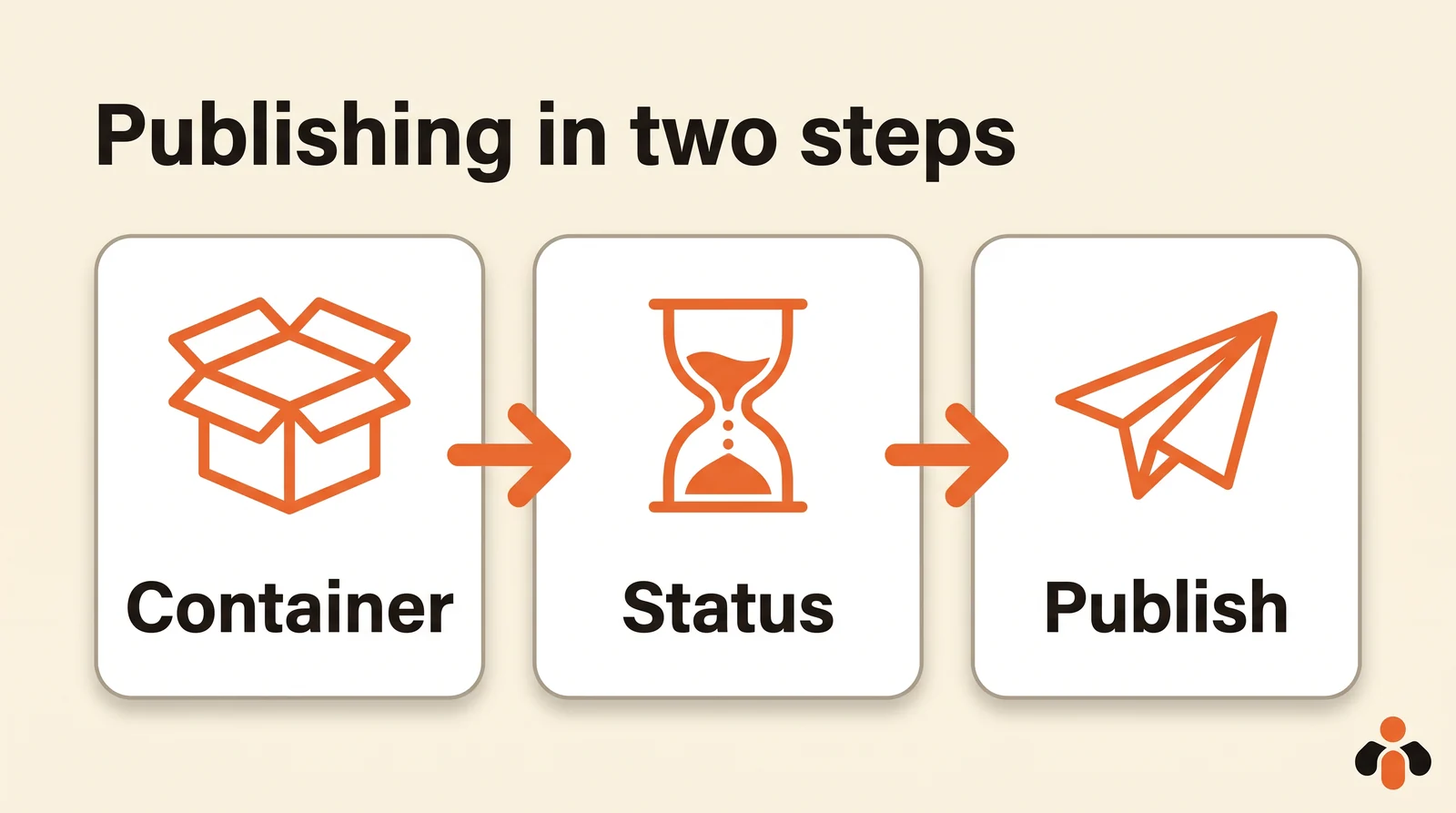
Step 1, create the container. A POST to /<IG_ID>/media, with the image URL and the caption:
curl -X POST "https://graph.instagram.com/v27.0/<IG_ID>/media" \
  -H "Content-Type: application/json" \
  -H "Authorization: Bearer <TOKEN>" \
  -d '{
    "image_url": "https://your-site.com/images/fall-collection.jpg",
    "caption": "The fall collection is live. Link in bio.",
    "alt_text": "Three leather bags on a wooden table"
  }'
The response returns the container ID: { "id": "<IG_CONTAINER_ID>" }.
The part that surprises people most: Meta fetches the file itself from the URL you give. The image must be online, on a public server, at the time of the call; you don't send the file in the request. The alt_text field, added by Meta in March 2025, carries up to 1,000 characters of alternative text, for images only.
Step 2, publish the container. A POST to /<IG_ID>/media_publish, with the ID you received:
curl -X POST "https://graph.instagram.com/v27.0/<IG_ID>/media_publish" \
  -H "Content-Type: application/json" \
  -H "Authorization: Bearer <TOKEN>" \
  -d '{ "creation_id": "<IG_CONTAINER_ID>" }'
The response returns the ID of the published media.
In between, for a video: read the status. A video needs processing. If media_publish returns no ID, read the container's state:
curl -X GET "https://graph.instagram.com/v27.0/<IG_CONTAINER_ID>?fields=status_code&access_token=<TOKEN>"
The possible values, according to Meta: IN_PROGRESS, FINISHED (ready to publish), PUBLISHED, ERROR and EXPIRED (not published within 24 hours). Meta recommends querying once per minute, for no more than five minutes.
Reels, stories and carousels
The flow stays the same: only the container changes.
Posting a Reel with the API
Add media_type=REELS and the video URL in video_url:
curl -X POST "https://graph.instagram.com/v27.0/<IG_ID>/media" \
  -H "Content-Type: application/json" \
  -H "Authorization: Bearer <TOKEN>" \
  -d '{
    "media_type": "REELS",
    "video_url": "https://your-site.com/videos/behind-the-scenes.mp4",
    "caption": "Behind the scenes at the studio",
    "share_to_feed": true
  }'
The /media endpoint reference lists the Reels options: share_to_feed (the Reel can also appear in the feed, not only the Reels tab), cover_url (a cover image) or thumb_offset (the moment of the video, in milliseconds, used as the thumbnail), audio_name (the audio name, which can be renamed only once) and collaborators (up to three accounts).
Two useful details. A published Reel returns VIDEO in its media_type field: to know whether a video is a Reel, read media_product_type. And the API also publishes trial reels, shown only to people who don't follow you: add trial_params with graduation_strategy set to MANUAL (you share them to followers later in the app) or SS_PERFORMANCE (shared automatically if they perform well).
Posting a story with the API
Same thing with media_type=STORIES and an image_url or a video_url. A story expires after 24 hours, and the API does not add stickers (link, poll, location); mentioning an account without a sticker still works. A published story returns IMAGE or VIDEO in media_type: here too, media_product_type tells you it is a story.
Posting a carousel
A carousel holds up to 20 images or videos. First create one container per item, with is_carousel_item set to true, then a parent container:
curl -X POST "https://graph.instagram.com/v27.0/<IG_ID>/media" \
  -H "Content-Type: application/json" \
  -H "Authorization: Bearer <TOKEN>" \
  -d '{
    "media_type": "CAROUSEL",
    "children": "<ID_1>,<ID_2>,<ID_3>",
    "caption": "Three ways to wear the same bag"
  }'
That parent container is the one you publish with media_publish. The caption goes on the parent, not on the items, and every image is cropped to the format of the first one, square by default. A Reel cannot go into a carousel.
Uploading a large video: resumable upload
For a heavy video or a flaky connection, Meta offers a resumable upload: create the container with upload_type=resumable, then send the file to the rupload.facebook.com host:
curl -X POST "https://rupload.facebook.com/ig-api-upload/v27.0/<IG_CONTAINER_ID>" \
  -H "Authorization: OAuth <TOKEN>" \
  -H "offset: 0" \
  -H "file_size: <SIZE_IN_BYTES>" \
  --data-binary "@behind-the-scenes.mp4"
The file_url header replaces the local file when the video is already online. Note that Meta's page reserves this upload for apps that use Facebook Login for Business. With Instagram Login, stick to video_url.
Accepted formats at a glance
| Format | media_type |
Media | Meta's rules |
|---|---|---|---|
| Photo | not set | image_url |
JPEG only, 8 MB, ratio 4:5 to 1.91:1, width 320 to 1,440 px |
| Reel | REELS |
video_url |
3 s to 15 min, 300 MB, H264 or HEVC, 23 to 60 fps, 9:16 recommended |
| Story | STORIES |
image_url or video_url |
video 3 to 60 s, 100 MB; gone after 24 h |
| Carousel | CAROUSEL |
children |
up to 20 items, cropped to the first |
Source: the /media endpoint reference. Captions stop at 2,200 characters, 30 hashtags and 20 mentions; mentioned accounts get a notification when the post goes live.
The limits that make a post fail
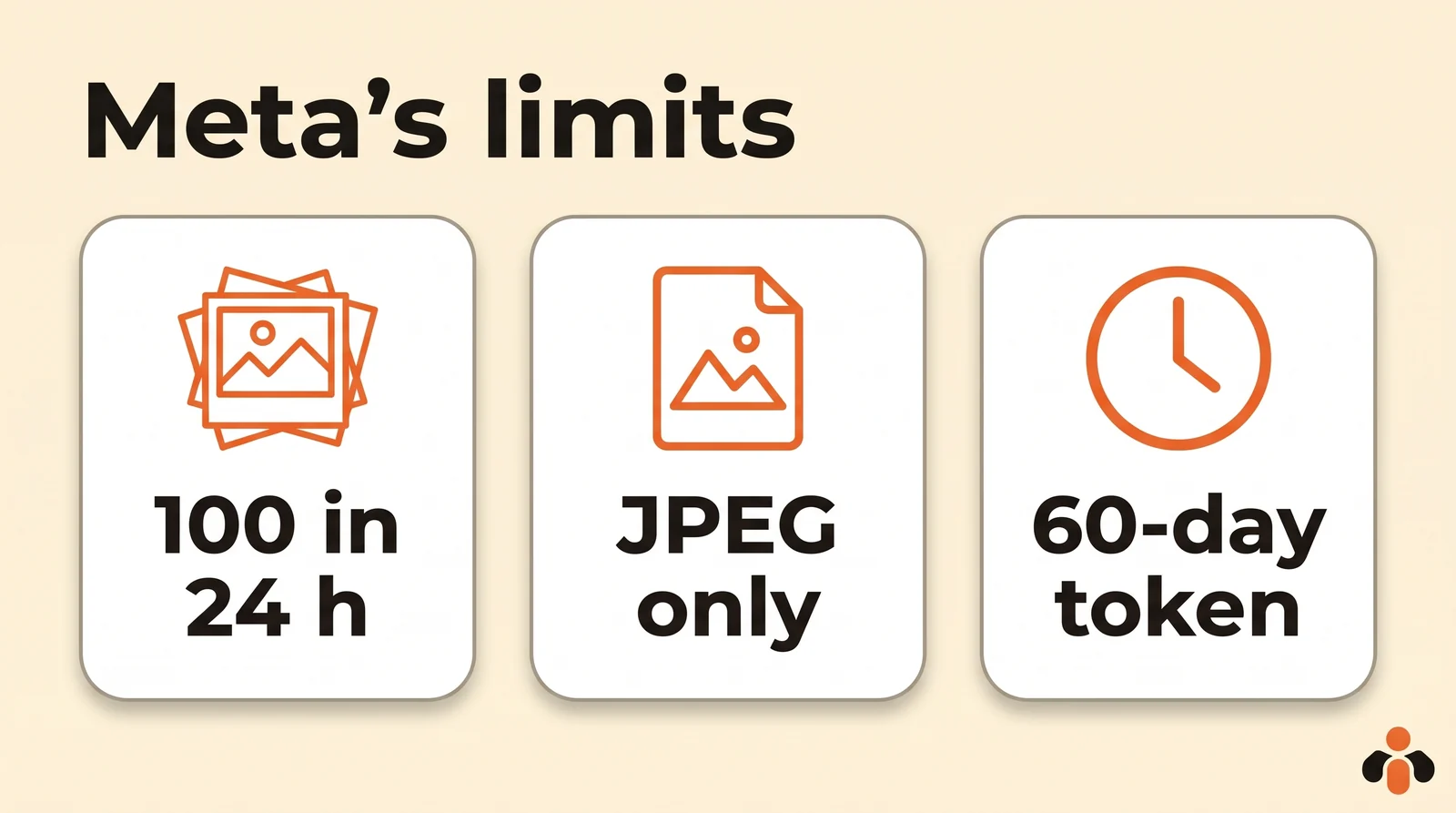
- The publishing cap. Meta's guide sets 100 API-published posts in a 24-hour moving period per account, a carousel counting as one, enforced on
media_publish. The same page, in its carousel section, says 50, and thecontent_publishing_limitreference shows aquota_total"currently 50" over 86,400 seconds. Don't hard-code the number: readGET /<IG_ID>/content_publishing_limit?fields=quota_usage,configbefore publishing, and enforce the limit in your own software, as Meta recommends for apps that schedule posts. - The image format. JPEG only; the MPO and JPS variants are not accepted either. Convert a PNG before sending it.
- The token. 60 days, to refresh before it expires.
- The container. If it is not published within 24 hours, it expires: create and publish it in the same job.
- What the API doesn't do. No shopping tags or filters, and no stickers in stories.
- The call count. Outside messaging, Meta counts an app's calls for each account over a rolling 24 hours: 4,800 times the number of impressions of the account in that window.
To disclose content made with AI, Meta also offers the is_ai_generated parameter set to true when creating the container; on a carousel, it goes on the parent only, otherwise the request fails. Other error codes are in Meta's error code reference.
Finally, scheduling is up to your software: the publishing documentation has no date parameter, and Meta speaks of apps "that allow app users to schedule posts" as the ones that must enforce the cap themselves. For a post at 6 pm New York time, your server calls media_publish at 6 pm. Meta's no-code scheduling tools are covered in our guide on how to schedule Instagram posts.
Posting to Instagram via an API with no Meta app
Everything above applies to Instagram alone. Adding TikTok, YouTube or LinkedIn means starting over with another app, other permissions, another review and other tokens, as our breakdown of each network's limits shows.
Kreatoai offers a public API that already holds that access. You connect your Instagram account once from the dashboard, then a single request with an API key posts to Instagram and to the other connected networks (Facebook Pages, TikTok, personal LinkedIn profiles, YouTube Shorts, Bluesky, Google Business profiles, Pinterest, Threads), with no app to create and no review to pass:
curl -X POST https://api.kreatoai.com/v1/posts \
  -H "x-api-key: sk-kre-v1-your_key" \
  -H "Content-Type: application/json" \
  -d '{
    "targets": ["instagram", "facebook"],
    "content": "The fall collection is live.",
    "mediaUrls": ["https://your-site.com/images/fall-collection.jpg"],
    "scheduledAt": "2026-12-01T18:00:00-05:00",
    "idempotencyKey": "fall-collection-2026"
  }'
Instagram still needs an image or a video for each post, supplied by you. With scheduledAt, the post goes out on its own at the set time, even if your program is stopped; the idempotencyKey stops a replayed request from posting twice, and webhooks tell you when a post goes out or fails. The API accepts thirty requests per minute per key, and it can also be called from n8n, Make or Zapier. Ten posts are free every month, with no credit card. The full fields are in the publishing documentation, and the whole API is covered in our guide to the social media scheduling API.
Key takeaways
- The Instagram API only posts to a professional account, business or creator, with a Meta app, the publishing permission and an access token.
- For your own account, Generate token in the dashboard gives a 60-day token, and Standard Access is enough; for other people's accounts, you need Advanced Access, App Review and Business Verification.
- A long-lived token is refreshed with
refresh_access_token; left unrefreshed for 60 days, it expires for good. - Publishing is two POSTs:
/<IG_ID>/mediacreates the container,/<IG_ID>/media_publishpublishes it; Meta fetches the file from a public URL. - Reels, stories and carousels only change
media_type; a video is published oncestatus_codeisFINISHED. - JPEG only for images, 2,200-character captions, containers valid for 24 hours, and a publishing cap to read on
content_publishing_limitrather than assume. - The publishing documentation has no date: your server, or a publishing API that does it for you, has to call at the right time.
Frequently asked questions
- What is the Instagram API?
- It is the set of endpoints Meta opens to software so it can act on an Instagram professional account: publish photos, videos, Reels, stories and carousels, read and moderate comments, reply to messages and read insights. Meta calls it the Instagram Platform; people often say the Instagram Graph API. Personal accounts have no access.
- Can you post to Instagram via the API?
- Yes, on a professional account (business or creator). Publishing takes two requests: a POST to /<IG_ID>/media creates a container with the public URL of the image or video and the caption, then a POST to /<IG_ID>/media_publish publishes that container. You need a Meta app, the publishing permission and an access token.
- How do I get an access token for the Instagram API?
- For your own account, the Meta app dashboard offers Generate token under Instagram, API setup with Instagram business login: that token lasts 60 days. For your users' accounts, Business Login for Instagram returns a code valid for one hour, exchanged for a one-hour short-lived token, then for a 60-day long-lived token that can be refreshed.
- How do I post a Reel with the Instagram API?
- Create a container with media_type=REELS and the video URL in video_url, wait until its status_code is FINISHED, then publish it with media_publish. According to Meta, a Reel runs from 3 seconds to 15 minutes and weighs 300 MB at most; 9:16 avoids cropping.
- Can you post a story with the Instagram API?
- Yes, with media_type=STORIES and an image_url or a video_url. The story disappears after 24 hours, as in the app, and stickers (link, poll, location) are not supported by the API. A story video lasts 60 seconds at most.
- How many posts per day does the Instagram API allow?
- Meta's publishing guide says 100 API-published posts in a 24-hour moving period, a carousel counting as one. The content_publishing_limit endpoint reference, however, shows a quota of 50 per 24 hours. The safest option is to read config.quota_total on that endpoint before publishing.
- Do I need Meta App Review to post?
- Not to post to your own accounts: Standard Access, granted by default, covers accounts you own or manage. To post to other people's accounts, such as customers who connect to your software, Meta requires Advanced Access, which goes through App Review and Business Verification.
- Can I post to Instagram via an API without creating a Meta app?
- Yes, through a publishing API that already holds that access, such as Kreatoai's: you connect your Instagram account once, then one request with an API key posts to Instagram, and to other networks in the same call, with no app to create and no review to pass.
Have it done for you
Kreatoai publishes and schedules your posts on all your networks, from your dashboard or by asking ChatGPT and Claude, and its agent answers your direct messages. Ten free posts every month, no credit card.
Try it free