Messenger Auto Reply: Setup, 12 Examples and Meta's Rules
Set up a Messenger auto reply for a Facebook Page: welcome message, away message and keyword replies, on desktop or mobile, with 12 message samples and Meta's rules.
 By Kreatoai
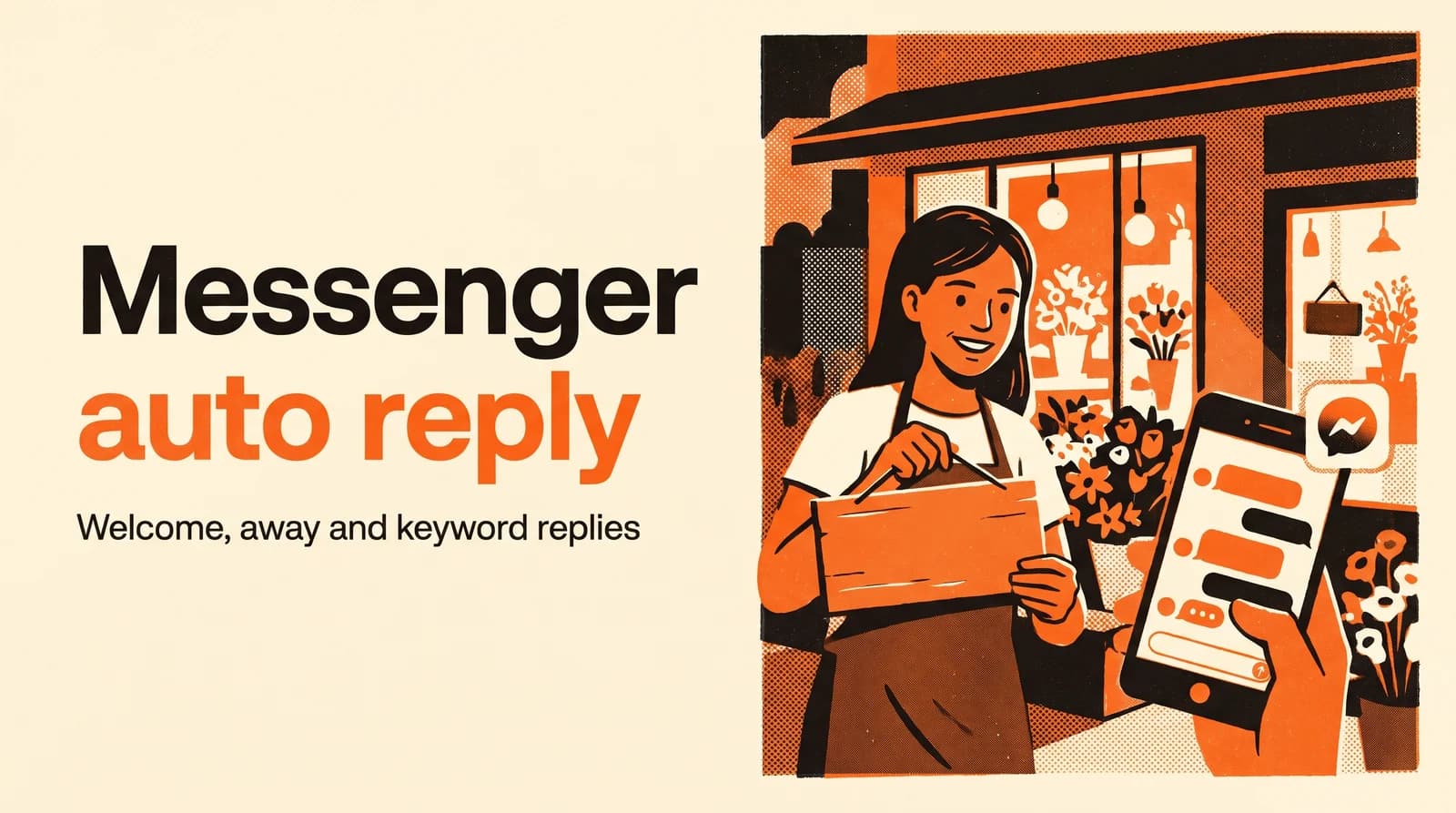
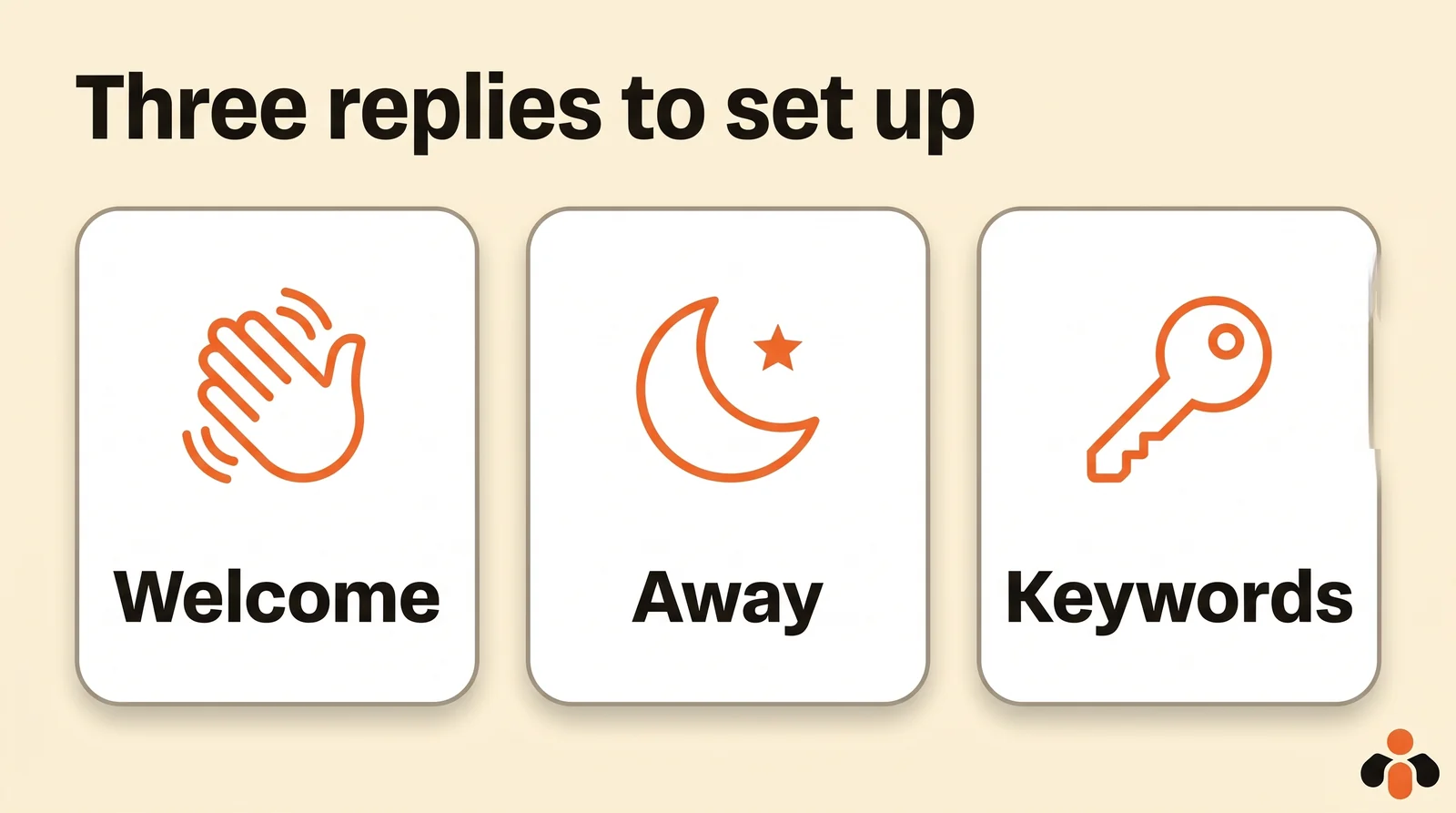
A Messenger auto reply takes a few minutes to set up on a Facebook Page, for free: a welcome message on the first message, an away message while you are closed, and replies to keywords. It all happens in the Automations tab of the Page's inbox, on desktop or in the Meta Business Suite app. One limit first: a personal profile cannot have one.
In this guide:
- what a Messenger auto reply is, and who can use one;
- the welcome message from Facebook, from Meta Business Suite and on mobile;
- the away message and the Away status;
- keyword replies and their rules;
- how to edit or turn off an auto reply;
- 12 message samples to copy;
- Meta's rules for a Messenger bot, and what an AI agent adds.
What is a Messenger auto reply?
It is a message your Page sends on its own, in Messenger, when someone writes to it. Meta calls these inbox automations and offers a set of templates, according to its help:
| Automation | When it is sent |
|---|---|
| Instant reply | On someone's first message, to greet them |
| Away message | During the hours you are unavailable |
| Frequently asked questions | Suggested questions, with their answer |
| Location, Contact information, Hours | When someone asks for your address, contact or opening hours |
| Custom keywords | When the message contains a chosen word |
| Comment reply | A private message to whoever comments with a keyword |
| Identify unanswered messages | Sends nothing: finds forgotten conversations |
Menu names vary slightly between Meta's pages and your language settings. These templates send fixed text. They greet, share the basics and ask people to wait. They do not understand a specific question.
Who can use a Messenger auto reply?
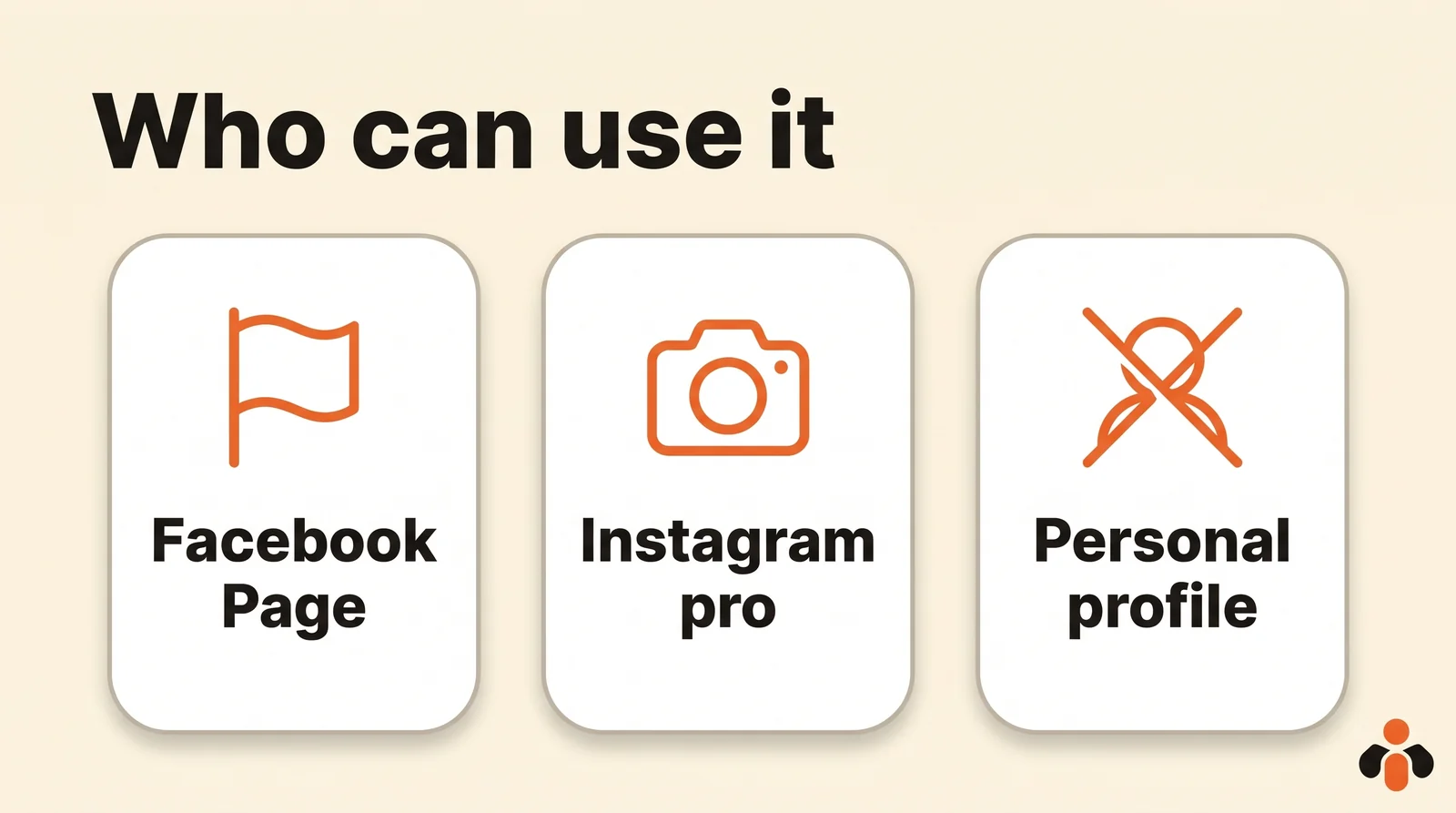
Inbox automations are available for Facebook Pages, Instagram business accounts and WhatsApp Business accounts, according to Meta. Two consequences:
- a personal profile has no auto reply: that answers the "Messenger auto reply personal account" question. If customers message your profile, create a Page for your business and share its link;
- to manage a Page's automations you need Facebook access to the Page, or task access to messages (Meta).
Method 1: the welcome message from your Facebook Page
The shortest path, on desktop, without leaving Facebook. The steps according to Meta:
- Log in to Facebook and click your profile picture at the top right.
- Click See all profiles, then choose your Page.
- At the top right of your feed, click Messenger.
- At the top of the inbox, click Automations.
- At the top right, click Create automation.
- In the left menu, click Greet people.
- Select Instant reply, then Create automation at the bottom right.
- At the top, click the toggle next to Instant reply to turn it on.
- Select the Messenger channel and write your message under Message.
- Click Save changes.
The message goes out as your Page's first response to new messages. Meta adds two details: it is not sent while the Page's status is set to Away, and it is not counted in the Page's response rate or response time.
Method 2: in Meta Business Suite, on desktop
If you manage Facebook and Instagram together, use the Meta Business Suite inbox. The steps according to Meta:
- Check at the top left that the right business portfolio is selected.
- Open the Inbox, then Automations.
- Click Create automation at the top right.
- Pick the template, for example Instant reply.
- Follow the on-screen steps: tick Messenger as the channel, and Instagram if you want the same message on both.
The automation then shows up in the list. Meta warns it can take a few minutes to appear: refresh the page before creating it again.
Method 3: on your phone, with the Meta Business Suite app
The Messenger app alone does not manage a Page's automations: you need the Meta Business Suite mobile app. The steps according to Meta:
- Open the app and tap Inbox.
- Tap the three dots at the top right, then Automations.
- Choose the template and, under Platforms, switch on Messenger.
- Write your message under Message. For frequently asked questions, you can add up to five.
- Tap Save.
On mobile, the Contact information, Location and Hours automations can carry an attachment, an image or a video, or a button that leads to your website. Custom keywords can only be set up on desktop.
The away message on Messenger
The away message answers when you are not there. Two ways to trigger it.
From your hours. In the Page's Automations, find Away message under Suggested for you and click Try it, or Edit if it already exists. Select the channel, then, under When this happens, the hours you are unavailable. Write the message and save (Meta). On mobile, the setting goes through Schedule, Time zone and Add to schedule: check the city you picked, or the message goes out at the wrong time. A shop in New York set to another time zone will greet customers in the middle of its opening hours.
By hand. In the Page's inbox, click Available at the top right, then Away. That status lasts 12 hours at most (Meta), and messages received meanwhile do not count toward your response rate.
A good away message says when you are back and what the customer can do meanwhile: a link to the menu, the pricing page, a booking form.
Keyword replies: targeted answers, four rules
The Custom keywords automation replies when a message contains a chosen word, such as "price" or "delivery". It can only be created on desktop and follows four rules according to Meta:
- five keywords or phrases at most per automation, and the same word can only serve one;
- keywords are case sensitive and must match exactly: add both "Price" and "price";
- the reply is sent after 15 minutes, unless you answer yourself first;
- an active template wins: if your away message is on, it is the one that goes out, not the keyword reply.
The reply can include photos, videos, buttons and links. To go further, the Start from scratch option builds a custom automation: a condition (new message received, message assigned, label added), then one or more actions, such as sending a message, adding a label or marking the conversation.
For comments, the comment reply sends a private message to whoever comments on a post with a keyword. Meta allows a single private message, within seven days of the comment.
Edit or turn off a Facebook Page auto reply
Everything sits in one place, Automations, under Your automations (Meta):
- to edit the text or the hours, click Edit next to the message;
- to turn it off, click the toggle next to it: it stops sending, and you can turn it back on anytime.
An auto reply that keeps going out after you turned it off usually comes from another automation that is still active, such as a comment reply or a keyword. Check the whole list.
12 Messenger auto reply samples
A good message says who is answering, gives useful information right away and leaves a simple next step. Replace what is in brackets.
| Case | Sample message |
|---|---|
| Welcome | "Hi, thanks for your message! We usually reply within an hour, 9 am to 7 pm. Tell us what you are looking for." |
| Restaurant | "Hi! This week's menu is here: [link]. To book a table, send us the day, the time and the number of guests." |
| Online store | "Thanks for reaching out! For an order, send us its number and we will reply with the delivery date." |
| Coach | "Hi! To book a free intro session, pick a slot here: [link]. A question first? Write it here." |
| Agency | "Thanks for your message! To prepare a quote, tell us your need, your budget and your deadline." |
| Real estate | "Hi! Send us the reference of the listing you like and when you are free for a viewing." |
| Evening away | "Thanks for your message! We are closed for tonight and will reply tomorrow from 9 am. Meanwhile: [link]." |
| Weekend | "Hi! The team is off this weekend. We will read your message first thing Monday." |
| Holidays | "We are on holiday until [date]. Your message arrived safely and we will answer when we are back." |
| Keyword "price" | "Our prices are here: [link]. Tell us what you are interested in and we will confirm the exact price." |
| Comment | "Thanks for your comment! Here is the guide we promised: [link]. A question? Just reply to this message." |
| In French | "Bonjour, merci pour votre message ! Nous répondons en général dans l'heure, de 9 h à 19 h." |
Replace Meta's default text: "we have received your message" tells the customer nothing. A reply time and a link do more than ten polite words.
Messenger auto reply bots: what Meta allows
Beyond templates, two routes let a Page actually answer questions.
Meta's own agent. Meta Business Agent answers customers from your business information: catalog, description, address, hours. According to Meta's help, access is limited: past a free limit on Messenger, Meta offers a Meta One plan. Turning it on pauses existing automations, such as the away message, while the AI is active.
Tools built on the Messenger API. A third-party app can answer on the Page's behalf, under the Messenger Platform policy:
- the Page only replies to someone who messaged it;
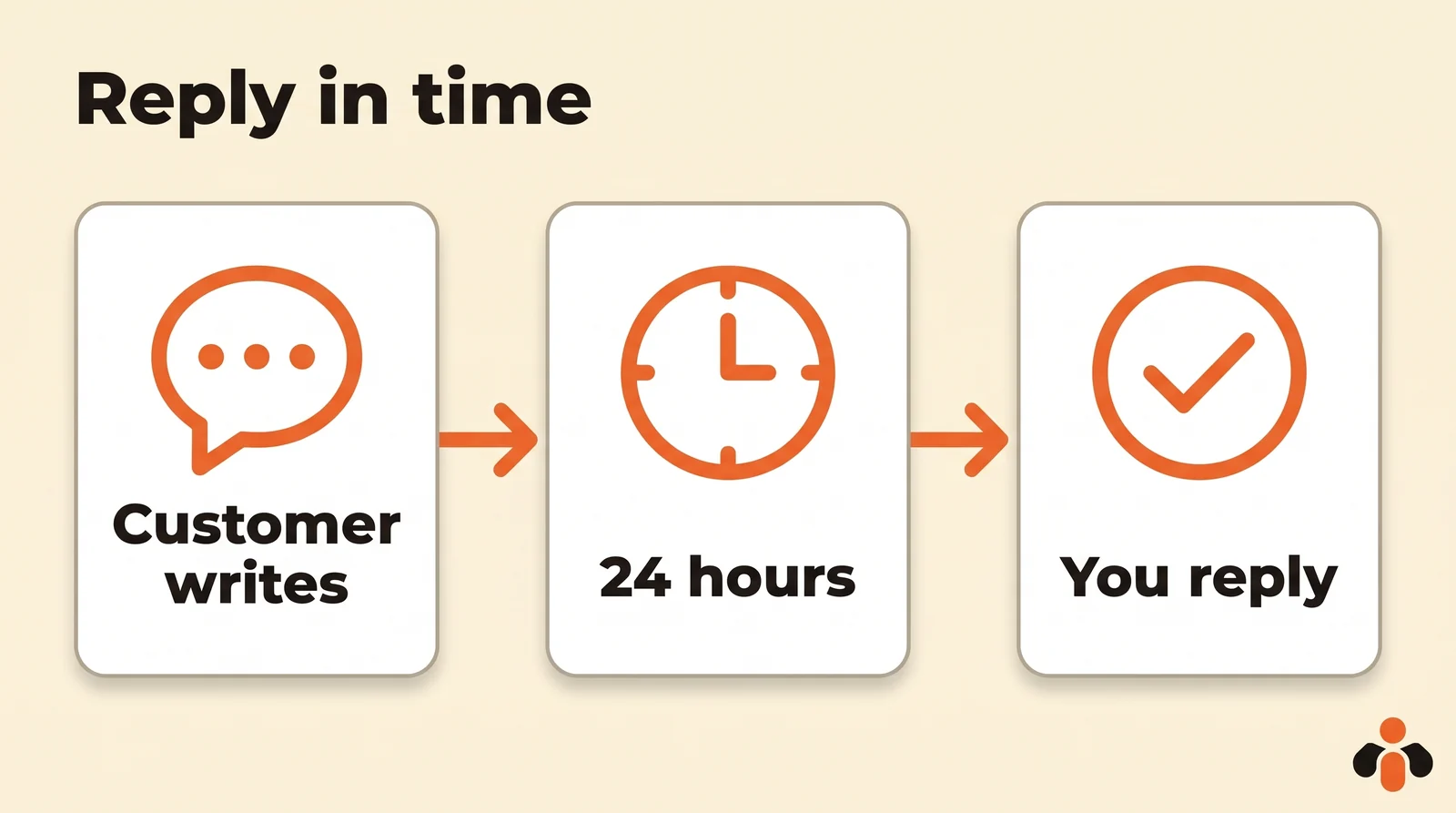
- the reply goes out within 24 hours of the customer's last message, for most conversations;
- the window lasts up to 7 days when the conversation starts after a click on a Click-to-Messenger ad;
- the Human Agent tag gives 7 days for a reply written by hand by someone on your team;
- where the law requires it, people must be told they are talking to an automated service: at the start of the conversation, after a long gap, and when a human hands over to the bot.
On the customer side, Meta notes that people can type "talk to a representative" to stop receiving AI messages in a conversation.
What to automate, and what stays human
| Automate | Keep human |
|---|---|
| The greeting and the reply time | A complaint or an unhappy customer |
| Hours, address, links | A negotiation or a complex quote |
| Questions that come back every day | A partnership request |
| The away message | A question your fixed text does not cover |
Keep Identify unanswered messages on: it finds the conversations left hanging before the 24 hours run out.
Instagram and Messenger: one reply for both
If customers also write on Instagram, tick both channels in the same Meta Business Suite automation. Instagram's own settings, its in-app questions and its rules, are covered in the Instagram auto reply guide.
When to move to an AI agent
Meta's templates are enough to greet and ask people to wait. They stop being enough when real questions arrive in the evening: a price, availability, a delivery time.
That is what Kreatoai's agent does. It brings Messenger and Instagram direct messages into one inbox and answers from what the business has taught it: a description of the business, its usual answers, its documents. It replies in the customer's language, saves the contact details of people who want to go further, and stops to alert a human when a question falls outside its scope; you take the conversation back whenever you want. It never messages someone who has not written first and does not reply to public comments. With a plan, you can test it in a dry run before it talks to real customers.
Prefer to answer yourself, with help? From ChatGPT or Claude connected to Kreatoai, the AI reads the Messenger and Instagram messages waiting for a reply, most urgent first, suggests an answer for each and sends it after your approval, within the 24 hours Meta allows. Details are on the agent's presentation and the Claude page.
Key takeaways
- A Messenger auto reply needs a Facebook Page: a personal profile cannot have one.
- The welcome message is set in Automations, from the Page, in Meta Business Suite or in its mobile app.
- The away message follows your hours, or the Away status, which lasts 12 hours at most.
- Keywords are case sensitive, go out after 15 minutes and give way to the active template.
- To edit or turn off a reply: Your automations, then Edit or the toggle.
- A Page only replies to people who wrote to it, within 24 hours in most cases.
Frequently asked questions
- How do I set up an auto reply on Messenger?
- On desktop, switch to your Facebook Page, click Messenger at the top right, then Automations, Create automation, Greet people and Instant reply. Turn it on with the toggle, choose the Messenger channel, write the message and click Save changes. The same setting exists in the Meta Business Suite inbox, on desktop and in the mobile app.
- Can I set an auto reply on a personal Messenger account?
- No. According to Meta's help, inbox automations are available for Facebook Pages, Instagram business accounts and WhatsApp Business accounts. A personal Facebook profile has no welcome message, away message or keyword replies. To use them, create a Page and have customers message it.
- How do I set an away message on Messenger?
- In your Page's Automations, choose Away message, select the Messenger channel, pick the hours you are unavailable, write the message and save. It is also sent when you switch the Page's messaging status to Away, which lasts 12 hours at most.
- How do I edit or turn off a Facebook Page auto reply?
- Open the Page's inbox, then Automations. Under Your automations, click Edit next to the message to change its text or hours, or click the toggle to stop it. A turned-off automation no longer sends, and you can turn it back on anytime.
- What is the difference between an auto reply and an away message?
- The auto reply greets someone on the first message they send your Page, whatever the time. The away message only answers during the hours you marked as unavailable, or while the Page is set to Away. According to Meta, neither counts toward your Page's response rate or response time.
- Why is my keyword auto reply not sending?
- Three reasons come up: keywords are case sensitive and must match exactly, the reply is only sent after 15 minutes if nobody answered first, and an active template such as the away message takes priority over the keyword. Turning on Meta Business Agent also pauses existing automations.
- What is a Messenger auto reply bot?
- A program that answers a Page's messages for it. Meta offers its own, Meta Business Agent, with limited access, and third-party tools go through Meta's Messenger API. In every case the Page only replies to someone who messaged it, usually within 24 hours, and must disclose that people are talking to an automated service where the law requires it.
- How long do I have to reply to a Messenger message?
- Twenty-four hours after the customer's last message, for most conversations. The window can last up to seven days when the conversation starts after a click on a Click-to-Messenger ad, and a reply written by a human on your team gets seven days with Meta's Human Agent tag.
- Can a Messenger auto reply answer a real question?
- A Meta template sends fixed text: it greets and asks people to wait, but it cannot answer 'do you deliver on Saturday?'. An AI agent like Kreatoai's reads what the business has taught it, replies in the customer's language, and stops to alert a human when a question falls outside its scope.
Have it done for you
Kreatoai publishes and schedules your posts on all your networks, from your dashboard or by asking ChatGPT and Claude, and its agent answers your direct messages. Ten free posts every month, no credit card.
Try it free