Connect ChatGPT or Claude to LinkedIn: Connector, MCP and Limits
How to connect ChatGPT or Claude to LinkedIn and post from a chat: the MCP connector to add, what LinkedIn allows (profile, Page), and the extensions to avoid.
 By Kreatoai

To post on LinkedIn from ChatGPT or Claude without copy and paste, you link the assistant to your account with a connector: an MCP server that goes through LinkedIn's official API. Writing the post, the AI does alone; publishing or scheduling it only works through that bridge, and only within what LinkedIn allows. This guide was checked against the official pages of LinkedIn, OpenAI and Anthropic on November 5, 2026.
In this guide:
- what ChatGPT and Claude do on LinkedIn by themselves, and what a connector adds;
- the difference between a connector, MCP and a skill;
- what LinkedIn allows: profile, company Page, extensions;
- the steps in Claude, then in ChatGPT;
- a sample conversation and a table of methods.
ChatGPT and Claude on LinkedIn: what they do alone
Without a connector, ChatGPT and Claude stay inside the chat. They write a LinkedIn post, offer three versions, tighten a hook or plan a month of topics; you copy the text into LinkedIn and click Post. When people search "chatgpt linkedin post", that is often what they want, and it works well.
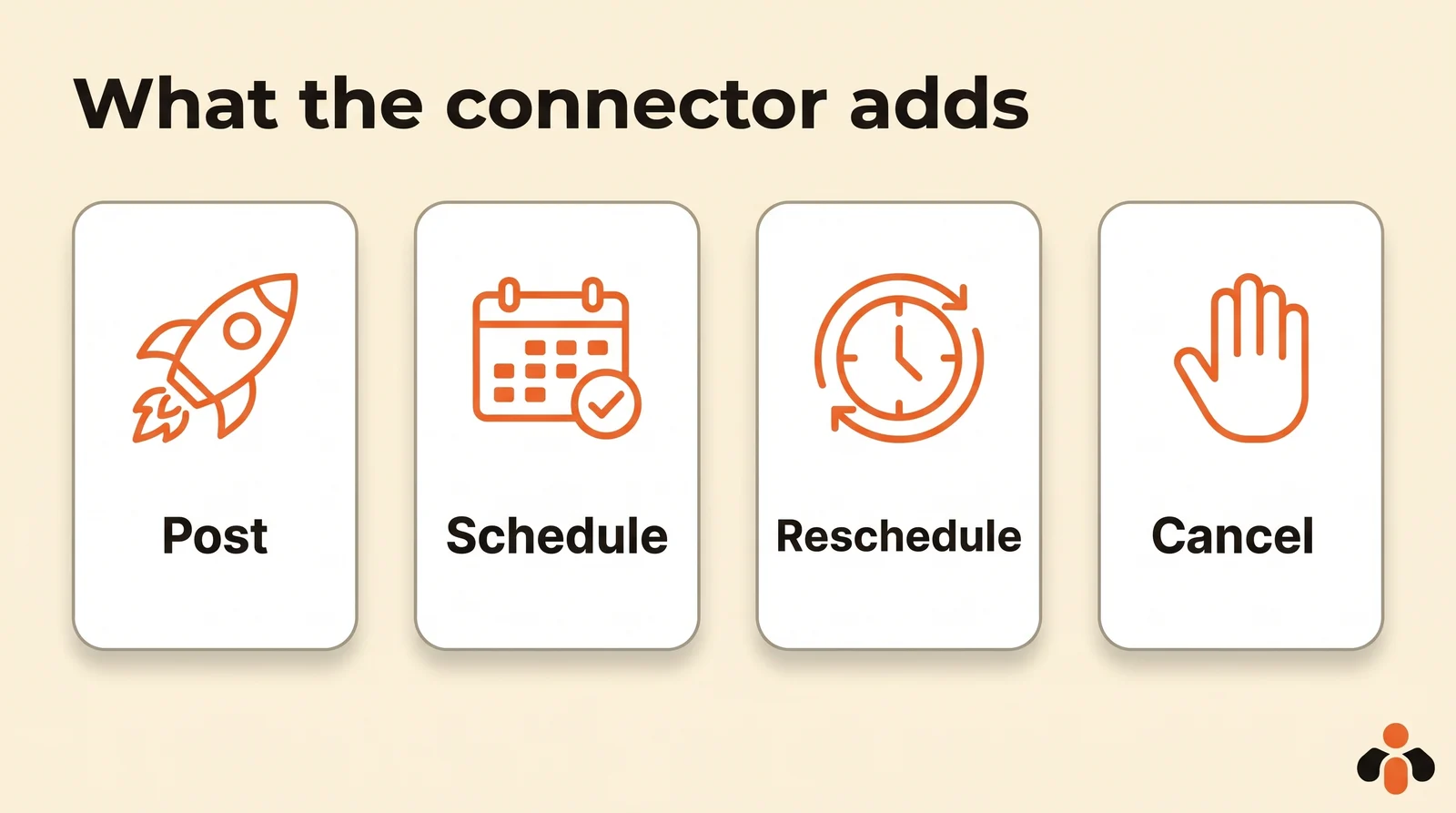
A connector gives the assistant hands. Once it is linked to your profile, the assistant publishes the post right away or at the time you choose, moves a scheduled post, cancels it, or lists what is still queued.
The AI still does not decide for you. It does not invent your photos: an image or a document is passed by its public link. And it shows you what it is about to send before it does, as you will see below.
Connector, MCP and skill: who does what
Three terms come up in searches, "claude linkedin connector", "linkedin mcp" and "claude linkedin skill", and they do not mean the same thing.
A connector is the bridge between the assistant and an outside service. Technically it is an MCP server, for Model Context Protocol: a standard plug that ChatGPT and Claude both know how to use, with the AI on one side and a tool that talks to LinkedIn on the other. The server exposes a few actions, such as "create a post" or "list accounts", and the AI picks the one that matches your request. Searching for a "chatgpt linkedin plugin", a "chatgpt linkedin integration" or a "claude linkedin plugin" is looking for that bridge.
A skill is something else. Claude's help center describes it as a folder of instructions that teaches Claude how to do a task, while MCP connects it to services and data. It adds that the two work together: the connector gives access, the skill says how to use it. A LinkedIn skill can set your tone, your post length or the way you end with a question; it publishes nothing without a connector.
One last point: LinkedIn has no "ChatGPT" or "Claude" button. The connector comes from a third party, and that third party is the one LinkedIn grants posting rights to. That is why what LinkedIn allows matters.
What LinkedIn allows: profile, Page, extensions
LinkedIn opens posting on a personal profile to any app that requests it properly, reserves posting as a Page for apps it has vetted, and prohibits bots that drive its website. Those three rules decide what a connector can do for you.
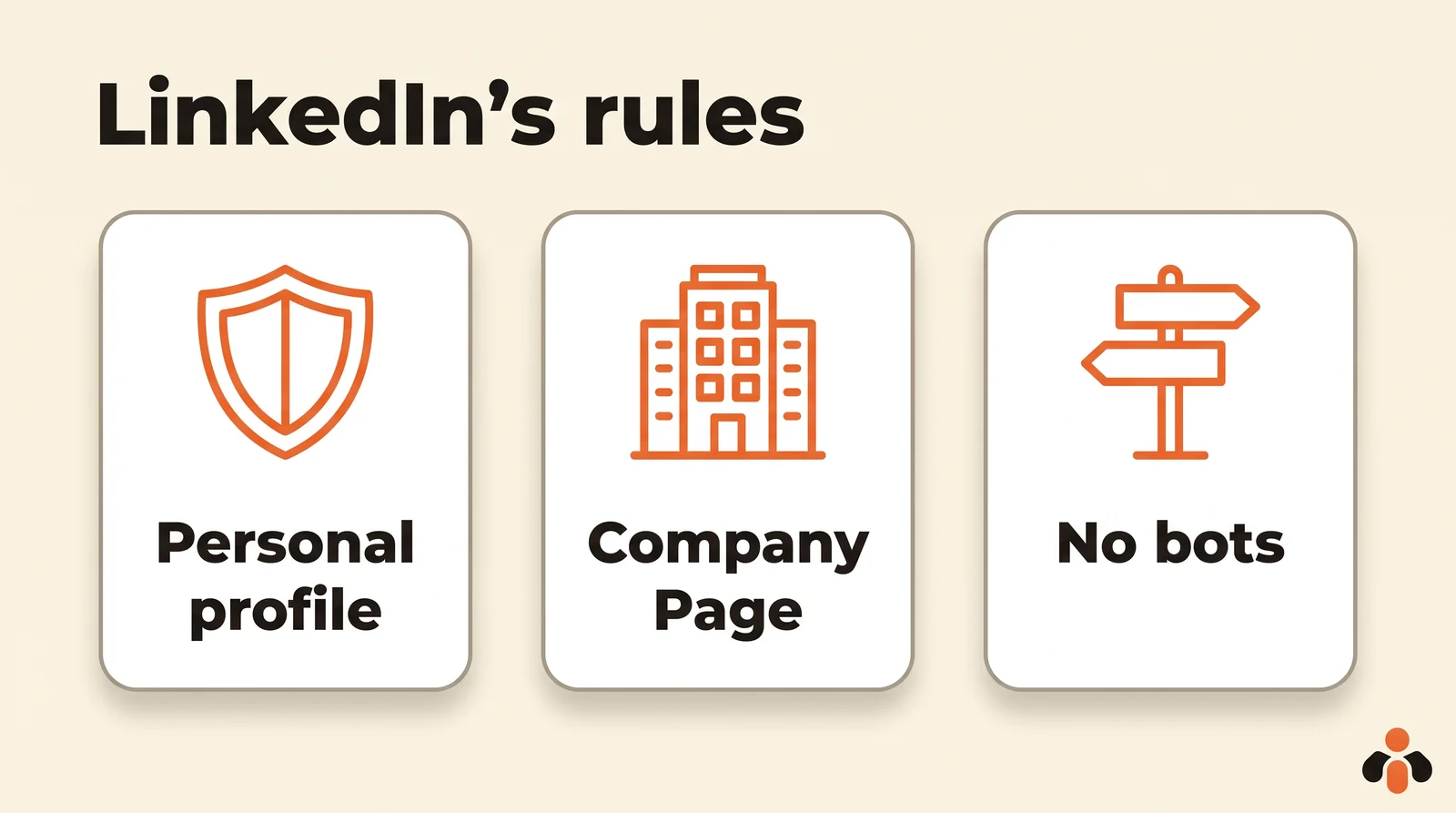
Personal profile. Posting on behalf of a member requires the w_member_social permission, granted by the Share on LinkedIn product, which any developer can add to an app. You grant it by signing in on LinkedIn's screen. The same page sets the cap at 150 requests per member per day, in UTC, and offers two visibilities: anyone on LinkedIn, or your connections only.
Company Page. Posting as a Page goes through the Community Management API, which LinkedIn describes as a vetted product, with a limited development tier first and a standard tier granted after a screencast review. A connector only posts to your Page if its publisher passed that review. Check its description before adding it.
Extensions and bots. LinkedIn's help center is plain about it: no bots, browser extensions or plug-ins that automate activity on the website, and its list of prohibitions names creating, commenting on, liking or sharing posts by those means. Members who use them risk having their accounts restricted or shut down. An "agent" that opens LinkedIn in your browser and clicks for you falls into that case; a connector that goes through the API does not.
How to post on LinkedIn from Claude, step by step
In Claude, you add a connector from the directory in a few clicks, or by the address of a remote MCP server. The directory is the easiest.
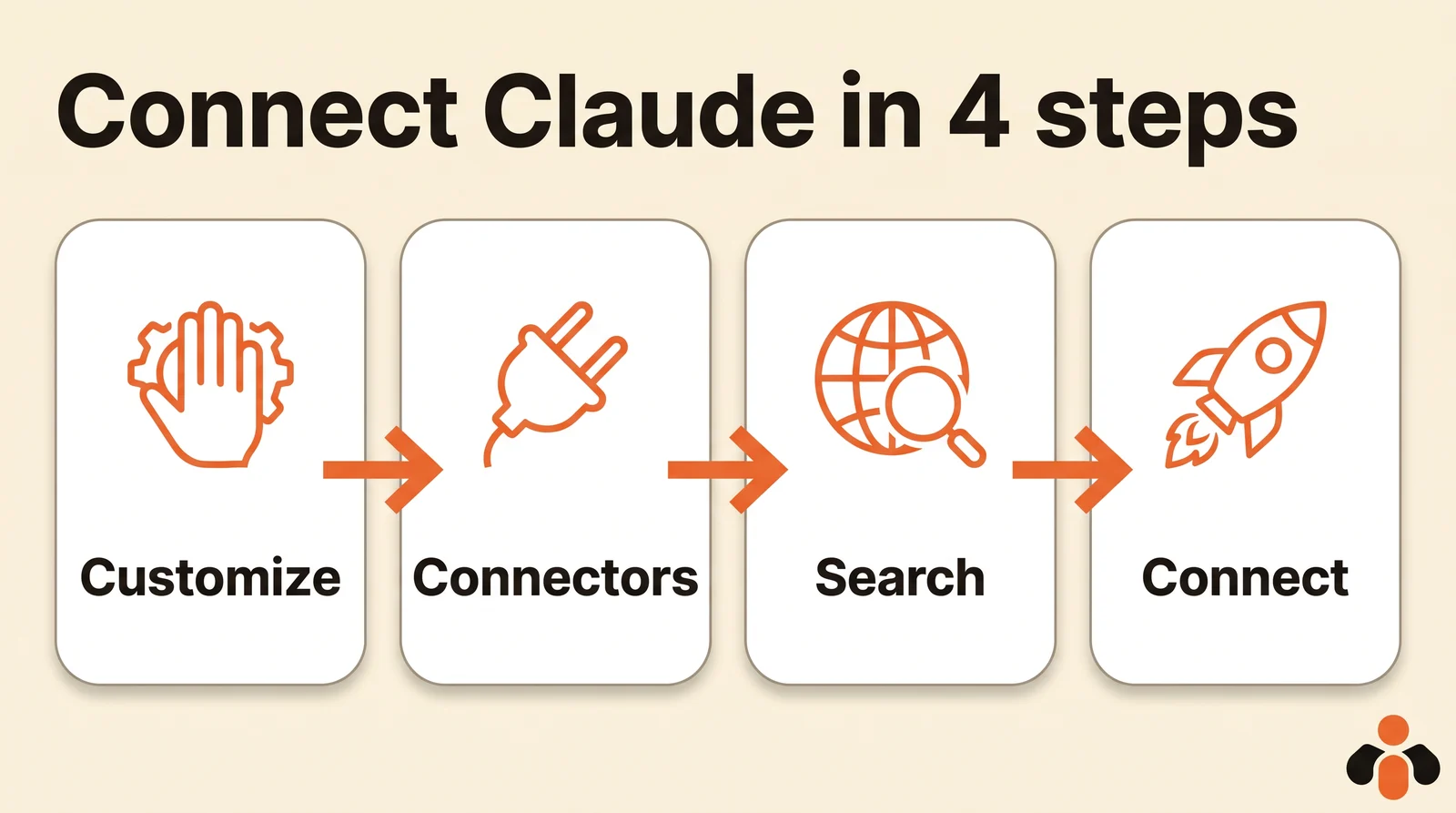
From the directory, you open the connector's listing, choose Connect and follow the authorization screens. For a connector that is not listed, Free, Pro and Max plans go through Customize, Connectors, Add custom connector:
- Open Customize, then Connectors.
- Click Add custom connector.
- Paste the remote MCP server address, then click Add.
- Connect your LinkedIn profile when the authorization screen opens.
The Free plan is limited to one custom connector. On Team and Enterprise, an owner first adds the connector to the organization, then each member connects. And an added connector must be turned on in the conversation, from the + button, then Connectors: if Claude says it cannot post, that is almost always why.
In Claude Code, one command does it, from its documentation: claude mcp add --transport http <name> <url>, then /mcp to open the sign-in page in your browser.
How to connect ChatGPT to LinkedIn, step by step
In ChatGPT, the shortest route is a plugin from the plugin directory: open its listing, install it and approve access, with nothing to copy. The other route, adding a custom MCP server, depends on your plan.
According to OpenAI's help page, checked on November 5, 2026, full MCP, which allows write actions such as posting, is available on Business, Enterprise and Edu plans, on the web. The steps:
- Open Plugins.
- Select the plus button, then Add custom MCP server.
- Enter a name, then the server's HTTPS address under Connection.
- Set up authentication, tick the risk warning, then Create as a plugin.
On Business, only admins and owners create these connections; on Enterprise and Edu, admins can grant that right to selected members. On Pro, OpenAI says a custom server connects with read and fetch permissions only, which is not enough to post. And custom servers connect on the web, not from the phone.
To try it, start a new conversation, type @ and pick the plugin. For write actions, ChatGPT can ask for confirmation depending on permissions and context: read it before approving.
A sample conversation for a LinkedIn post
Once the connector is on, you talk to the assistant like a colleague. Here is a realistic exchange for a consultant announcing a workshop:
Write three versions of a LinkedIn post announcing my November 20 workshop on payroll, direct tone, 1,200 characters max, ending with a question. I'll take the second one. Schedule it for Thursday at 8:30 am on my LinkedIn profile.
The AI drafts, you choose, then it prepares the scheduling and shows it to you: text, date, account. You approve, and the post goes out on its own at that time. Afterwards, ask it to list what is still scheduled, to check the time and account, and to move or cancel a post before it goes out.
Two LinkedIn specifics. A post can be text only, unlike Instagram or TikTok. And a LinkedIn carousel is not a set of photos: it is a multi-page document readers swipe through. If you need one, check that the connector can turn your images into a document. To schedule by hand in LinkedIn, our guide to scheduling LinkedIn posts shows each screen, and our ChatGPT prompts for social media help you write a post that does not sound like a machine.
The methods compared
There are four ways to get from the AI to LinkedIn. They differ mostly in the risk to your account and the time they give back.
| Method | What it does | Allowed by LinkedIn | Limit |
|---|---|---|---|
| Copy and paste | The AI writes, you post by hand | Yes | No automation |
| Schedule in LinkedIn | The AI writes, you schedule in LinkedIn | Yes | One network, one post at a time |
| Browser extension or bot | Clicks in LinkedIn for you | No | Account restricted or shut down |
| MCP connector through the API | The AI posts and schedules after your approval | Yes, with w_member_social | Company Pages only if the publisher has access |
The connector is the only method that automates without breaking LinkedIn's rules. It is also the only one that lets the AI send the same message, adapted, to other networks in the same conversation; our roundup of social media MCP servers compares the connectors that do it.
A connector that posts to LinkedIn and your other networks
Kreatoai is a connector of this kind, listed in the Claude connector directory and, since October 22, 2026, in the ChatGPT plugin directory: you add it in one click, with no key to copy. It goes through LinkedIn's official API and posts to personal LinkedIn profiles, not to company Pages. A post can be text only, and a carousel goes out as a multi-page document.
From ChatGPT or Claude, you ask it to write the post with you, then to publish it right away or at the time you choose; a scheduled post can be edited or cancelled until it goes out. The same post can go out at once to Instagram, Facebook Pages, TikTok, YouTube Shorts, Bluesky, Google Business profiles and Pinterest, on the account you name; Instagram, TikTok and Pinterest need an image or a video, which you provide. By default, ChatGPT and Claude ask for your approval before posting or cancelling, and the AI never sees your passwords or payment details. LinkedIn gives no analytics to the AI: views and likes can be read for Facebook, Instagram, TikTok, YouTube and Pinterest.
Ten posts a month are free, with no card. For Claude Code, Codex, Cursor or any AI that connects a remote MCP server, the address is https://api.kreatoai.com/mcp/social. The Kreatoai in Claude and Kreatoai in ChatGPT pages walk through the connection.
Key takeaways
- ChatGPT and Claude write a LinkedIn post alone; to publish or schedule it, they need a connector, an MCP server that goes through LinkedIn's API.
- A skill teaches the AI how you write; it publishes nothing without a connector.
- LinkedIn opens posting on personal profiles with the w_member_social permission, and reserves company Pages for vetted apps of the Community Management API.
- Bots and extensions that post by driving the website are prohibited by LinkedIn and put the account at risk of restriction.
- In Claude: Customize, Connectors, then the directory or a custom connector, turned on in the conversation.
- In ChatGPT: a plugin from the directory, or a custom MCP server on the web with Business, Enterprise or Edu.
Frequently asked questions
- Can ChatGPT connect to LinkedIn?
- Yes, through a connector. ChatGPT writes the post on its own, but to publish or schedule it, it needs a connector linked to your LinkedIn account through LinkedIn's own sign-in screen. A plugin from the ChatGPT plugin directory, such as Kreatoai, installs from its listing; a custom MCP server connects on the web with Business, Enterprise or Edu plans.
- Is there a Claude LinkedIn connector?
- Claude uses third-party connectors, added from Customize, then Connectors. Each covers what its publisher built: some read prospecting data, others publish. To post, pick a connector that uses LinkedIn's official posting permission, such as Kreatoai, which is listed in the Claude connector directory.
- Is a Claude skill enough to post on LinkedIn?
- No. According to Claude's help center, a skill teaches Claude how to do a task, while an MCP connector gives it access to an outside service. A LinkedIn skill can set your tone and post format; publishing still needs a connector. The two work together.
- Can ChatGPT or Claude post to a LinkedIn company Page?
- Only through a connector that LinkedIn has granted Page access. Posting as a Page goes through the Community Management API, a product LinkedIn reserves for apps it has vetted. Kreatoai currently posts to personal LinkedIn profiles, not company Pages.
- Are browser extensions that post on LinkedIn for you allowed?
- No. LinkedIn's help center prohibits bots, browser extensions and plug-ins that automate activity on its website, posting included, and warns that members who use them risk having their accounts restricted or shut down. The allowed route is the official API.
- How many LinkedIn posts can you publish through the API?
- LinkedIn's documentation caps its member sharing API at 150 requests per member per day, counted in UTC. A post with an image takes several requests, but the cap is far above a normal posting pace.
Have it done for you
Kreatoai publishes and schedules your posts on all your networks, from your dashboard or by asking ChatGPT and Claude, and its agent answers your direct messages. Ten free posts every month, no credit card.
Try it free