What to Post on LinkedIn: 20 Post Ideas and Examples to Copy
What to post on LinkedIn? 20 post ideas in five families, ready-to-adapt examples (new job, event, hiring, job search) and a simple way to keep posts ready in advance.
 By Kreatoai
What should you post on LinkedIn if you want to be read without sounding like a salesperson? The posts that work best come from your own work: something you experienced, a look behind the scenes, a piece of advice, a result or an event. This guide gives you 20 post ideas grouped into those five families, written examples you can adapt, and a simple way to always keep a few posts ready.
In this guide:
- the five families of posts that cover almost everything you can share;
- four ideas per family, each with an example;
- example posts to copy: new job, trade show, hiring, job search;
- the post formats LinkedIn offers and their official limits;
- what LinkedIn itself says about what it shows in the feed;
- how to prepare a month of posts in one hour.
What to post on LinkedIn: five families are enough
The lists that rank at the top line up 20 to 30 ideas: polls, behind the scenes, recommendations, celebrations, infographics, news. They mix two things: a post's topic (what it's about) and its format (text, image, document, poll). Sorting by topic is simpler: pick what you want to say first, then the format that serves it.
Five families cover almost everything:
- Experience: what you learned, lived through, got wrong or got right.
- Behind the scenes: how your work actually gets done.
- Advice: one useful thing your reader can apply on their own.
- Results: a delivered project, a number, a before and after.
- Events: a trade show, a talk, a launch, a hire.
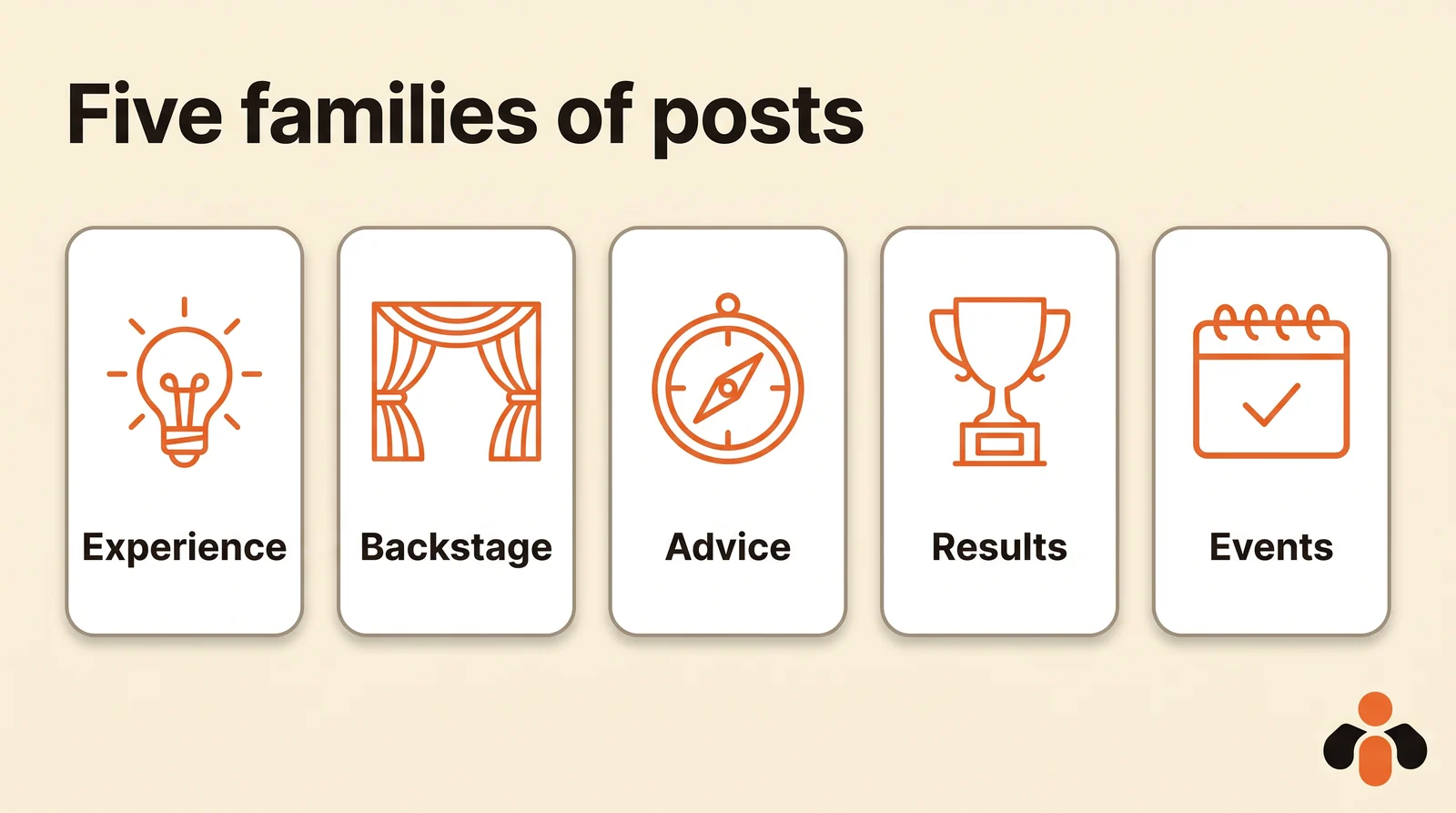
A good week mixes two or three of them. A profile that only shares results looks boastful; one that only shares advice feels impersonal. Experience and behind-the-scenes posts give the rest a face.
LinkedIn post ideas about your experience
These posts are about you, but they serve the reader, who walks away with a lesson.
- A mistake and what it taught you. "I lost a client last year because I took three days to reply. Now I reply the same day, even if it's just to say I'll get back to them."
- A decision you'd make again. Leaving a job, raising your rates, turning down a project: what tipped the balance, and what happened next.
- A turning point. A career change, a first hire, a first client: three sentences on before, three on after.
- A professional conviction. "In my field, people believe… I think the opposite, for one simple reason." A well-argued opinion starts a conversation in the comments.
Write in the first person, with real details: a place, a number, something someone said. That is what separates a lived post from generic copy.
Behind-the-scenes post ideas
Here you show what nobody sees from the outside. These posts often get the most reactions, because nobody else can publish them for you.
- A typical day, in photos. Three pictures: the morning, a meeting, the moment the work ships.
- Your process, step by step. How you put together a quote, a shoot, a training session. A short document works well for this.
- A tool or a habit. "What I open every Monday morning to plan my week."
- The team. Introduce one person: their first name, what they do, one thing people don't know about them (with their consent).
LinkedIn post ideas that give advice
Advice is the post people save and share. LinkedIn even says that, when choosing what to show, it looks at the topic of a post and whether it shares knowledge or advice (LinkedIn Help on relevance).
- A three-step method. "Three questions to ask before you sign a commercial lease."
- A myth, busted. "People say you need to post every day. What matters is a pace you can keep."
- A list of resources. The five books, tools or templates you'd recommend to a beginner.
- The answer to a question you get all the time. A client's question becomes a post, and the post answers the next client in advance.
LinkedIn specifically recommends documents for this kind of content: professional advice, data and trends, event content and knowledge sharing (LinkedIn Help on documents).
Post ideas that show results
A result reassures a future client or employer, as long as it's true and specific.
- A delivered project. The brief, what you did, what changed. Name the client only if they agree.
- A before and after. Two images side by side, one line of explanation.
- A dated number. "One year after opening: 1,200 orders and 38 customer reviews." A real number, no hype.
- Feedback you received. A recommendation or a thank-you message, with its author's consent.
Post ideas around an event
An event gives you a date and a reason to post, before, during and after.
- The announcement. You're exhibiting at a trade show or speaking at a conference: where, when, what people will find. LinkedIn also lets you create an event from the post window (LinkedIn Help on posts).
- The recap. Three takeaways, a photo, the people you met tagged with @.
- A celebration. A company anniversary, a new role, a degree: LinkedIn has a Celebrate option for this.
- A job opening. The role, what the person will actually do, how to apply. The post window has a Briefcase icon to share that you're hiring.
LinkedIn post examples to copy
Here are five written examples to adapt with your own details. They're short on purpose: the first line carries the message.
New job
New chapter: I'm joining the team at Lumen Home as marketing manager.
What won me over: a brand that makes everything in the US and wants people to know it.
Thank you to Claire and Jordan for their advice during these months of searching.
First project: the spring collection launch. More soon.
Trade show
We'll be at the NRF Big Show from January 11 to 13, booth 4242.
On the agenda: a ten-minute demo of our point-of-sale software, and coffee.
Will you be there? Send me a message and we'll book a time.
Looking for a job
Today is my last day as an intern at North Studio.
In six months, I learned to run a renovation project end to end, from the quote to the final walkthrough.
The lesson I'm keeping: ask the obvious questions on day one.
I'm now looking for my first project coordinator role in the Chicago area.
Hiring
We're hiring a back-end developer to join our team of four.
The work: building the booking tool that 300 restaurants use every day.
Full time, two remote days a week, Austin.
All the details and how to apply in the comments.
B2B advice
Three questions to ask before choosing an accounting firm:
- Who will be my contact, and how many clients do they handle?
- What's included in the flat fee, and what does everything else cost?
- How quickly do you answer a question?
The third one matters more than you'd think.
The post formats LinkedIn offers
Once the topic is chosen, pick the format that serves it. Here are the ones in the post window, with the limits stated in LinkedIn's official help.
| Format | Best for | Official limit |
|---|---|---|
| Text | Experience, opinion, short advice | 3,000 characters (help) |
| Photo or video | Behind the scenes, before and after, events | Added with the Add media icon |
| Document | Step-by-step methods, advice, data | PDF, PPT, PPTX, DOC or DOCX, 100 MB and 300 pages (help) |
| Poll | Starting a discussion, testing an idea | Question 140 characters, options 30, four options on desktop (help) |
| Event | Trade show, talk, webinar | Created from the calendar icon |
| Celebrate | New role, anniversary, degree | Celebrate icon |
| Hiring | Job opening | Briefcase icon |
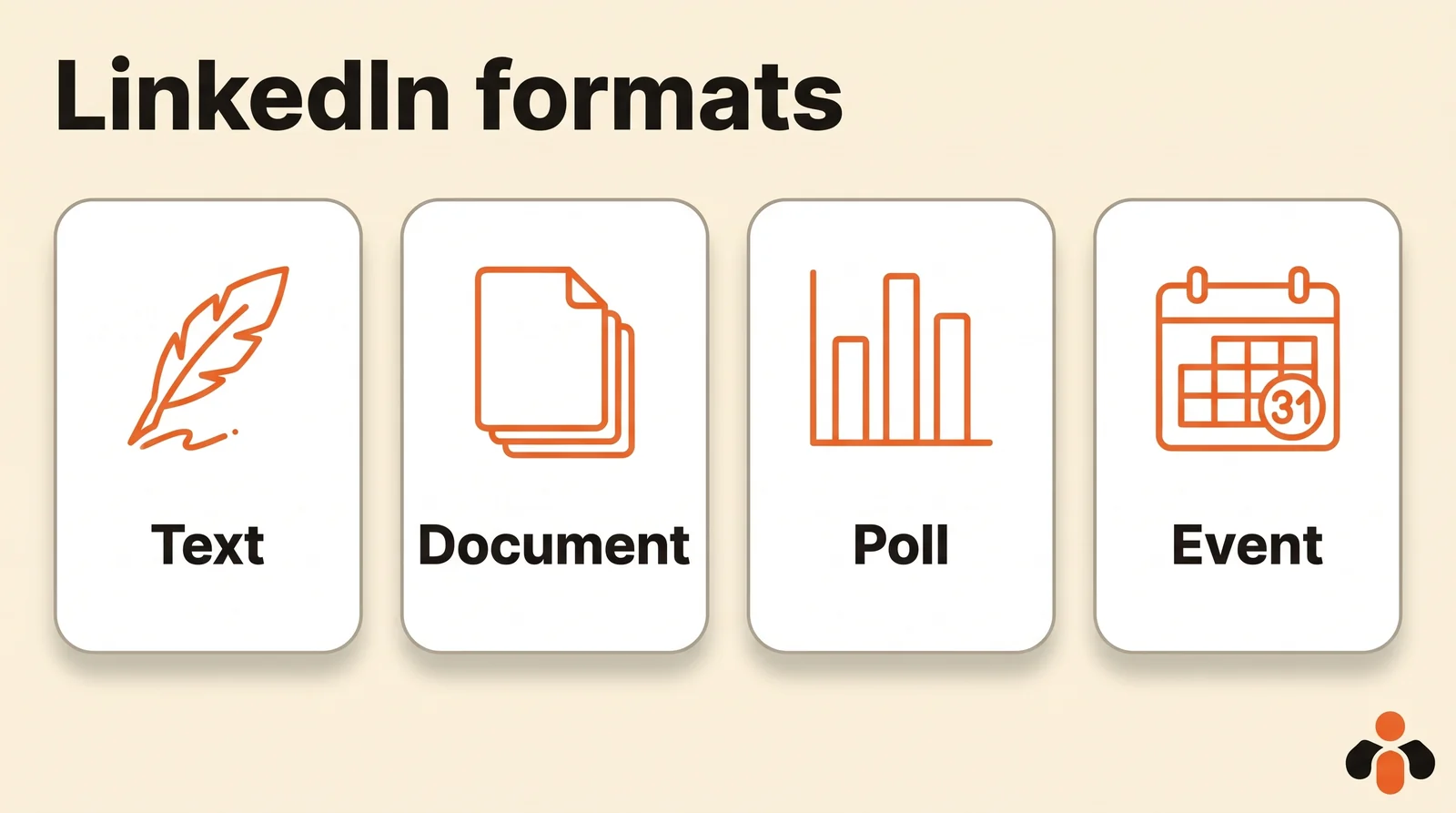
Two useful details. A document can't be edited once posted, only its description can, so proofread it first. A poll can't be edited after it's created either, and it can't be reopened once closed.
The "carousel" you see on LinkedIn is really a document: each page becomes a slide people swipe through. An eight-page square deck, one idea per page, can be built in any presentation tool and exported as a PDF.
What LinkedIn says about what it shows
LinkedIn publishes its own explanation of the feed (LinkedIn relevance). Among the content signals it weighs:
- how often a post is viewed and interacted with;
- the topic of the post, and whether it shares knowledge or advice;
- how recent the content is;
- the language of the post;
- whether the conversation is constructive and professional;
- the people, companies or topics tagged.
It also says its algorithms reduce the visibility of low-quality content. And the help page on posts warns that if it detects excessive posting that indicates inauthentic activity, or the use of an automation tool, LinkedIn may limit the visibility of those posts (LinkedIn Help).
The takeaway is simple: one useful post a week, genuinely written, beats an empty post every day. Scheduling posts in advance is fine; churning out hollow text is not.
Always keep a few posts ready
The real problem isn't finding an idea, it's having one on the day you need to post. The method that holds up:
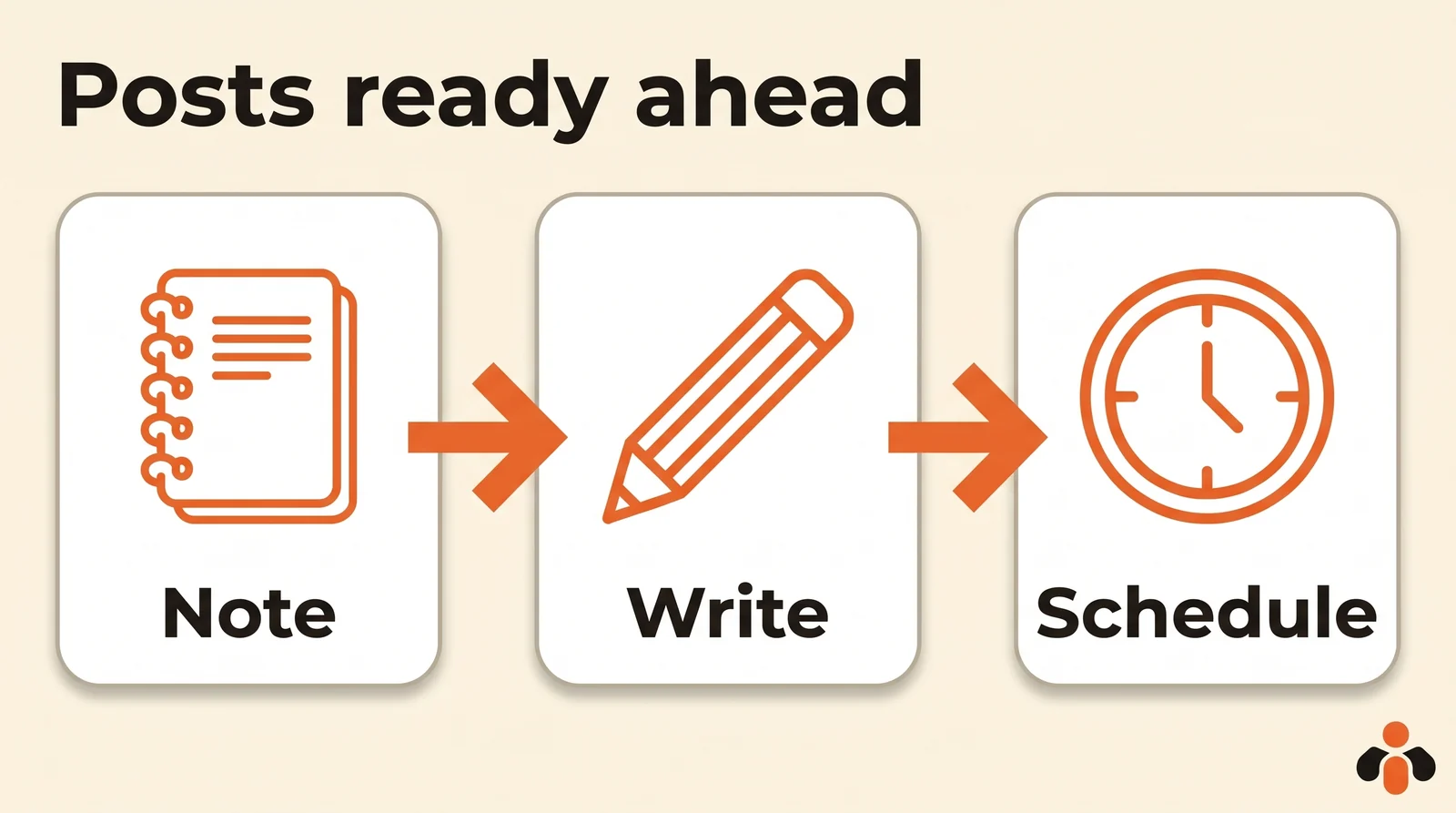
- An idea bank. A note on your phone, one line per idea, sorted by family. A client's question, a lesson from the week, a photo from a project: write it down right away.
- One hour a week. On the same day each week, take three ideas from the bank and write next week's posts.
- Scheduling. In LinkedIn, the clock icon in the post window schedules a post for a specific date and time. The details are in our guide on how to schedule LinkedIn posts.
To plan a whole week across several networks in one hour, see also manage your social media in one hour a week.
Preparing and scheduling posts with AI
AI helps with the part that takes time: turning a three-line note into a clean post. Give it the real material (what happened, the number, the lesson) and ask for a short version; don't ask it to invent an experience.
Kreatoai takes it one step further: it posts and schedules to personal LinkedIn profiles, along with Instagram, Facebook Pages, TikTok, YouTube (Shorts), Bluesky, Google Business profiles and Pinterest. You can ask ChatGPT or Claude, connected to Kreatoai, to prepare a week of LinkedIn posts from your notes: the AI suggests topics, writes the text and the dates, then schedules them once you approve. A carousel goes out on LinkedIn as a multi-page document. Every post can be edited or canceled until it goes out (see how to connect Claude). Ten posts a month are free, no credit card required. For a step-by-step guide to writing and posting from AI, see post to LinkedIn with ChatGPT or Claude.
Key takeaways
- What to post on LinkedIn: an experience, a behind-the-scenes look, advice, a result or an event. These five families are enough.
- Choose the topic first, then the format: text, photo, document, poll, event.
- A post holds up to 3,000 characters; a document up to 100 MB and 300 pages; a poll question 140 characters.
- LinkedIn looks at whether a post shares knowledge or advice, and whether it sparks a constructive conversation.
- Inauthentic or automated activity can have its visibility limited: one useful post a week beats an empty one every day.
- Keep an idea bank, write for one hour a week, and schedule with the clock icon or a tool.
Frequently asked questions
- What should I post on LinkedIn when I have no ideas?
- Start from what you did this week: a lesson from a project, a behind-the-scenes look at your work, advice you gave a client, a result or an event. These five families are enough to post all year without a blank page.
- How many characters can a LinkedIn post have?
- Up to 3,000 characters, according to LinkedIn Help. For anything longer, LinkedIn suggests writing an article with its publishing platform.
- Can you post a carousel on LinkedIn?
- Yes, as a document: a PDF, PPT, PPTX, DOC or DOCX file of up to 100 MB and 300 pages that people scroll through page by page. The document itself can't be edited once posted; only its description can.
- What are the limits of a LinkedIn poll?
- The question is limited to 140 characters and each option to 30. You can add up to four options on desktop and Android, five on iOS. A poll can't be edited after it's created and can't be reopened once closed.
- What should I post on LinkedIn for a new job?
- Name the role and the company in the first line, add one sentence on what drew you to it, and thank one or two people who helped. Keep it short: the news matters more than the story.
- Can you schedule a LinkedIn post in advance?
- Yes, in LinkedIn: the clock icon in the post window schedules it for a specific date and time. Kreatoai also schedules posts for a personal LinkedIn profile alongside your other networks, and ChatGPT or Claude can draft a week of posts and schedule them once you approve.
Have it done for you
Kreatoai publishes and schedules your posts on all your networks, from your dashboard or by asking ChatGPT and Claude, and its agent answers your direct messages. Ten free posts every month, no credit card.
Try it free