How to Schedule Social Media Posts with MCP: Step by Step
How to schedule social media posts with an MCP server: what it exposes, adding it to Claude, ChatGPT, Claude Code or n8n, scheduling a week of posts and picking a tool.
 By Kreatoai
To schedule social media posts with MCP, you connect your AI assistant to a scheduling tool that exposes an MCP server, authorize access to your accounts, then say in plain words what you want to post and when. The AI writes, prepares each post with its date, shows it to you, and sends it to the server, which publishes it on time. This guide was checked against Anthropic's, OpenAI's and the networks' official pages on November 6, 2026.
In this guide:
- what a social media MCP server exposes to the AI;
- what you need before you start;
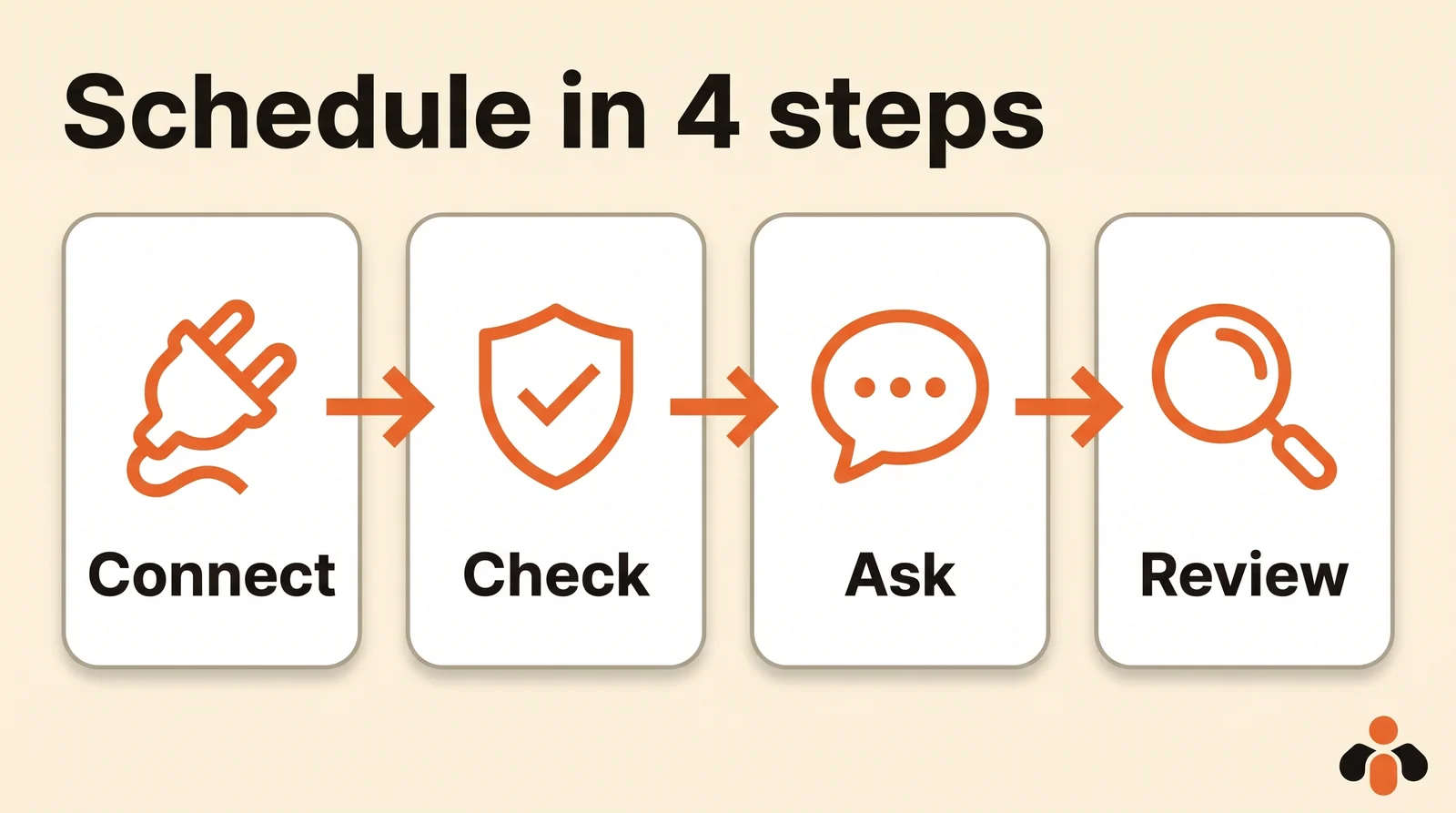
- the four steps: connect, check permissions, ask, review;
- a week of posts scheduled in one conversation;
- how to choose a server, and which tools have one.
What a social media MCP server does
MCP, short for Model Context Protocol, is an open standard introduced by Anthropic in November 2024 to connect AI assistants to tools and data. A social media MCP server is the plug on the tool's side: it tells the AI which actions exist, and the AI picks the one to call based on what you wrote.
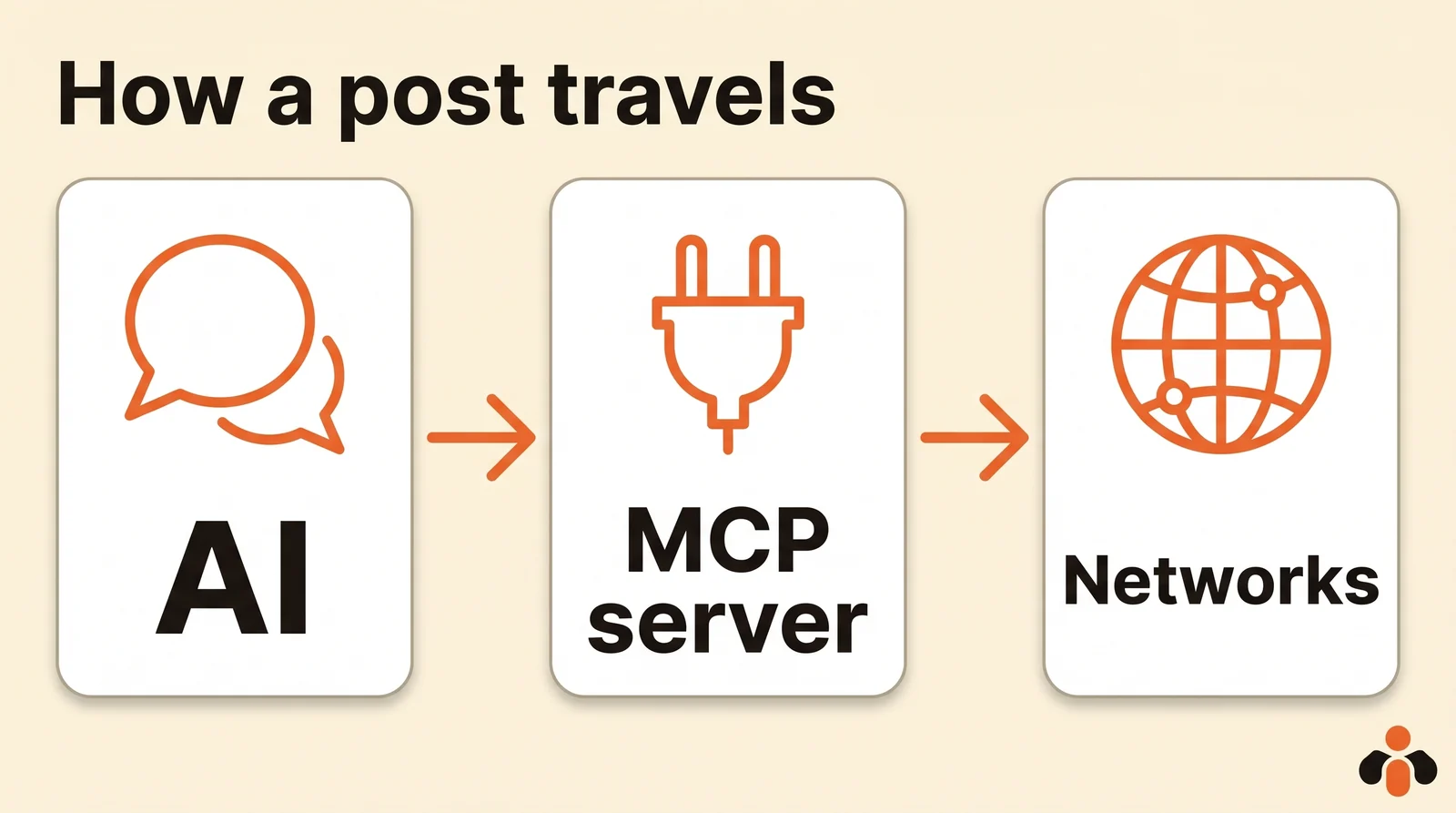
Scheduling servers expose similar actions from one tool to the next:
- list accounts that are connected, with their names, so the AI targets the right one;
- create a post, now or at a set date, on one or several accounts;
- edit or cancel a scheduled post until it goes out;
- list what is scheduled, and say whether a post went out, with its link;
- attach media, an image or a video given by its URL.
Some servers go further and read post analytics, comments or direct messages. Each one decides what it exposes; its documentation lists the tools.
The server does not bypass anything. It goes through each network's API, with the same rules as any regular app: a professional account for Instagram, a Page for Facebook, a personal profile for LinkedIn. What a network forbids through its API, an MCP server cannot do either.
What you need before you start
Four things, and no code:
- An MCP-compatible assistant: Claude, ChatGPT, Claude Code, Cursor, or an n8n agent.
- A scheduling tool with an MCP server, on a plan that includes it: some keep it for their top plan.
- Your accounts connected to that tool, through each network's authorization screen.
- Your media online: you give the AI an image or video by its URL, or upload it to the tool. Instagram and TikTok need one per post.
Step 1: connect the server to your assistant
Each assistant has its own path. The directory is the easiest when the server is listed there.
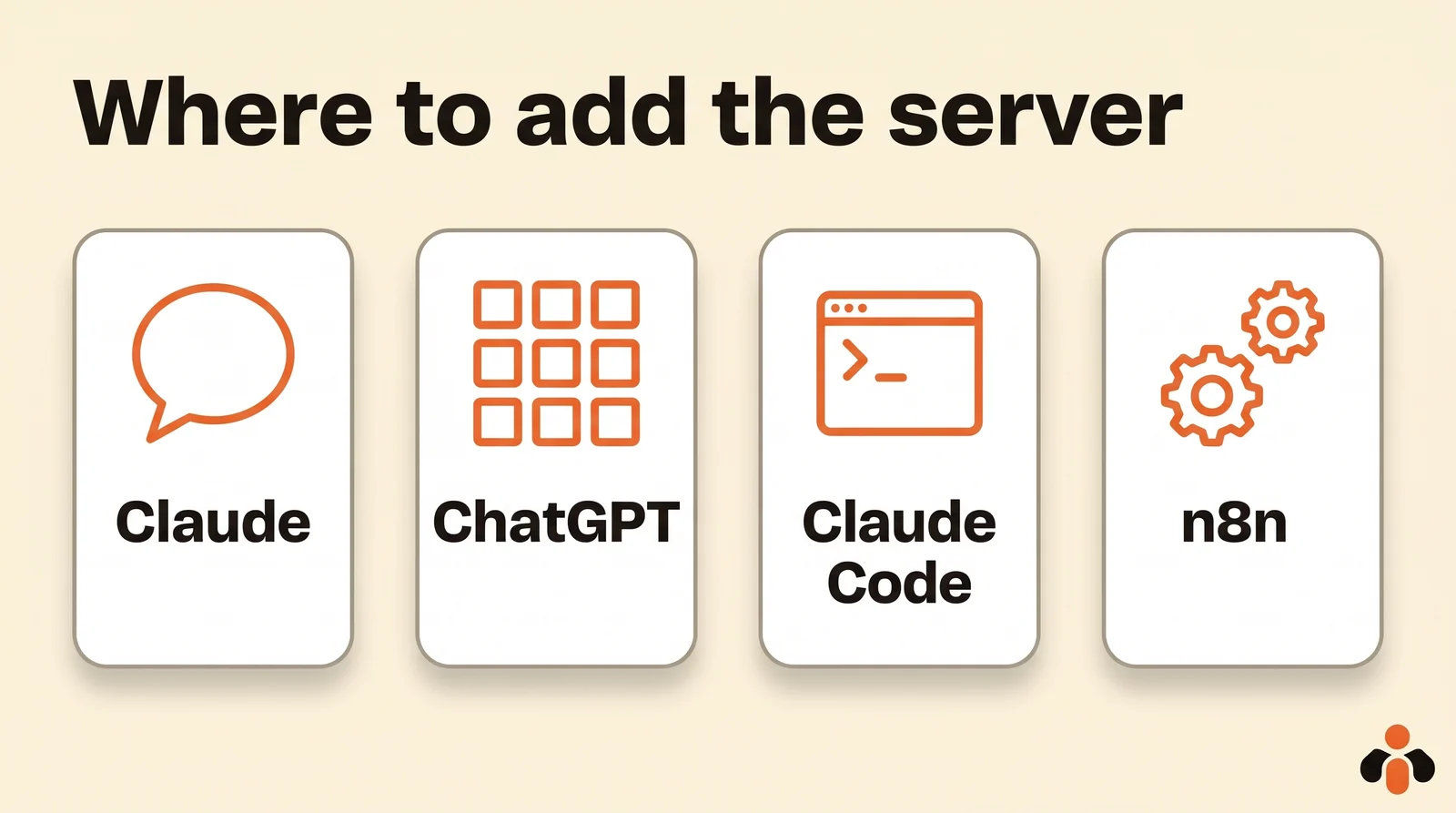
Claude. Open Customize, then Connectors, find the tool in the directory and click Connect. For a server that is not listed, choose Add custom connector and paste its address. Claude's help center notes that each directory connector has a page saying what it reads and writes, and that a connector added on the web follows you to iPhone and Android.
ChatGPT. Open Plugins, find the tool in the directory, install it and authorize access. Adding a custom server, through Add custom MCP server, happens on the web, and OpenAI's help center keeps write actions for the Business, Enterprise and Edu plans; on Pro, a custom server connects with read access only.
Claude Code. One command, from its documentation: claude mcp add --transport http <name> <url>, then /mcp to open the sign-in page. Cursor and Codex take the same address in their settings file.
n8n. In an AI agent, the MCP Client Tool node plugs into the server's address: the agent then schedules a post each time the workflow runs, for example from a spreadsheet row.
Step 2: check the permissions
Before asking for anything, look at what you granted. The server's authorization screen, then each network's, say what the tool will be able to do; only tick the accounts and Pages you want to hand over.
On the assistant's side, write actions go through a confirmation. OpenAI says ChatGPT asks for approval depending on the tool's permissions and the context of the action; Claude does the same by default. Keep those confirmations on at first: they show you exactly what goes out, on which account and at what time.
Finally, in Claude, a connector you added must be turned on in the chat, through the + button, then Connectors. If the AI says it cannot schedule, that is almost always why.
Step 3: ask for a week of posts
Once the server is on, you talk to the AI like a colleague, giving the topic, the networks, the days and the media. Here is a realistic request for an online skincare brand:
List my accounts. Then prepare four posts for next week about the serum launch: Monday the announcement, Wednesday the ingredients, Friday a customer review, Sunday the offer reminder. One text per network, for Instagram and the Facebook Page, with the photos in this folder. Schedule them at 6 pm New York time.
The AI first calls the action that lists accounts, to target the right ones. It then writes the texts, one per network, and prepares each post with its date. Before sending, it shows you everything: text, image, account, day, time. You fix what is off in plain words ("shorten Wednesday's"), then approve.
Always give the time zone, and name the account when you have several on the same network. The AI guesses neither.
Step 4: review and check what is scheduled
A scheduled post has not gone out yet: this is the time to check it. Ask the AI for the list of what is still to go out, with each post's time and account.
Until a post goes out, it can be moved ("move Friday's to Saturday at 10 am"), edited or cancelled. Once it is out, ask whether it was published and for its link: a serious server knows. If a post fails, for example because Instagram rejected an image, the tool reports it; the AI can then tell you why and offer to redo it.
For each network's own scheduling windows when you schedule by hand, our guide to managing social media in one hour a week lists them one by one.
How to choose a social media MCP server
Searches for "best social media mcp" and "social media mcp server" lead to lists. Before you choose, five questions are enough:
| Criterion | What to check |
|---|---|
| Networks covered | Your networks, and the right account type (Facebook Page, LinkedIn profile or Page) |
| Writing | The server posts and schedules, not just reads |
| Connection | Listed in Claude's or ChatGPT's directory, or key-only |
| Plan | MCP is included in your plan, not only the most expensive one |
| Follow-up | The AI sees what is scheduled, edits, cancels and knows when it went out |
According to the pricing and feature pages checked on October 14, 2026, several scheduling tools have an MCP server: Buffer, Postiz (open source, self-hostable), Metricool, Publer (on its Business plan only) and Kreatoai; Hootsuite offers MCP connectors for its assistant; Later did not announce one. Our roundup of the best social media MCP servers and our comparison of social media scheduling APIs cover each one's prices and limits.
An MCP server to schedule on all your networks
Kreatoai is that kind of MCP server, listed in Claude's connector directory and, since October 22, 2026, in ChatGPT's plugin directory: you add it in one click, with no key to copy. Its tools cover the whole cycle: list_accounts for accounts, create_post to publish or schedule, update_post and cancel_post to edit or cancel, list_posts and get_post to follow up, upload_media for files; get_analytics reads post analytics, and other tools read comments and direct messages.
One post goes out to Instagram, Facebook Pages, TikTok, personal LinkedIn profiles, YouTube (Shorts), Bluesky, Google Business profiles and Pinterest, on several accounts at once; the AI knows your accounts by name. Kreatoai does not pick the time for you: you give it. By default, ChatGPT and Claude ask for your approval before posting or cancelling, and the AI never sees your passwords or payment details. Ten posts are free every month, with no credit card.
For Claude Code, Codex, Cursor, Gemini CLI or any AI that connects a remote MCP server, the address is https://api.kreatoai.com/mcp/social; in n8n, the MCP Client Tool node takes it too. The Kreatoai in Claude page shows the setup step by step, and our guide to posting on LinkedIn with ChatGPT or Claude applies it to LinkedIn.
Key takeaways
- Scheduling with an MCP server means connecting your assistant to a scheduling tool that exposes one, then asking plainly; the AI calls the server's actions.
- The server goes through each network's official API: it does nothing the network forbids.
- Four steps: connect the server, check permissions, ask, review what is scheduled.
- Always give the time zone and the account name; the AI does not guess them.
- Before choosing: networks covered, writing, directory listing, a plan that includes MCP, post follow-up.
Frequently asked questions
- What is a social media MCP server?
- It is a service that gives an AI such as Claude or ChatGPT actions on your accounts: list your networks, create a post, schedule it, edit it or cancel it. MCP, short for Model Context Protocol, is the standard that lets the assistant call those actions. The server itself talks to the Instagram, Facebook or LinkedIn APIs.
- How do I schedule a post with Claude and an MCP server?
- Add the server under Customize, then Connectors, link your accounts on the authorization screen, turn the connector on in the chat, then ask plainly: "schedule this text with this image on Instagram Thursday at 6 pm". Claude prepares the post, shows it to you and sends it to the server once you approve.
- Do I need to code to use an MCP server?
- No, when the server is in Claude's or ChatGPT's directory: you add it in a few clicks and sign in. Claude Code, Cursor and n8n only need an address and sometimes a key, set with one command or one field.
- Will the AI post without my approval through an MCP server?
- Not by default: ChatGPT and Claude ask for confirmation before a write action, such as posting or cancelling, depending on the tool's permissions. Read each request before approving. You can then check scheduled posts in the list of what is still to go out.
- What is the best MCP server for social media?
- The one that covers your networks, actually posts (not just reads), connects through your assistant's directory and does not keep its MCP for its most expensive plan. Kreatoai, Buffer, Postiz, Metricool and Publer (Business plan) have an MCP server according to their pages checked on October 14, 2026.
- Can an MCP server post to Instagram and a Facebook Page?
- Yes, if it goes through Meta's API: Instagram needs a professional account and an image or video per post, and Facebook publishes as a Page, never as a personal profile. Kreatoai, for example, posts to both from the same conversation.
Have it done for you
Kreatoai publishes and schedules your posts on all your networks, from your dashboard or by asking ChatGPT and Claude, and its agent answers your direct messages. Ten free posts every month, no credit card.
Try it free