Connect Claude to Google Business Profile (and ChatGPT): Post Updates
How to connect Claude or ChatGPT to your Google Business Profile: what the AI does alone, what Google's API allows, the three ways to connect them and the steps in both assistants.
 By Kreatoai
You can connect Claude or ChatGPT to your Google Business Profile, but not directly: you need a connector or an MCP server that goes through Google's official API. Once connected, the assistant posts and schedules updates on your profile, with a photo and a button, after your approval each time. This guide shows what each route allows and the steps in both assistants; Google's rules were checked on its official pages on November 18, 2026.
In this guide:
- what Claude and ChatGPT do alone for your profile, and what they don't;
- what the Google Business Profile API really allows: updates, photo, button, no video;
- the three ways to connect a profile to an AI;
- the steps in Claude, then in ChatGPT;
- a sample conversation, from idea to scheduled update;
- the Google rules that get a post rejected.
What the AI does alone for your Google profile
Without a connector, Claude and ChatGPT cannot see your Business Profile. They read neither your reviews, nor your performance, nor your past posts, and they post nothing. They are still very useful upstream: writing a seasonal update, summing up an offer in three sentences, planning a month of posts, drafting a polite reply to a review you paste in.
That is what people searching "chatgpt prompts for google my business" are after: requests that work. Three examples to copy:
Write a 600-character Google Business update for an Italian restaurant in Chicago launching its winter menu. Warm tone, no phone number, and end with an invitation to book a table.
Suggest eight Google Business posts for a real estate agency, one a week for two months: a featured listing, a selling tip, a behind-the-scenes look at the team, a neighborhood to discover.
Rewrite this text for my Google profile: drop the extra emojis, keep one idea and add a call to book an appointment.
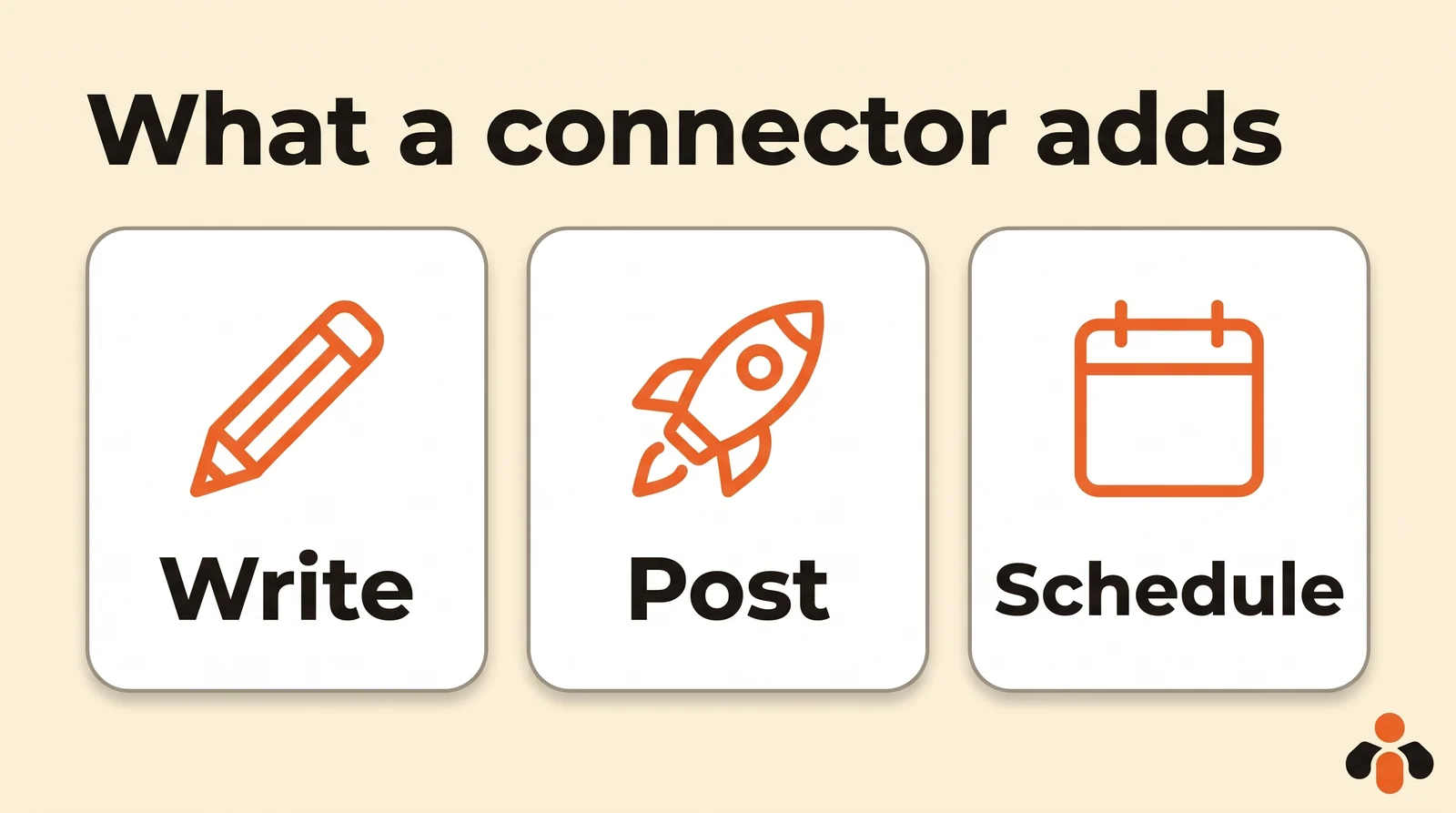
What a connector adds is the next step: sending that text to the profile, with its photo, at the right time, without copy-pasting into Google's interface.
What the Google Business Profile API allows
Any serious connector goes through the Google Business Profile APIs, Google's official access for software. For posts, here is what they cover.
Three kinds of posts. An update (STANDARD type), an event with its dates and times, or an offer with a coupon code and terms. A fourth type, alerts, is not always available. Product posts cannot be created through the API.
A call-to-action button. Below the text, one button: book, order, shop, learn more, sign up or call. It leads to the URL you provide, except "Call", which dials the profile's number.
A photo, no video. The API reference is clear: "In this version, only photos are supported." The image is given by its online URL. Google's interface accepts videos in a post; a tool posting through the API does not.
Tracking. Each post has a state (API list): processing, scheduled, live, or rejected for a policy violation. A live post gets a public link to Google Search.
Performance, separately. Another API, Performance, provides the profile's numbers: impressions on Search and Maps, direction requests, call button clicks and website clicks (list of metrics).
Access is not open to everyone. According to the prerequisites page, a developer must apply to Google while managing a profile that has been verified and active for more than 60 days, with a website. Until Google approves, the quota is zero requests per minute; once approved, 300 (quotas). That is why most people go through a tool that already has this access rather than wiring up their AI themselves.
| What you want | Through the API | In Google's interface |
|---|---|---|
| Update, event, offer | Yes | Yes |
| Photo | Yes, by its online URL | Yes |
| Video in a post | No | Yes |
| Product post | No | Yes |
| Call-to-action button | Yes, six choices | Yes |
| Schedule for a date | Yes | Yes |
Three ways to connect a profile to an AI
On Google's first page, the results for "connect claude to google business profile" are almost all vendor pages. They fall into three families that do very different things.
| Route | What it does | Best for |
|---|---|---|
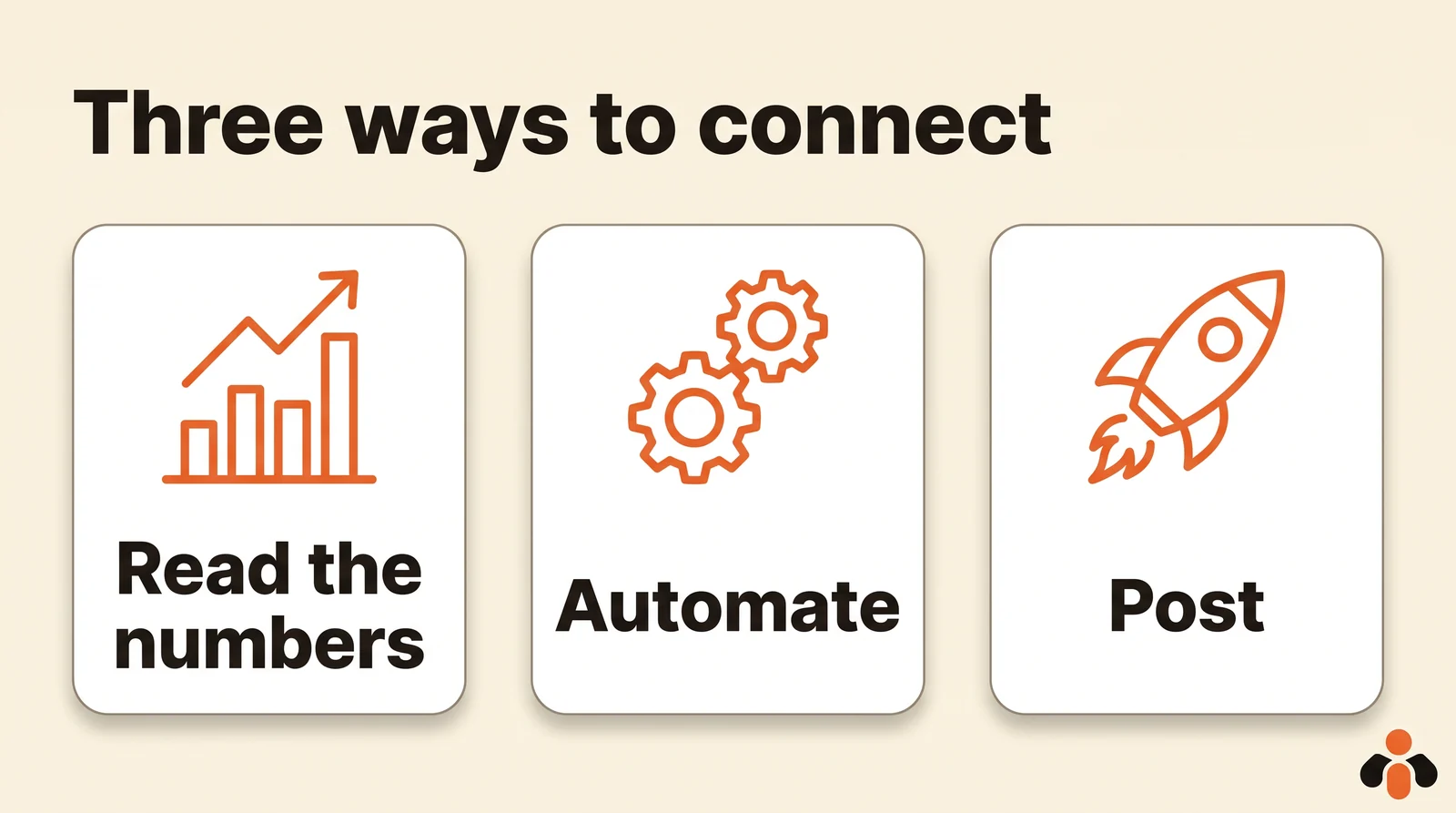
| Data connector | Reads the profile's performance (views, calls, directions) for the AI to analyze | Reports, tracking several profiles |
| Automation tool (n8n, Zapier) | Runs fixed steps: create a post, read and reply to reviews | One repeated task, always the same |
| Posting tool with MCP | Posts and schedules updates from the conversation, on the profile and other networks | Running your profile by talking to the AI |
Data connectors answer "how many calls this month?". They post nothing.
Automation tools are more flexible. n8n's Google Business Profile node creates, updates and deletes posts, reads reviews and replies to them; an n8n AI agent can use it. Zapier offers similar actions (create a post, reply to a review) and its own MCP server for Claude and ChatGPT. You do have to build and maintain the workflow.
A posting tool with MCP has its own access to Google's API and exposes it to the assistant: you ask in plain words, the AI posts. This is also what "google business profile mcp server" and "claude skill for google business profile" are about: a Claude skill gives instructions, but the MCP server is what acts on the profile.
Connect Google Business Profile to Claude, step by step
With a posting tool listed in Claude's directory, there is nothing to copy.
- In Claude, open Customize, then Connectors.
- Search for the tool in the directory and click Connect, then sign in to your account with that tool.
- Link your profile: the tool opens Google's window, where you pick the Google account that manages the profile and grant access.
- If that account manages several profiles, choose the ones to link.
Claude's help center says each directory connector has a page detailing what it reads and writes, and a connector added on the web follows your account to iPhone and Android. On Team or Enterprise plans, an owner must first enable it for the organization. Claude Code and Cursor take the MCP server's URL instead.
On Google's side, you need an owner or manager account on the profile. A profile that is not yet verified does not show its posts: they stay "Pending".
Connect Google Business Profile to ChatGPT
In ChatGPT, the directory is called Plugins, in the sidebar. According to OpenAI's help center, it is available across plans, and installing a plugin starts the connection to the service's account.
- Open Plugins and search for the tool.
- Click Install, then sign in to your account with that tool.
- Authorize access: the screen tells you what ChatGPT will be able to do.
- Link the profile in the tool, through Google's window.
For a server not in the directory, ChatGPT offers Add custom MCP server. OpenAI's help center reserves full connections to these servers for Business, Enterprise and Edu plans, on the web, and only admins of a Business workspace can create them.
A sample conversation
A hair salon in Brooklyn wants one update a week on its profile, on top of its Instagram posts. Here is what the owner writes to Claude, with a posting tool connected:
Prepare four updates for my salon's Google profile: fall colors, the holiday gift card, a hair care tip, the team growing. 500 characters each, a Book button to my website, and schedule them every Tuesday at 10 a.m., New York time. The photos are in my cloud folder.
The assistant first lists the connected accounts, to target the right profile. It drafts the four texts, then sums up before sending: text, photo, button, profile, day, time. She corrects in plain words ("no price in the second one"), then approves. By default, Claude and ChatGPT ask for this approval before each post.
Three precautions: always give the time zone, name the profile if you manage several, and one photo per update.
The Google rules that get a post rejected
Google reviews every post, whether it comes from the interface or from an AI (Business Profile help). A rejected post shows as "Not approved" and appears neither on Search nor on Maps.
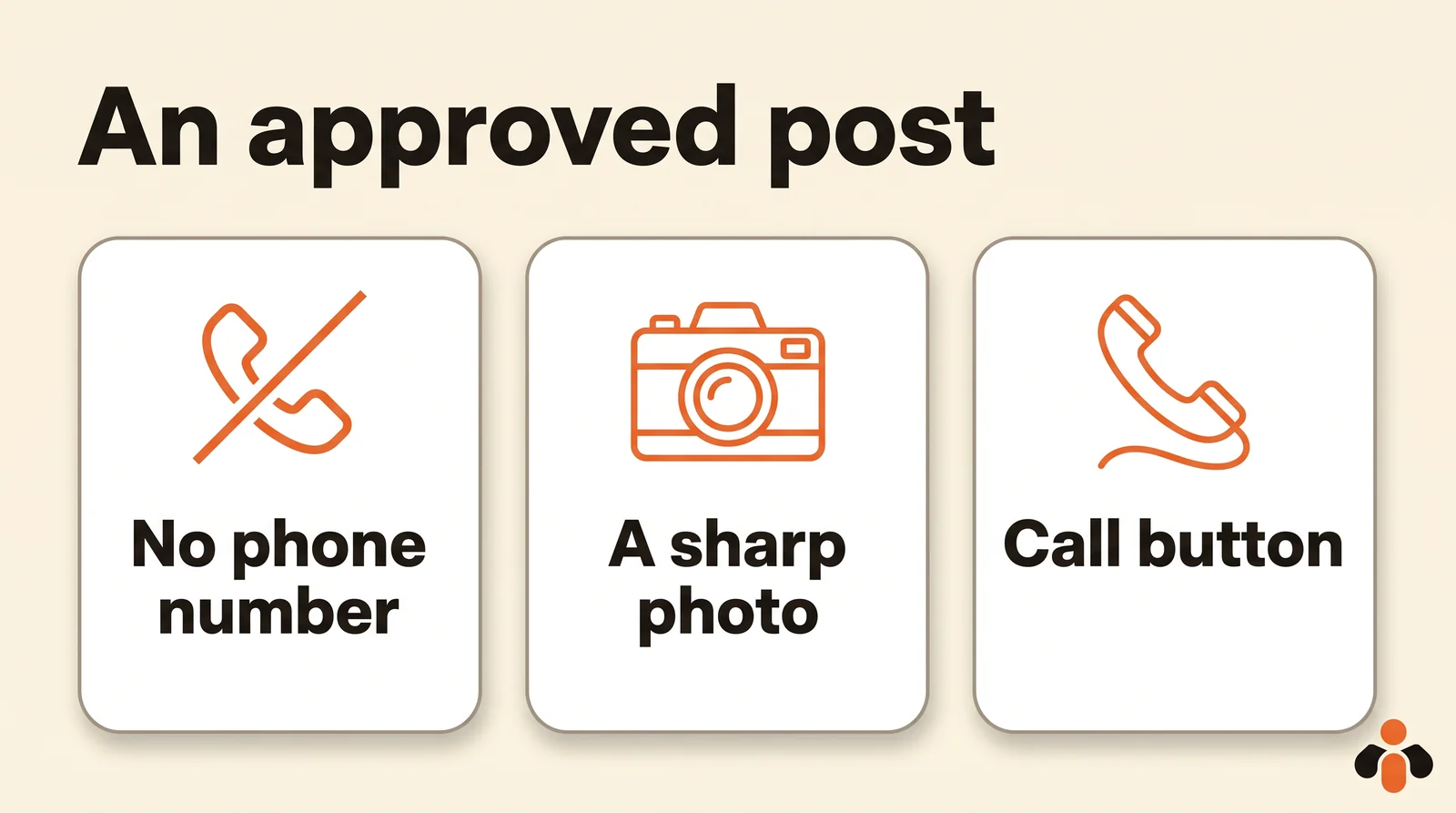
- No contact details in the text. The posts policy lets Google remove a post containing unverified contact details: phone numbers, email addresses, social media handles. To get calls, add the Call button, which uses the profile's verified number. Tell the AI so explicitly when it drafts the text.
- A sharp, faithful photo. Google recommends a JPG or PNG between 10 KB and 5 MB, at 720 x 720 pixels, at least 250 x 250 (photo guidelines), without heavy edits or filters.
- No content about regulated products. Alcohol, tobacco, pharmaceuticals, gambling, financial services: a business in these sectors may post, but not about those products. Hotels may not post offers.
- Careful writing. Google asks you to avoid misspellings, extra characters and text that adds no value or is auto-generated. Review what the AI drafts: you are the one posting.
To run your other networks the same way, our guide to scheduling posts through MCP walks through the setup network by network.
Post to your profile from Claude or ChatGPT
Kreatoai connects Claude, ChatGPT or any compatible AI to your Google Business Profiles, with no code. It is in Claude's connector directory (Customize, then Connectors, search for Kreatoai) and, since October 22, 2026, in ChatGPT's plugin directory: you install it and sign in with nothing to copy, then link your profile.
You then write to the AI like a colleague: it drafts the update with you, posts or schedules it, moves or cancels it until it goes out, and tells you whether it went out, with its link. An update is text and one image at most, given by its online URL; a photo still on your phone is added through the upload link the AI gives you, which shows a QR code. The same request can also target Instagram, Facebook Pages, LinkedIn, Bluesky or Threads, all at once, and several profiles can be linked in the same place.
Kreatoai makes neither images nor videos: it publishes the ones you make elsewhere. It provides no analytics for Google Business. By default, Claude and ChatGPT ask for your approval before posting or cancelling, and the AI never sees your passwords or payment details. Ten posts are free every month, with no credit card. The Kreatoai in Claude and Kreatoai in ChatGPT pages show the setup, and our guide to connecting ChatGPT to Facebook does the same for Facebook Pages.
Key takeaways
- Claude and ChatGPT do not connect to Google Business Profile on their own: you need a connector or an MCP server that goes through the official API.
- Alone, they write updates, offers and review replies; connected, they post and schedule.
- The API posts updates, events and offers with a photo and a button, but no video and no product posts.
- Three routes: data connector (read), n8n or Zapier (automate), posting tool with MCP (post by talking).
- No phone number in the text: the Call button does the job without risking rejection.
Frequently asked questions
- Can you connect Claude to a Google Business Profile?
- Yes, through a connector or an MCP server that goes through Google's official Business Profile API. Without one, Claude cannot see your profile: it reads neither your reviews nor your performance, and posts nothing. With a posting tool such as Kreatoai, Claude posts and schedules updates on the connected profile, after your approval.
- Can ChatGPT post to Google My Business?
- Not on its own. ChatGPT writes an update very well, but it needs a plugin or an MCP server to send it to the profile. With Kreatoai, installed from ChatGPT's plugin directory, you link your Google Business Profile, then ChatGPT posts or schedules the update, with a photo, once you approve.
- Is there an MCP server for Google Business Profile?
- Third-party tools offer them. Some only read the profile's performance (views, calls, directions), others post. Kreatoai is a posting MCP server: it posts updates to Google Business Profiles, as it does to Instagram, Facebook or LinkedIn.
- Can I post a video to Google Business Profile through the API?
- No. Google's own interface accepts photos and videos in a post, but the API only supports photos. A tool that posts through the API, such as Kreatoai, therefore sends text with one image at most.
- What photo size works for a Google Business post?
- Google recommends a JPG or PNG file between 10 KB and 5 MB, at 720 x 720 pixels, and at least 250 x 250 pixels. The photo should be sharp, well lit and true to reality, without heavy filters.
- Why was my Google Business post rejected?
- Google reviews every post. It may remove a post containing unverified contact details (phone number, email address, social media handle) and does not allow content about regulated products. To get calls, add the Call button instead, which uses the profile's verified number.
- Can Claude reply to Google reviews?
- Google's API allows review replies, and automation tools such as n8n or Zapier offer it. Kreatoai posts updates to the profile; for reviews, use Google's interface or one of these tools.
Have it done for you
Kreatoai publishes and schedules your posts on all your networks, from your dashboard or by asking ChatGPT and Claude, and its agent answers your direct messages. Ten free posts every month, no credit card.
Try it free