Connect ChatGPT to Instagram: Plugin, Steps and Limits
How to connect ChatGPT to Instagram: install a plugin, authorize your account, post and schedule from a chat, and know which ChatGPT plans and Meta rules apply.
 By Kreatoai
Yes, you can connect ChatGPT to Instagram, but not through a hidden setting in either app. You install a plugin (an MCP connector) from ChatGPT's plugin directory, authorize your Instagram professional account on the plugin's screen, then ask ChatGPT to write, publish or schedule your posts. This guide was checked against OpenAI's and Meta's official pages on October 29, 2026.
In this guide:
- what ChatGPT can do for Instagram on its own, and what a connector adds;
- how to install an Instagram plugin from the directory, step by step;
- how to add a custom Instagram MCP server, and which ChatGPT plans allow it;
- the Instagram rules that apply to every connector, whoever built it.
Can ChatGPT post to Instagram on its own?
No. By itself, ChatGPT stays inside the conversation. It can brainstorm post ideas, write five versions of a caption, suggest hashtags, plan a month of content or shorten a caption that runs too long. That is why searches like "chatgpt instagram post captions" are so common: writing is the part ChatGPT already does well.
What it cannot do alone is touch your account. You still copy the caption, open Instagram, pick the photo and tap Share. A connector removes that last mile. It gives ChatGPT tools it can call when you ask, so "write the caption, use the second version, schedule it for tomorrow at 6 pm" becomes one request instead of a to-do list.
One thing stays on your side: the visual. An Instagram post needs a photo or a video, and the connector posts the file you provide.
What a ChatGPT Instagram connector actually is
The technology behind it is MCP, the Model Context Protocol. Think of it as a standard plug. ChatGPT sits on one side, a service like Instagram on the other, and an MCP server in the middle exposes a few tools, such as "create a post", "list my accounts" or "cancel a post". So when people search for "chatgpt instagram mcp" or an "instagram mcp server url", they are looking for that middle piece.
Two facts help you pick the right one:
- The server is remote. OpenAI's help center says ChatGPT connects to remote MCP servers, not directly to one running on your computer. You connect to a web address, you do not install software.
- Not every connector publishes. Many results for "connect chatgpt to instagram" are analytics connectors: they let ChatGPT read reach, saves and follower numbers. That is useful, but it will not post anything. Before you install, check the plugin's description for words like publish, schedule or post.
You will also see three names for the same thing. OpenAI now calls the package a plugin; a plugin can include one or more connected apps, skills, or both. Connector, plugin and MCP server are the same object seen from three angles. If you want to compare the options, our roundup of the best social media MCP servers goes through them.
How to connect ChatGPT to Instagram from the plugin directory
This is the simplest path, and it needs no developer mode and no address to paste. OpenAI says the plugin directory is available across ChatGPT plans, and you reach it from Plugins in the sidebar on ChatGPT web, desktop or mobile.
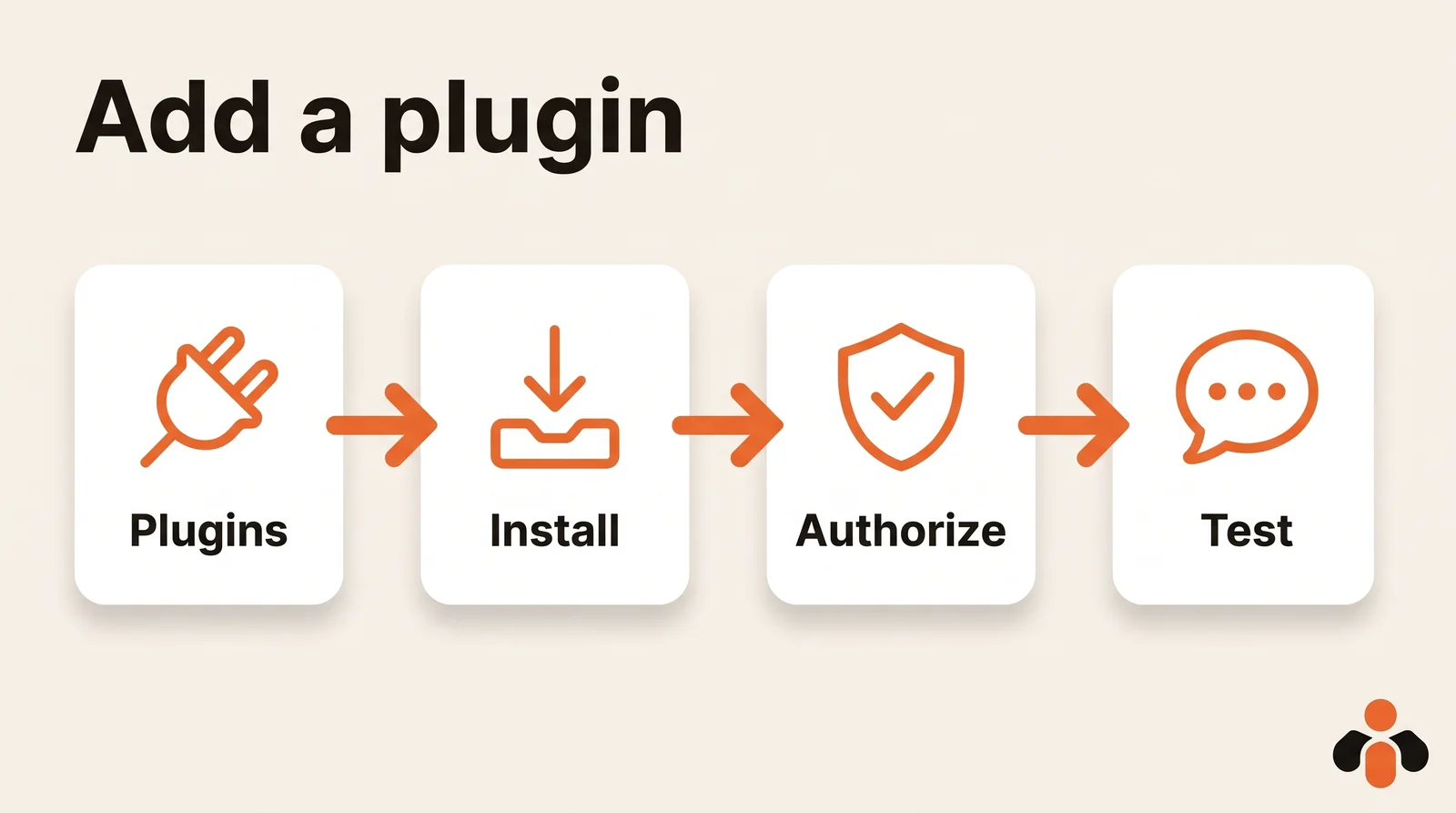
Here are the steps, based on OpenAI's guide to installing plugins:
- Open Plugins in the ChatGPT sidebar, or go to chatgpt.com/plugins.
- Search for the connector, select it and read its description and included apps.
- Select Install plugin. This may start the app's setup or authorization flow.
- If prompted, select Connect, sign in to the connector's service and review the permissions it asks for.
- Connect your Instagram professional account on the authorization screen, the way the connector describes it.
- Start a new chat, type @ and pick the plugin, then ask for something simple, like listing your connected accounts.
Later, you can review or remove the connection from Settings, then Plugins, then the app or connected account.
Adding a custom Instagram MCP server instead
If the connector you want is not in the directory, you can add it by its address. The path has changed: in the current Plugins experience, you don't need to turn on Developer Mode first. A tutorial that starts with "enable developer mode" is out of date.
The steps from OpenAI's help article on custom MCP servers:
- Go to Plugins.
- Select the plus button, then Add custom MCP server.
- Enter a name and, if you like, a description.
- Under Connection, enter the server's public HTTPS address. For a public endpoint, the URL includes the /mcp path.
- Configure authentication, read the risk warning and check I understand and want to continue.
- Select Create as a plugin, then review the tools ChatGPT discovered.
If the server's tools change later, the Refresh button on the Plugins page updates what ChatGPT knows.
Which ChatGPT plans can connect Instagram?
It depends on which path you take:
| Situation | What OpenAI's help center says |
|---|---|
| Plugin from the directory | Directory available across ChatGPT plans; each plugin depends on your plan, workspace, role and region |
| Custom MCP server, Business | Available on ChatGPT web; only admins and owners create and publish |
| Custom MCP server, Enterprise and Edu | Available on the web; admins can let selected members create connections |
| Custom MCP server, Pro | Custom servers with read/fetch permissions only |
| Custom MCP server on mobile | Web only |
The takeaway: posting needs write access. A custom server limited to reading can show your posts but not create one. Plus, Go and Free are not listed for custom servers on that page, so on those plans, a connector from the directory is the realistic route. OpenAI updates these pages often, so check them again before you pay for a plan for this purpose.
Posting to Instagram with ChatGPT: a sample conversation
Once the plugin is installed, you talk to ChatGPT like a coworker and mention the plugin with @. Here is a realistic request from someone running an online candle brand:
@Plugin Write three captions for our new fall candle, warm and a little playful, under 150 words each, with five hashtags. I'll pick one, then schedule it on our Instagram for Thursday at 6 pm with this photo: [link to the image].
ChatGPT drafts, you choose, then it calls the scheduling tool. Two details matter. The image has to be online: the connector receives it by its address. And for actions that write, ChatGPT asks for confirmation based on app permissions and the action's context, and some especially risky actions may be blocked.
You control how often it asks. App permission options include Always ask, Allow read actions, Allow low-risk actions and, for eligible apps, Allow all actions. Starting with Always ask is the safe choice: you read the caption, the date and the account before anything goes out.
Then make a habit of asking what is still scheduled. It is the fastest way to check the date, time and account, and to move or cancel a post before it goes live.
Last reflex: only connect servers from publishers you know. OpenAI puts it plainly: connecting to unsafe or untrusted MCP servers may increase exposure to security risks, including prompt injection. A server that returns outside text can slip instructions to ChatGPT, which is one more reason to approve each post.
Instagram's rules apply to every connector
A trustworthy connector goes through Meta's official API, which means Meta sets the rules, not ChatGPT. Three of them decide whether your post goes out.
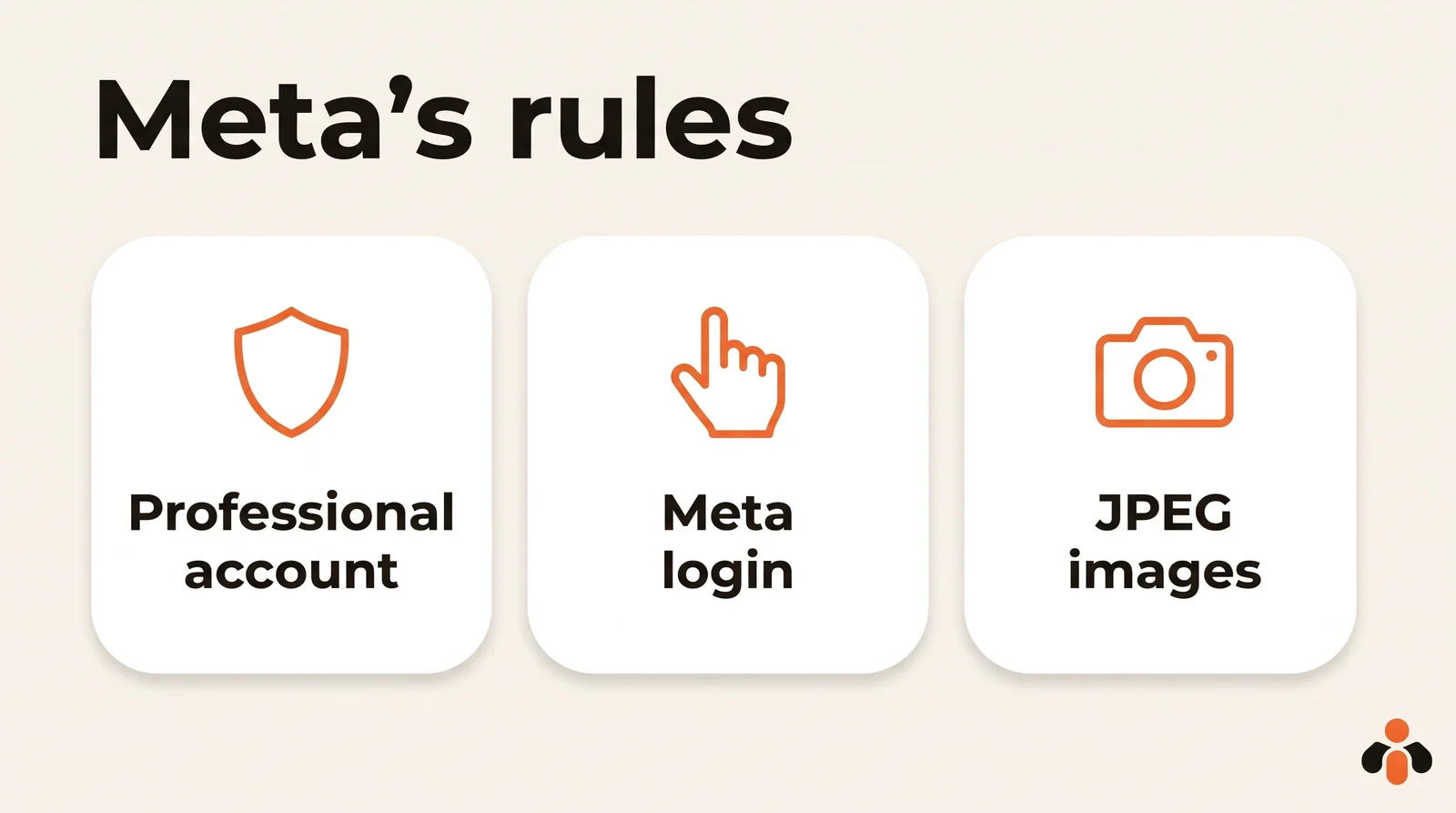
A professional account. To use the APIs, app users must have an Instagram professional account, and it can represent a business or a creator. Switching is done in the app, under For professionals, then Account type and tools. One catch: if your personal account is private, switching to a professional account makes it public.
Authorization on Meta's screen, never your password. Meta's platform terms say apps may use Meta products to authenticate users but must not separately request or collect a Meta user's login credentials. Be wary of any browser extension or service that asks for your Instagram password to "drive" the app. And an app that publishes for other people goes through review first: an app must complete Meta App Review to be granted Advanced Access. The connector's publisher does that once, not you.
Formats and limits. JPEG is the only image format supported for API publishing, carousels are limited to 20 images, videos or a mix of the two, and the media must be on a publicly accessible server at the time of the attempt. Shopping tags and filters are not supported. On volume, the same page states a limit of 100 API-published posts in a 24-hour moving period, with carousels counting as one post, but its carousel section mentions 50.
Under the hood, publishing takes two calls: create a media container, then publish it. The connector handles both, which helps explain a post that seems stuck.
Three ways to get ChatGPT content onto Instagram
Not everyone needs a chat. Here is how the main routes compare:
| Route | Best for | What it takes |
|---|---|---|
| Plugin in ChatGPT | Writing and posting from one conversation | A plugin from the directory, or a plan that accepts custom MCP servers |
| Automation tool (n8n, Make, Zapier) | A recurring task that runs without you | Building the workflow, connecting each account |
| Meta's API in your own code | Developers | Professional account, Meta app, App Review, tokens |
One popular result is worth a note. IFTTT's ChatGPT and Instagram page lists Instagram triggers, such as a new photo you posted, but zero Instagram actions. Its ready-made applet takes a new Instagram photo and posts it to X with a ChatGPT caption. It does not post to Instagram.
If you also use Claude, the same connectors usually work there too; our Claude guide shows that path. And if you post to more than Instagram, look for one connector that covers every network you use, so you write the request once instead of juggling one plugin per app.
A ready-made connector for ChatGPT and Instagram
Kreatoai is a connector of this kind, listed in ChatGPT's plugin directory since October 22, 2026. You open its listing, install the plugin and sign in, with nothing to copy. You can also add it as a custom MCP server with the address https://api.kreatoai.com/mcp/social and the steps above.
From ChatGPT, it publishes to Instagram, Facebook Pages, TikTok, personal LinkedIn profiles, YouTube Shorts, Bluesky and Google Business profiles, right away or at the time you choose, on the account you name. The same post can go to several networks and accounts at once. A scheduled post can be edited or canceled as long as it has not gone out, and ChatGPT can tell you whether a post went live, with its link. It also reads comments on your Instagram account and Facebook Pages, suggests replies and, after your approval, answers as the account. By default, ChatGPT asks for your approval before publishing or canceling.
What it does not do from ChatGPT: read your analytics or your private messages. There is a free plan with 10 posts a month, no credit card. The ChatGPT setup page walks through the connection with exact prompts, or you can create an account and connect Instagram first.
Key takeaways
- On its own, ChatGPT writes your captions; to publish or schedule on Instagram, it needs a connector, meaning a remote MCP server packaged as a plugin.
- The easiest path is a plugin from the directory: Plugins, Install plugin, authorize, then @ in a new chat. No developer mode needed.
- Custom MCP servers are for Business and Enterprise/Edu on the web; Pro is limited to read and fetch, and phones cannot add one.
- Check that the connector publishes, not just reads analytics.
- Meta requires a professional account and authorization on its own screen: never give your Instagram password to a third party.
- Start with Always ask, review each post before it goes out, and only connect servers from publishers you trust.
Frequently asked questions
- Can you connect ChatGPT to Instagram?
- Yes, through a plugin. Neither ChatGPT nor Instagram has a built-in switch for it. You open Plugins in ChatGPT, install a plugin that publishes to Instagram, sign in on the plugin's authorization screen and connect your Instagram professional account. After that, you type @ in a chat, pick the plugin and ask ChatGPT to post or schedule.
- Can ChatGPT post on Instagram for you?
- Only with a connector that can write. On its own, ChatGPT writes captions but has no access to your account. With a publishing plugin, it can publish or schedule a post with the image or video you give it. OpenAI's help center says ChatGPT may ask for confirmation before an action, depending on the app's permissions and the action's context.
- Do I need a professional Instagram account to post from ChatGPT?
- Yes, when the post goes through Meta's API, which is what a serious connector uses. Meta's documentation says app users must have an Instagram professional account, which can represent a business or a creator. You switch in the Instagram app, but a private personal account becomes public when it switches.
- Which ChatGPT plan do I need to connect Instagram?
- For a plugin listed in the directory, OpenAI says the plugin directory is available across ChatGPT plans, with each plugin depending on your plan, workspace, role and region. For a custom MCP server you add yourself, full MCP support is for Business and Enterprise/Edu on the web, and Pro users can connect custom servers with read and fetch permissions only.
- Can I connect Instagram to ChatGPT on my phone?
- You can browse and install directory plugins from Plugins on ChatGPT web, desktop or mobile. Adding a custom MCP server is different: OpenAI's help center answers that it is web only. Add a custom server from a computer, then use it in any chat.
- Does ChatGPT see my Instagram password?
- It should not. Meta's platform terms say apps may use Meta products to authenticate users but must not separately request or collect a Meta user's login credentials. You authorize access on Meta's own screen. Kreatoai, for example, never shows ChatGPT your passwords, private messages or payment details.
- Can ChatGPT schedule Instagram posts?
- Yes, if the connector supports scheduling. You give a date and time in plain words, and the connector holds the post until then. Kreatoai schedules Instagram posts from ChatGPT, and a scheduled post can be edited or canceled from the chat as long as it has not gone out.
Have it done for you
Kreatoai publishes and schedules your posts on all your networks, from your dashboard or by asking ChatGPT and Claude, and its agent answers your direct messages. Ten free posts every month, no credit card.
Try it free